25 best free Windows tools for 2026
June 7, 2026
How to fix volsnap.sys error 0xc000007b
June 10, 2026
Windows 10 support officially ended in October 2025, making Windows 11 the recommended operating system for security updates, new features, and ongoing Microsoft support. If you’re still using Windows 10, you may be wondering whether you can upgrade to Windows 11 for free.
The good news is that many Windows 10 users can upgrade to Windows 11 without purchasing a new license. In this guide, we’ll walk you through the requirements, upgrade process, and common issues you may encounter.
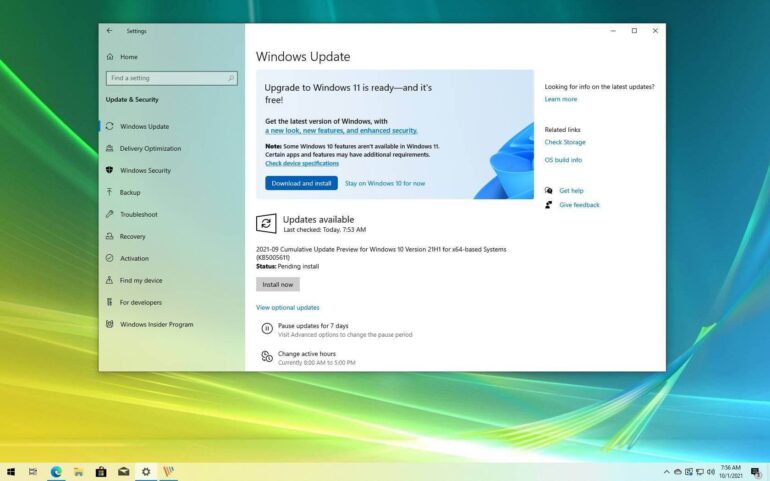
Can You Upgrade from Windows 10 to Windows 11 for Free?
Yes. If your PC is running a genuine and activated copy of Windows 10, you can usually upgrade to Windows 11 at no additional cost. Your existing Windows license will typically transfer automatically during the upgrade process.
Before upgrading, you’ll need to make sure your computer meets Microsoft’s minimum system requirements.
Windows 11 System Requirements
To install Windows 11, your PC should meet the following requirements:
| Component | Windows 11 Requirement |
|---|---|
| 🖥 Processor | 1 GHz or faster with 2 or more cores on a compatible 64-bit processor |
| ⚡ RAM | 4 GB Minimum |
| 💾 Storage | 64 GB or Larger |
| 🔒 TPM | Trusted Platform Module (TPM) version 2.0 |
| 🛡 Secure Boot | UEFI firmware with Secure Boot capability |
| 🎮 Graphics | DirectX 12 compatible graphics card with WDDM 2.0 driver |
| 📺 Display | 720p HD display larger than 9 inches diagonally |
| 🌐 Internet | Internet connection and Microsoft account required for setup |
How to Check If Your PC Is Compatible
The easiest way to verify compatibility is to use Microsoft’s PC Health Check tool.
After installing the tool:
- Open PC Health Check.
- Click Check Now.
- Review the compatibility results.
- Follow any recommendations provided.
If your PC passes the compatibility check, you’re ready to proceed with the upgrade.
Method 1: Upgrade Through Windows Update
This is the easiest method for most users.
Step 1: Back Up Important Files
Although the upgrade process usually preserves your files and applications, it’s always a good idea to create a backup before making major system changes.
Step 2: Open Windows Update
- Click the Start menu.
- Open Settings.
- Select Update & Security.
- Click Windows Update.
Step 3: Check for Updates
Click Check for Updates.
If your device is eligible, you’ll see a Windows 11 upgrade notification.
Step 4: Download and Install
- Click Download and Install.
- Accept the license terms.
- Allow Windows to download the upgrade files.
- Restart your PC when prompted.
The installation may take anywhere from 30 minutes to several hours depending on your hardware.
Method 2: Use the Windows 11 Installation Assistant
If Windows Update does not offer the upgrade, you can use Microsoft’s Installation Assistant.
Steps:
- Download the Windows 11 Installation Assistant from Microsoft’s website.
- Run the installer.
- Accept the terms.
- Follow the on-screen instructions.
- Allow the tool to complete the upgrade.
This method is often faster than waiting for Windows Update to offer the upgrade automatically.
Common Upgrade Problems and Fixes
TPM 2.0 Not Detected
Many modern PCs have TPM disabled in the BIOS.
To fix this:
- Restart your PC.
- Enter BIOS or UEFI settings.
- Enable TPM or Intel PTT / AMD fTPM.
- Save changes and restart.
Secure Boot Disabled
Windows 11 requires Secure Boot.
To enable it:
- Enter BIOS settings.
- Locate Secure Boot options.
- Enable Secure Boot.
- Save and restart.
Not Enough Storage
Free up disk space by:
- Removing temporary files
- Uninstalling unused applications
- Emptying the Recycle Bin
- Moving large files to external storage
Will You Lose Your Files?
No. A standard Windows 11 upgrade keeps:
- Documents
- Pictures
- Videos
- Installed applications
- Personal settings
However, creating a backup before upgrading is strongly recommended.
Do You Need a New Windows 11 License?
If your Windows 10 installation is genuine and activated, Windows 11 will usually activate automatically after the upgrade.
However, if:
- Your Windows 10 installation isn’t activated
- You’ve replaced major hardware components
- You’re building a new PC
- You want additional business features
You may need a Windows 11 license.
Windows 11 Home vs Windows 11 Pro
Windows 11 Pro includes additional features such as:
- BitLocker Drive Encryption
- Remote Desktop Host
- Hyper-V Virtualization
- Group Policy Management
- Business Security Features
For home users, Windows 11 Home is often sufficient, while professionals and businesses typically benefit from Windows 11 Pro.