Managing multiple Windows machines, whether running Windows 10 or Windows 11, often involves recurring issues like low storage, slow startups, or unreliable network connections. Instead of navigating through Settings panels, Control Panel, or hidden system menus, PowerShell provides fast, practical solutions. These commands help quickly identify and resolve common problems, saving time and reducing guesswork.
Find the Biggest Storage Hogs
Running out of storage can become urgent quickly. Traditional methods, such as opening Settings > System > Storage and manually checking each category or folder, are slow and sometimes unclear. PowerShell can directly show which folders occupy the most space, making cleanup faster and more efficient.
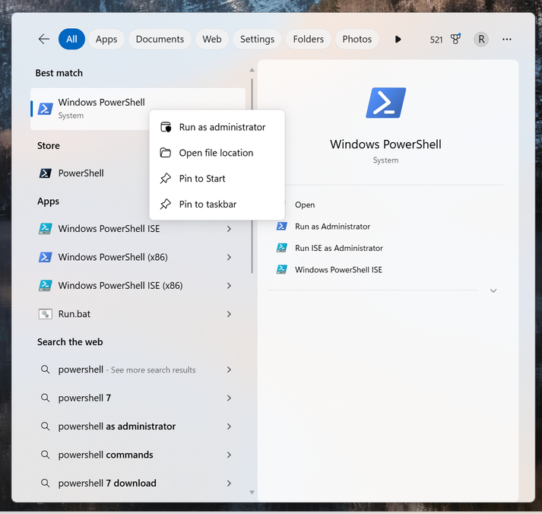
Open Start, type PowerShell, right-click it, and select Run as administrator. Then run the following command, replacing the path with the folder or drive to analyze, such as C:\Users\YourName:
Get-ChildItem "C:\Users\YourName" -Directory | ForEach-Object {
 $size = (Get-ChildItem $_.FullName -Recurse -File -ErrorAction SilentlyContinue | Measure-Object Length -Sum).Sum
 [PSCustomObject]@{
 Folder = $_.FullName
 SizeGB = [math]::Round($size / 1GB, 2)
 }
}
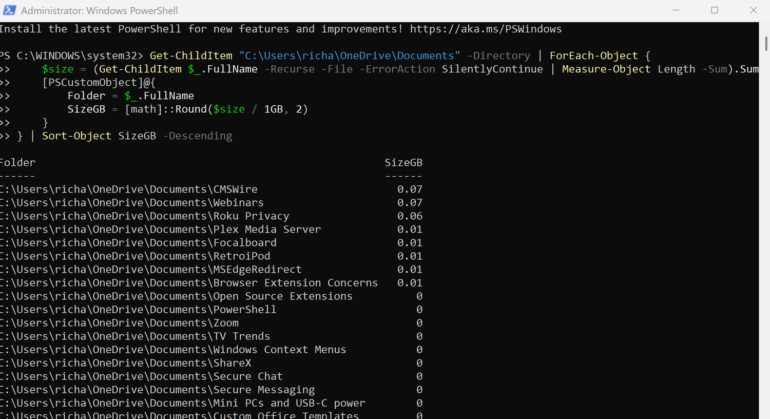
This command scans the selected location and produces a sorted list of the largest folders. Start broad, then drill down into the largest items for efficient storage cleanup. This method ensures that the biggest space savings are targeted first, rather than uninstalling smaller apps or searching randomly for large files.
Improve Startup Performance
Slow startup is a common frustration. PowerShell can list all startup programs and services, helping to identify those that delay boot time. Removing or disabling unnecessary startup items can make Windows boot significantly faster.
Troubleshoot Network Issues
PowerShell also allows fast network diagnostics. Commands can check connectivity, reset network adapters, or flush the DNS cache. This provides clear insights into which network components are failing and can quickly restore a stable connection.
System Maintenance Made Simple
PowerShell can automate routine maintenance, such as clearing temporary files, checking for corrupted system files, or running disk cleanup. These commands make regular upkeep easier and reduce manual troubleshooting.
Using PowerShell for these tasks turns Windows maintenance into a faster, more predictable process. It eliminates repeated menu searches, trial-and-error fixes, and guesswork. By adopting these commands, users can resolve common issues quickly and keep Windows running smoothly.