How to check your Windows activation status
June 11, 2026
How to fix Windows update error 0x80070057
June 11, 2026
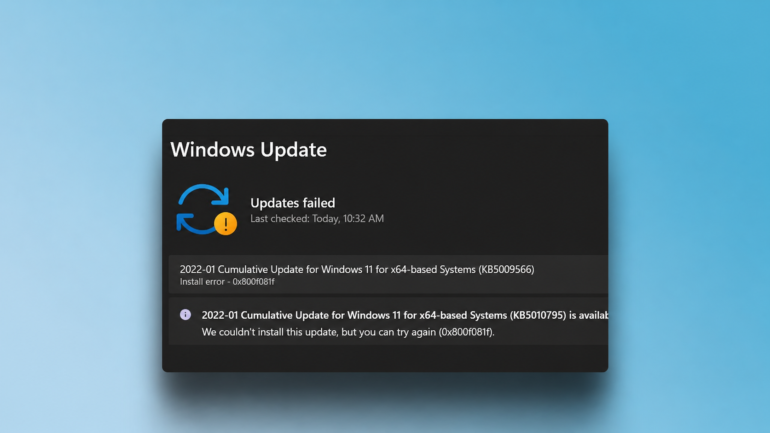
Windows Update Error 0x800F081F is a frequently encountered issue in both Windows 11 and Windows 10. It usually occurs when the operating system is unable to locate the necessary files needed to install a Windows update, optional feature, or components such as the .NET Framework, preventing the installation from completing successfully.
If you’re seeing the message “The source files could not be found” or Error Code: 0x800f081f, don’t worry. In this guide, we’ll walk you through several proven solutions to get Windows Update working again.
What Causes Windows Update Error 0x800f081f?
This error usually occurs because:
- Corrupted Windows Update components
- Missing system files
- Damaged Windows image files
- Problems with the .NET Framework
- Incomplete Windows updates
- Incorrect Windows Update settings
Fortunately, most cases can be resolved without reinstalling Windows.
Method 1: Run the Windows Update Troubleshooter
Microsoft includes a built-in troubleshooter that can automatically detect and fix update-related issues.
Steps:
- Open Settings
- Navigate to System > Troubleshoot
- Click Other Troubleshooters
- Find Windows Update
- Click Run
Allow Windows to complete the scan and apply any recommended fixes.
Method 2: Repair Corrupted System Files Using SFC
Corrupted system files are a common cause of Error 0x800f081f.
Open Command Prompt as Administrator and run:
sfc /scannowThe System File Checker will scan your PC and automatically repair damaged Windows files.
After the scan finishes:
- Restart your computer
- Try Windows Update again
Method 3: Repair the Windows Image Using DISM
If SFC cannot repair all files, Microsoft’s DISM tool can rebuild the Windows image.
Open Command Prompt as Administrator and run the following commands one by one:
DISM /Online /Cleanup-Image /CheckHealthDISM /Online /Cleanup-Image /ScanHealthDISM /Online /Cleanup-Image /RestoreHealthThe process may take several minutes depending on your system.
Once completed:
- Restart your PC
- Check for updates again
Method 4: Reset Windows Update Components
Sometimes the Windows Update cache becomes corrupted.
Open Command Prompt as Administrator and execute:
net stop wuauserv
net stop bits
net stop cryptsvc
Rename the update cache folders:
ren C:\Windows\SoftwareDistribution SoftwareDistribution.oldren C:\Windows\System32\catroot2 catroot2.oldRestart update services:
net start wuauserv
net start bits
net start cryptsvc
Restart your computer and run Windows Update again.
Method 5: Install the .NET Framework Manually
Error 0x800f081f often appears when Windows fails to install the .NET Framework.
To enable it manually:
- Press Windows + R
- Type:
optionalfeatures- Press Enter
- Locate .NET Framework 3.5
- Enable the feature
- Click OK
Allow Windows to download and install the required files.
Method 6: Download Updates Manually
If Windows Update continues to fail, you can manually install the update.
- Open Windows Update History
- Note the KB number of the failed update
- Visit the Microsoft Update Catalog
- Search for the KB number
- Download the correct version
- Install it manually
This method often bypasses update-related issues.
Method 7: Perform an In-Place Upgrade Repair
If nothing else works, an in-place repair upgrade can restore Windows without affecting your files.
Steps:
- Download the latest Windows 11 or Windows 10 ISO from Microsoft
- Mount the ISO
- Run Setup.exe
- Choose Keep Personal Files and Apps
- Complete the installation
This replaces damaged Windows components while preserving your data.
How to Prevent Error 0x800f081f in the Future
To avoid future update errors:
- Keep Windows updated regularly
- Avoid force-shutdowns during updates
- Run Disk Cleanup periodically
- Maintain sufficient free disk space
- Scan for malware regularly
- Install updates as soon as they become available