How to fix Windows update error 0x80070002
June 11, 2026
How to fix Windows update error 0x80070424
June 12, 2026
Learn how to fix Windows update error 0x80070005 (Access Denied) in Windows 11 and Windows 10
Windows Update Error 0x80070005, commonly known as the “Access Denied” error, is one of the most frustrating problems Windows users encounter. This issue prevents Windows Update from downloading or installing important security patches, feature updates, and cumulative updates.
If you’re seeing messages such as:
- Error 0x80070005
- Access Denied
- Windows Update Failed
- We couldn’t complete the updates
- Installation failed
this guide will help you fix the problem and restore Windows Update functionality.
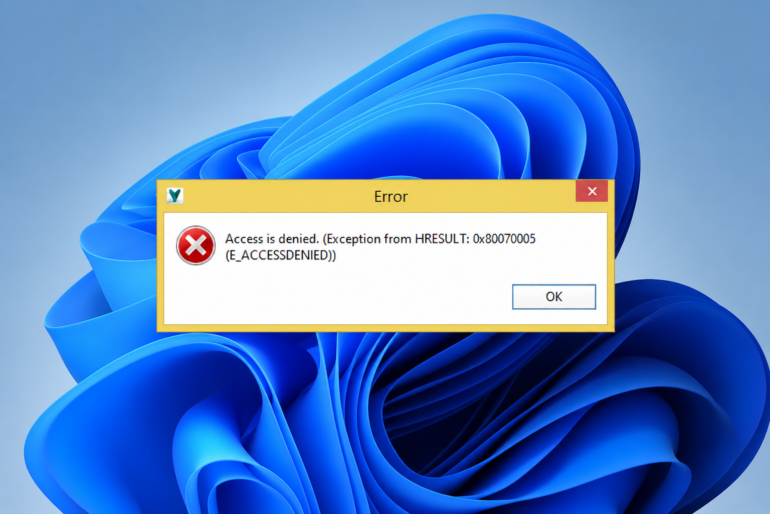
What Is Windows Update Error 0x80070005?
Error 0x80070005 usually indicates that Windows does not have the required permissions to access files, folders, or registry entries needed during the update process.
In simple terms, Windows Update attempts to modify system files but receives an “Access Denied” response.
Common Causes of Error 0x80070005
| Cause | Description |
|---|---|
| Corrupted System Files | Damaged Windows components |
| Incorrect Permissions | Windows Update lacks access rights |
| Third-Party Antivirus | Security software blocks updates |
| Corrupted Update Cache | Damaged update files |
| Registry Problems | Incorrect Windows settings |
| Malware Infection | Malicious software interferes with updates |
Quick Fix Checklist
Before trying advanced solutions:
✅ Restart your computer
✅ Disable third-party antivirus temporarily
✅ Check internet connection
✅ Ensure you’re signed in as Administrator
✅ Verify you have sufficient disk space
If the error remains, continue with the solutions below.
Method 1: Run the Windows Update Troubleshooter
Windows includes a built-in repair tool designed specifically for update issues.
Steps
- Open Settings
- Navigate to System → Troubleshoot
- Click Other Troubleshooters
- Find Windows Update
- Click Run
The troubleshooter can automatically detect:
- Permission problems
- Corrupted update components
- Missing update services
- Common Windows Update errors
Method 2: Repair Corrupted System Files Using SFC
Damaged Windows files frequently cause Error 0x80070005.
Open Command Prompt as Administrator and run:
Command
What This Command Does
| Function | Purpose |
|---|---|
| Scan | Checks all protected system files |
| Detect | Finds corruption |
| Repair | Replaces damaged files automatically |
Wait for the scan to complete before restarting your PC.
Method 3: Repair Windows Components Using DISM
If SFC cannot repair all files, use Microsoft’s DISM utility.
Run the following commands one by one:
Check Health
Scan Health
Restore Health
Why DISM Helps
DISM repairs the Windows Component Store, which is used by Windows Update to install updates correctly.
Method 4: Reset Windows Update Components
Corrupted update components are among the most common causes of Error 0x80070005.
Stop update services:
Rename update folders:
Restart services:
Restart Windows afterward.
Method 5: Check Folder Permissions
Since Error 0x80070005 is directly related to permissions, checking access rights can often solve the issue.
Verify Access To:
| Folder |
|---|
| C:\Windows |
| C:\Windows\SoftwareDistribution |
| C:\ProgramData |
Ensure the SYSTEM account and Administrators group have Full Control permissions.
Method 6: Temporarily Disable Antivirus Software
Many third-party antivirus programs aggressively monitor Windows Update activity.
Programs known to occasionally interfere include:
- Avast
- AVG
- Bitdefender
- Norton
- McAfee
Disable protection temporarily and retry the update.
If the update succeeds, add Windows Update exclusions inside your antivirus software.
Method 7: Scan for Malware
Malware can modify Windows permissions and block updates.
Run:
- Microsoft Defender Full Scan
- Microsoft Defender Offline Scan
- Malwarebytes Scan
Removing infections often resolves permission-related update failures.
Method 8: Install Updates Manually
If Windows Update continues to fail:
- Open Update History
- Note the KB number
- Visit Microsoft Update Catalog
- Search the KB number
- Download the correct update
- Install manually
This bypasses the Windows Update service entirely.
How to Prevent Error 0x80070005
Following good maintenance practices reduces update problems.
| Recommendation | Benefit |
|---|---|
| Keep Windows Updated | Fewer cumulative update issues |
| Run SFC Monthly | Detect corruption early |
| Avoid Forced Shutdowns | Prevent file damage |
| Maintain Free Disk Space | Ensure updates install correctly |
| Use Trusted Antivirus Software | Reduce software conflicts |
Frequently Asked Questions
Is Error 0x80070005 Dangerous?
No. It is typically a permissions-related issue and does not indicate hardware failure.
Can Malware Cause Error 0x80070005?
Yes. Malware can alter Windows permissions and block update access.
Does Resetting Windows Fix Error 0x80070005?
Usually yes, but resetting Windows should only be considered after trying the solutions above.