win-os-img-featured-optkeysCategoriesBlog

Free tools for Windows: Optimize, Secure, Work

Windows users want to work faster, stay safe, and save money. The good news is you do not have to pay for software to get these benefits. This guide shows the top five free tools for Windows. Each tool comes with official download links and simple instructions.


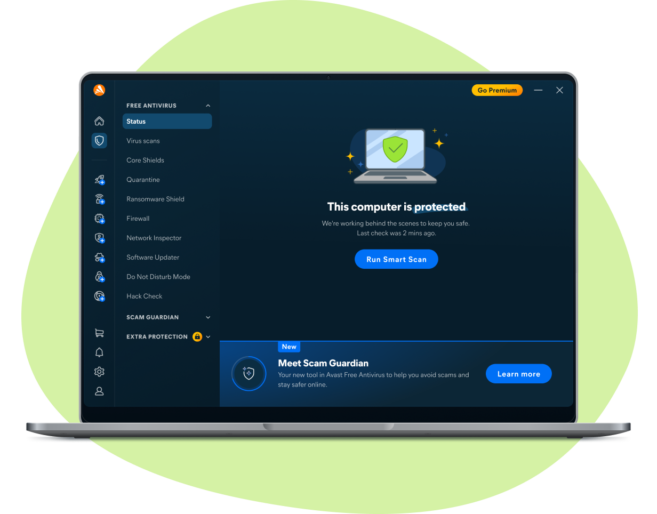
1. Free Antivirus Software

avast-anti-virus-img

Keeping your PC safe is important. Free antivirus programs protect your files and block malware.

Recommended Options:

How to Install:

  1. Download the installer from the official website.
  2. Run the file and follow the instructions.
  3. Select recommended settings.
  4. Run a full system scan to check your PC.

Tip: Turn on automatic updates. This keeps your antivirus up to date and your PC safe.


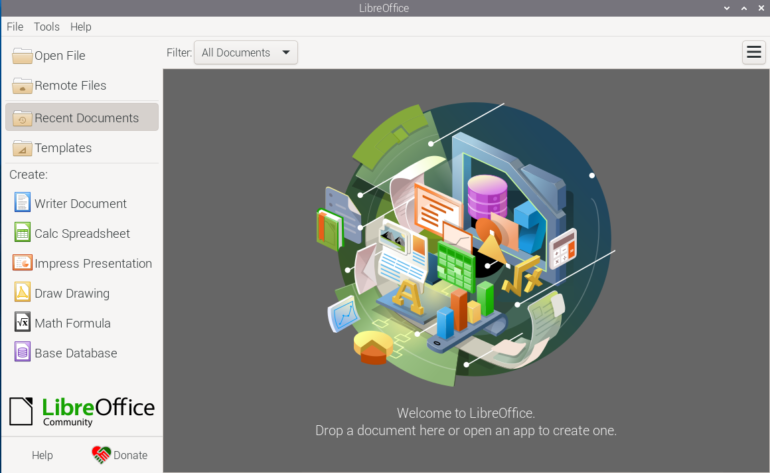
2. Free Office Alternatives

Microsoft Office is expensive, but free alternatives let you create documents, spreadsheets, and presentations.

Recommended Programs:

Why Use Them:

  • Work with Word, Excel, and PowerPoint files.
  • Save files to the cloud.
  • Easy to install and lightweight.

Tip: Set your favorite file formats and customize the interface for faster work.


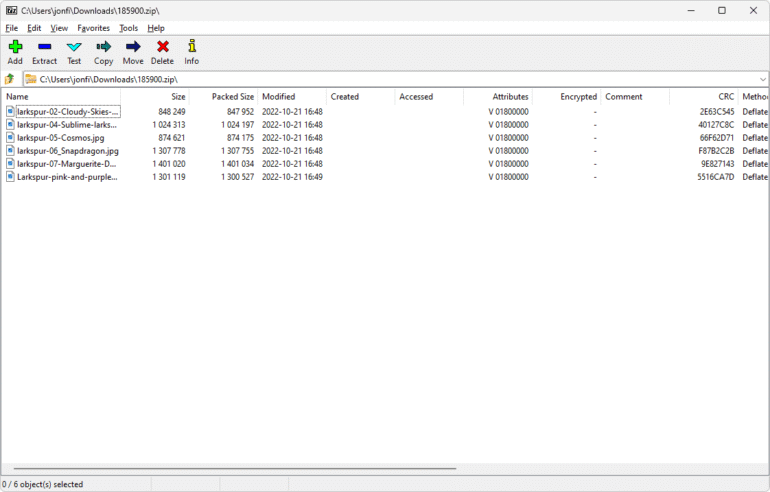
3. File Compression Tools

Free tools help you organize files and save space.

Recommended Programs:

Benefits:

  • Compress large files for easy storage.
  • Extract files quickly.
  • Encrypt sensitive data for safety.

Tip: Use these tools to send large files via email or upload them faster to the cloud.


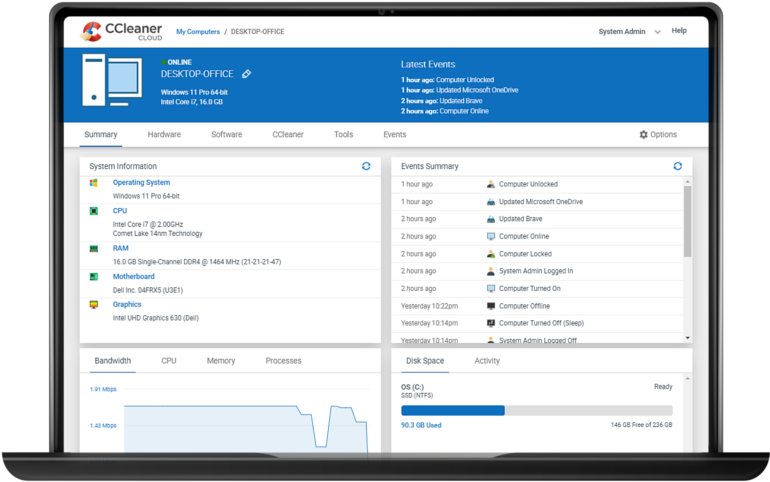
4. System Optimization Utilities

Over time, Windows can slow down. Free tools can help your PC run faster.

Recommended Tools:

  • CCleaner FreeDownload Here
  • Windows Storage Sense – Built into Windows 10/11 (Settings → System → Storage)

Steps to Optimize:

  1. Remove temporary files using Storage Sense.
  2. Disable unnecessary startup apps.
  3. Run CCleaner to clear cache and junk files.
  4. Check Windows updates regularly.

Tip: Defragment HDDs monthly. SSDs can use the built-in optimization tool.


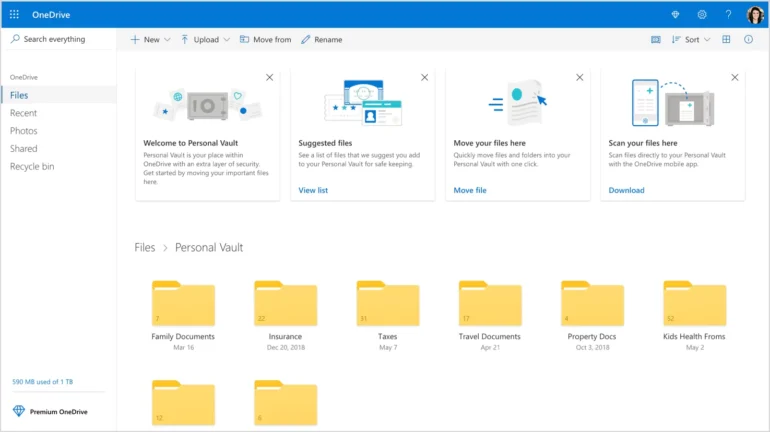
5. Cloud Storage Services

Backing up files keeps your data safe. Free cloud storage is easy to use.

Recommended Options:

Benefits:

  • Access files on any device.
  • Prevent accidental data loss.
  • Share files easily with others.

Tip: Sync important folders automatically. Use strong passwords and enable two-factor authentication.


Windows-registry-img-optkeysCategoriesBlog

How to avoid these 5 risky Windows registry tweaks

The Windows Registry is a powerful tool that stores configuration settings for your operating system and installed applications. While it can be tempting to tweak the Registry to customize Windows or improve performance, some changes can be dangerous. Certain “safe-sounding” tweaks can corrupt files, cause software errors, or even make Windows unbootable. Understanding which tweaks to avoid and how to protect your system is essential for any Windows user.


1. Backup the Registry Before Making Changes

Before touching the Registry, always create a backup. Windows allows you to export specific keys or the entire Registry to a safe location. This ensures you can restore your system if a tweak goes wrong. Without a backup, even minor mistakes can lead to file corruption or system instability.


2. Avoid Unknown Registry Scripts

Many online guides provide Registry scripts claiming to “speed up Windows” or “unlock hidden features.” Downloading or running scripts from unverified sources is risky. Malicious or incorrect scripts can overwrite critical Registry entries, corrupt files, or disable essential system functions. Only make changes you fully understand.


3. Be Careful with File System Tweaks

Tweaks that change file associations, enable hidden system files, or alter storage paths can be particularly dangerous. Even small errors in these entries can lead to data loss or corrupted files. Avoid experimental tweaks unless you have advanced knowledge of Windows internals.


4. Avoid Tweaks That Disable Security Features

Some Registry tweaks claim to improve performance by disabling Windows security features like UAC (User Account Control) or Windows Defender. While these may seem harmless, disabling security can leave your system vulnerable to malware and file corruption. Stick to safer performance tweaks that don’t compromise security.


5. Test Changes in a Safe Environment

If you want to experiment with Registry tweaks, use a virtual machine or secondary computer. This allows you to test changes without risking your main system. Once you confirm that a tweak is safe, you can carefully apply it to your main device.


Protect Your System and Files

The Windows Registry is powerful, but with power comes risk. Avoid risky tweaks that promise quick fixes or performance boosts without proper understanding. Always back up your system, verify sources, and test changes in a controlled environment. By taking these precautions, you can enjoy a customized Windows experience without putting your files or system stability at risk.

Windows 10 & 11 Fixes-OPTKEYSCategoriesBlog

How to fix common Windows 10 & 11 issues fast

Introduction

Windows 10 and Windows 11 power millions of PCs worldwide, offering speed, stability, and a modern user experience. But even the most reliable systems run into problems over time. From slow performance and update failures to Wi-Fi issues and system crashes, these errors can disrupt productivity and frustrate users.

This comprehensive guide breaks down the most common Windows 10 and 11 issues and provides clear, proven solutions to fix them quickly. Whether you’re dealing with performance drops, system errors, or hardware conflicts, these fixes will help restore your PC to optimal condition.


1. Slow Performance

One of the most frequent complaints among Windows users is a sluggish system. This usually develops over time and is often caused by overloaded startup programs, outdated drivers, or limited system resources.

Key Fixes:

  • Disable unnecessary startup apps via Task Manager
  • Install the latest drivers for all hardware components
  • Scan your system for malware or unwanted programs
  • Free up disk space using built-in cleanup tools
  • Upgrade RAM if your system struggles with multitasking

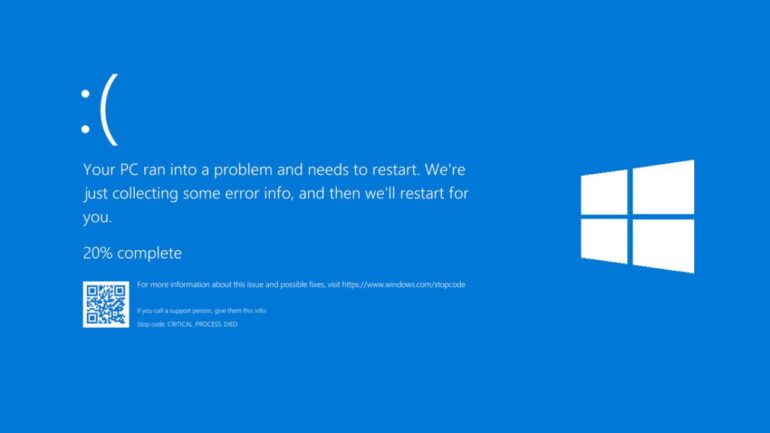
2. Blue Screen of Death (BSOD)

The BSOD is a critical system error that forces Windows to shut down. It’s typically linked to hardware faults, driver conflicts, or corrupted system files.

Key Fixes:

  • Update or reinstall problematic drivers
  • Run SFC /scannow to repair system files
  • Check RAM and hardware connections
  • Monitor system temperature to prevent overheating

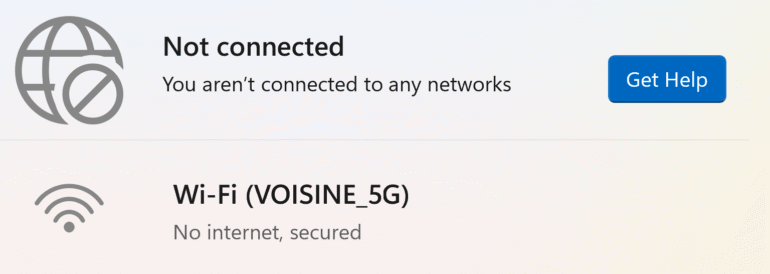
3. Wi-Fi Connectivity Issues

Unstable or missing internet connections are often caused by outdated drivers or incorrect network settings.

Key Fixes:

  • Restart your router and modem
  • Update network drivers
  • Reset network settings in Windows
  • Ensure correct network configuration

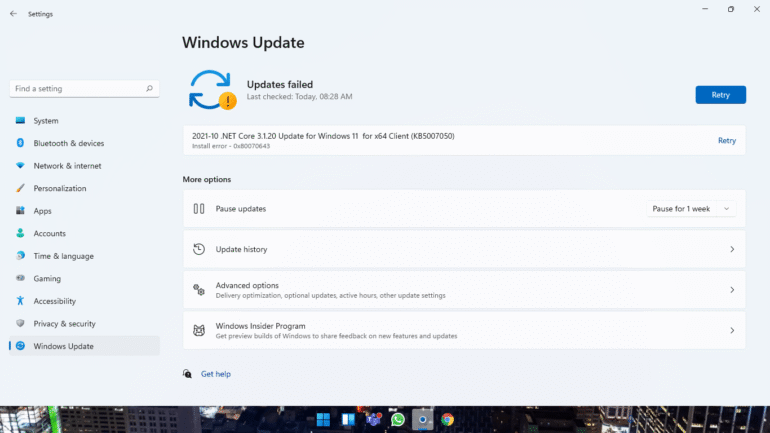
4. Windows Update Errors

Failed updates can leave your system vulnerable and outdated. These issues often stem from corrupted files or low storage space.

Key Fixes:

  • Run the Windows Update Troubleshooter
  • Clear the SoftwareDistribution cache
  • Ensure sufficient disk space is available
  • Restart update services

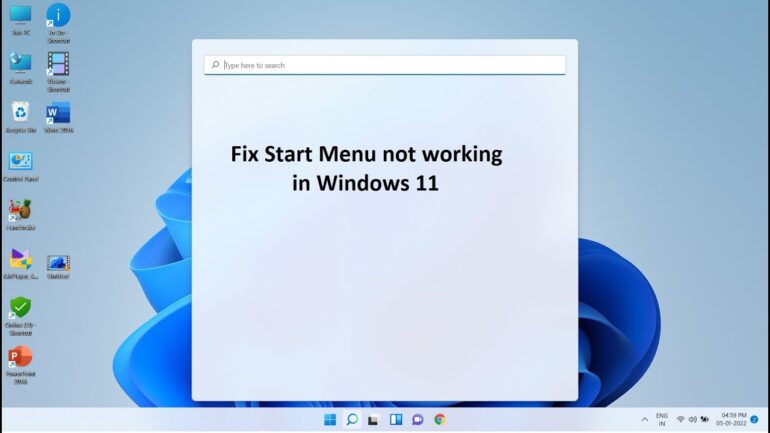
5. Start Menu Not Working

A broken Start Menu can make navigation difficult and reduce productivity.

Key Fixes:

  • Restart Windows Explorer from Task Manager
  • Run SFC and DISM commands
  • Create a new user profile if needed

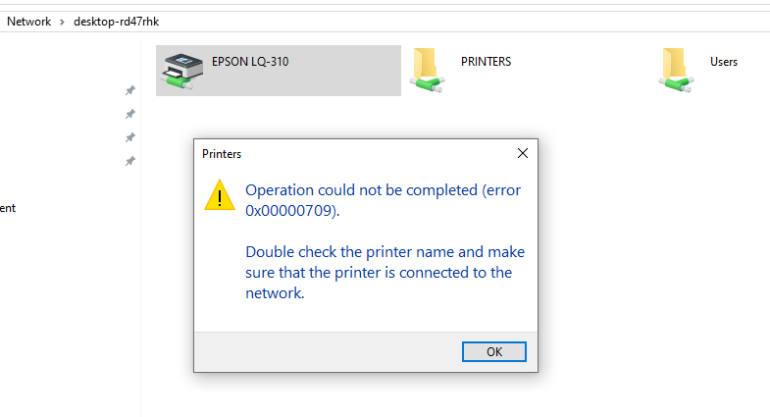
6. Printer Connectivity Problems

Printers failing to connect or going offline is a common issue in both home and office environments.

Key Fixes:

  • Update printer drivers
  • Check network connection and settings
  • Set the printer as default and ensure it’s online

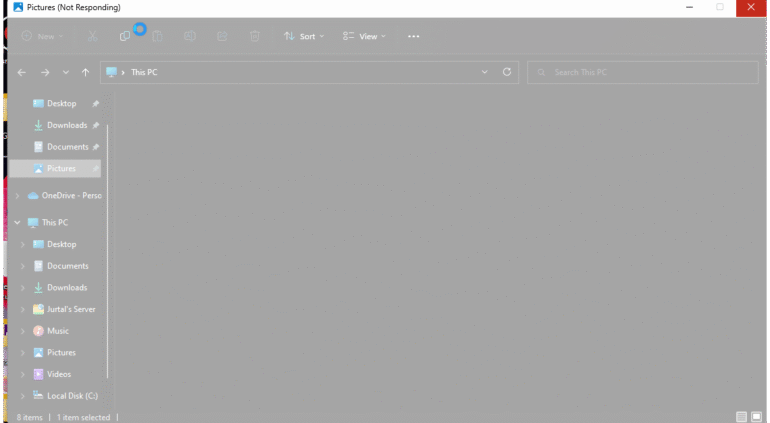
7. File Explorer Crashes

Frequent crashes in File Explorer can interrupt workflow and signal deeper system issues.

Key Fixes:

  • Clear File Explorer history
  • Update Windows بالكامل
  • Run SFC and DISM scans

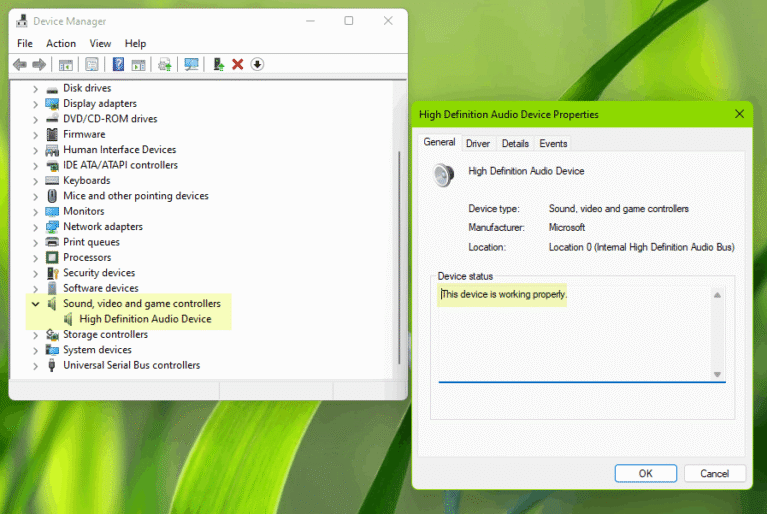
8. Audio Problems

Missing or distorted sound can result from incorrect settings or outdated drivers.

Key Fixes:

  • Update audio drivers
  • Select the correct output device
  • Check hardware connections

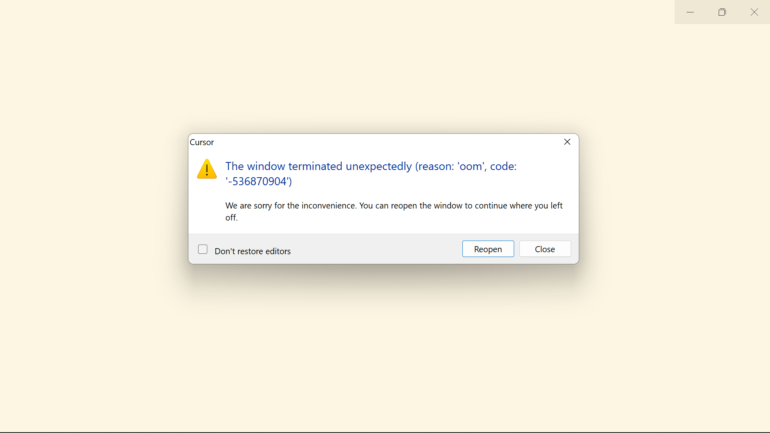
9. Application Crashes

Apps that freeze or crash unexpectedly are often caused by compatibility issues or corrupted files.

Key Fixes:

  • Update applications regularly
  • Use compatibility mode for older software
  • Reinstall problematic programs

10. High Disk Usage

When disk usage hits 100%, your system becomes slow and unresponsive.

Key Fixes:

  • Disable unnecessary background services
  • Scan for malware
  • Identify resource-heavy apps in Task Manager
  • Optimize indexing and system services
PowerShell-featured-img-optkeysCategoriesBlog

How to Fix Windows With 4 PowerShell Commands

Managing multiple Windows machines, whether running Windows 10 or Windows 11, often involves recurring issues like low storage, slow startups, or unreliable network connections. Instead of navigating through Settings panels, Control Panel, or hidden system menus, PowerShell provides fast, practical solutions. These commands help quickly identify and resolve common problems, saving time and reducing guesswork.

Find the Biggest Storage Hogs

Running out of storage can become urgent quickly. Traditional methods, such as opening Settings > System > Storage and manually checking each category or folder, are slow and sometimes unclear. PowerShell can directly show which folders occupy the most space, making cleanup faster and more efficient.

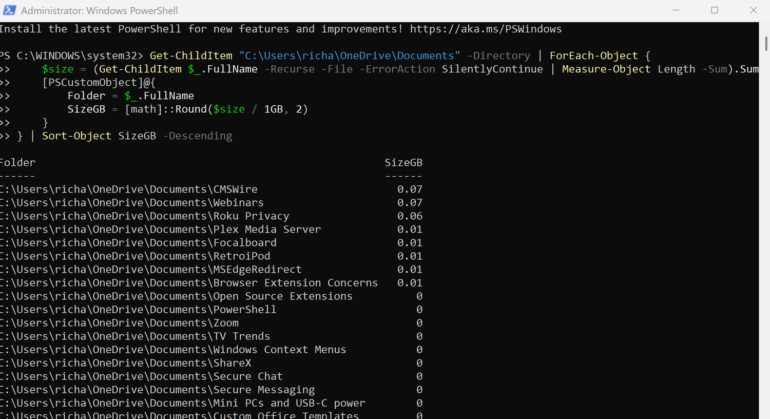
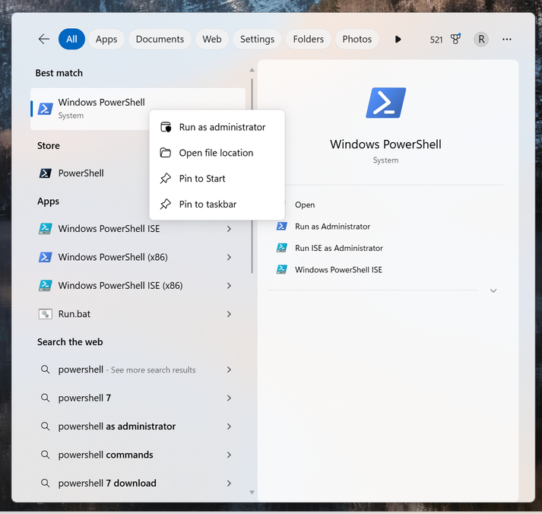
Open Start, type PowerShell, right-click it, and select Run as administrator. Then run the following command, replacing the path with the folder or drive to analyze, such as C:\Users\YourName:

Get-ChildItem "C:\Users\YourName" -Directory | ForEach-Object {
$size = (Get-ChildItem $_.FullName -Recurse -File -ErrorAction SilentlyContinue | Measure-Object Length -Sum).Sum
[PSCustomObject]@{
Folder = $_.FullName
SizeGB = [math]::Round($size / 1GB, 2)
}
}

PowerShell
PowerShell Admin

This command scans the selected location and produces a sorted list of the largest folders. Start broad, then drill down into the largest items for efficient storage cleanup. This method ensures that the biggest space savings are targeted first, rather than uninstalling smaller apps or searching randomly for large files.

Improve Startup Performance

Slow startup is a common frustration. PowerShell can list all startup programs and services, helping to identify those that delay boot time. Removing or disabling unnecessary startup items can make Windows boot significantly faster.

Troubleshoot Network Issues

PowerShell also allows fast network diagnostics. Commands can check connectivity, reset network adapters, or flush the DNS cache. This provides clear insights into which network components are failing and can quickly restore a stable connection.

System Maintenance Made Simple

PowerShell can automate routine maintenance, such as clearing temporary files, checking for corrupted system files, or running disk cleanup. These commands make regular upkeep easier and reduce manual troubleshooting.

Using PowerShell for these tasks turns Windows maintenance into a faster, more predictable process. It eliminates repeated menu searches, trial-and-error fixes, and guesswork. By adopting these commands, users can resolve common issues quickly and keep Windows running smoothly.

Windows 10 Tips-OPTKeysCategoriesBlog

Windows 10 Performance Tips: 10 Ways to Speed Up Your PC

If your computer feels slow or unresponsive, there are several ways to speed up your Windows 10 PC and improve overall performance. Windows 10 is a powerful operating system, but its many built-in features and apps can consume system resources, causing lag and delays. From removing unused programs and disabling unnecessary effects to upgrading RAM or switching to an SSD, these proven tips can help your PC run faster and more efficiently.

Common causes of slower performance include limited storage space, outdated hardware, and unnecessary background programs. By removing unused apps, managing startup programs, and considering hardware upgrades, you can significantly speed up your Windows 10 PC and restore it to peak performance.

1. Check for the Latest Windows 10 Updates

Keeping your Windows 10 PC up to date is one of the easiest ways to boost performance. Microsoft regularly releases updates to fix bugs, patch security issues, and improve system efficiency. Some updates are minor, while others include major changes, such as updated device drivers, which can significantly enhance your PC’s speed and stability.

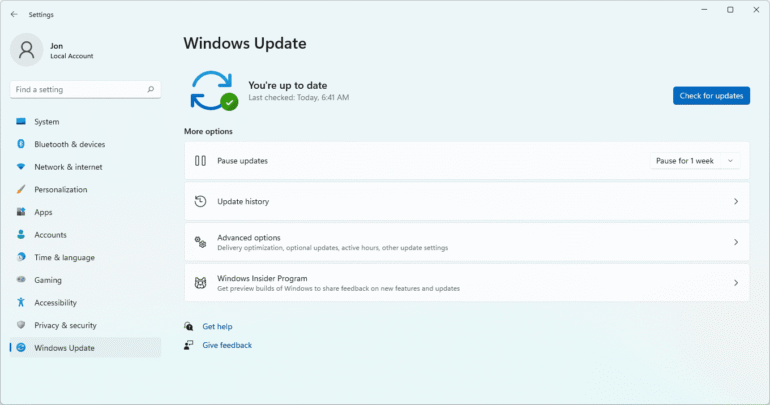
To check for updates, open the Windows menu and go to Settings > Update & Security > Windows Update > Check for Updates. If any updates are available, click Install now, then restart your PC. After the restart, you should notice smoother performance and improved responsiveness.

2. Restart Your PC Regularly

Although it may seem obvious, regularly restarting your PC can significantly improve performance. Many users leave their computers running for days or weeks, often using Sleep mode instead of fully shutting down. Over time, this causes background programs and processes to accumulate in your PC’s memory, slowing down everyday tasks like opening apps or accessing files.

Shutting down or restarting your PC allows the system to clear memory and refresh processes, helping it run more efficiently. If you notice slow performance during routine tasks, try restarting your PC daily. Always remember to save your work before shutting down or restarting to avoid losing any progress.

3. Disable Startup Programs to Improve Performance

Having too many programs launch automatically when your PC starts can slow down Windows 10 significantly. Many applications set themselves to run at startup during installation, consuming memory and system resources before you even begin using your PC.

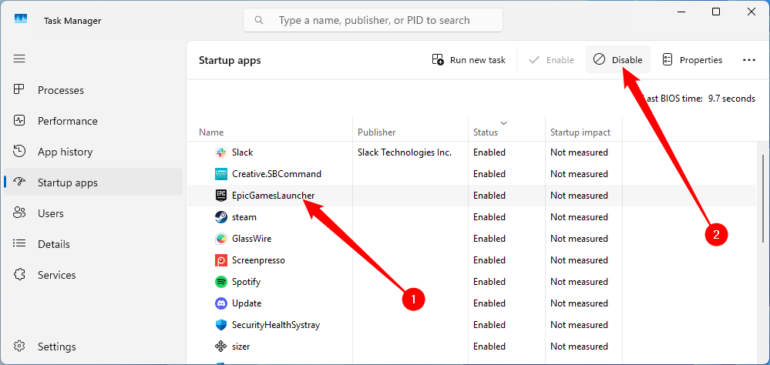
To manage startup programs, open Task Manager and navigate to the Startup tab. Here, the Startup impact column shows which programs affect boot time the most. Programs with a high impact are usually the main culprits behind slow startup and lag.

To prevent a program from launching at startup, right-click it and select Disable. Reducing the number of startup programs can help your PC boot faster and run smoother overall.

4. Use Disk Cleanup to Free Up Space

Windows 10 includes a built-in Disk Cleanup tool that helps remove unnecessary temporary files and free up valuable storage. Over time, files such as image thumbnails, downloaded program files, and temporary internet files can accumulate, slowing down your PC.

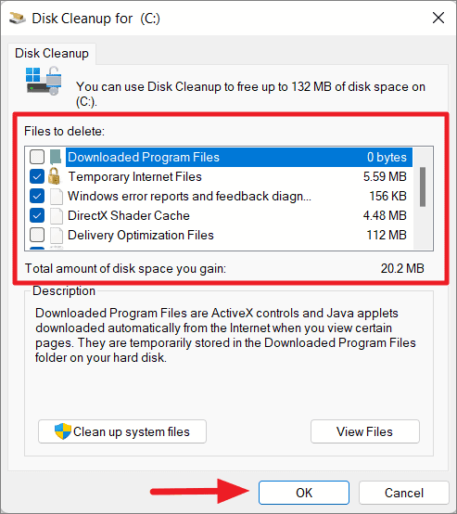
To run Disk Cleanup, open the Windows menu and search for Disk Cleanup. The tool will display a list of file types you can safely remove. Select the files you want to delete, then click Clean up system files. Disk Cleanup will calculate how much space will be freed.

While performing cleanup, take the chance to remove other unnecessary files or apps that are using extra disk space. Your Downloads folder is a good place to start looking for old or unused files that can be deleted to improve overall performance.

5. Remove Unnecessary Software

Many PCs come with pre-installed third-party programs, often referred to as bloatware, which take up storage and consume system resources without providing real value. Additionally, you may have installed apps that you rarely or never use, which can also slow down your PC.

To remove unwanted software, open the Control Panel and go to Programs and Features > Uninstall a Program. Browse through the list of installed applications, right-click any programs you no longer need, and select Uninstall. Regularly cleaning out old software can free up disk space and help your Windows 10 PC run faster and more efficiently.

6. Disable Special Effects to Boost Performance

Windows 10 includes various visual effects that make the interface look smoother and more appealing, such as animations, fade-ins, and translucent windows. While these features enhance appearance, they can consume system resources and slow down your PC, especially on older or less powerful hardware.

To adjust visual effects, open the Windows menu and search for System. Click Advanced System Settings, then go to the Advanced tab and select Performance Settings. Under the Visual Effects tab, choose Custom, then uncheck the effects you don’t need. Click Apply to save your changes. Disabling unnecessary visual effects can make your Windows 10 PC feel faster and more responsive.

7. Disable Transparency Effects

Windows 10 uses transparency effects for elements like the taskbar and menus to create a visually appealing interface. While these effects look smooth, they can consume more system resources than you might expect, slowing down your PC.

To turn off transparency effects, open the Windows menu and search for Colour settings. Scroll down to find Transparency effects and toggle the switch to Off. Disabling transparency can help free up resources and improve overall performance.


8. Run System Maintenance

Windows 10 includes a built-in system maintenance feature that helps keep your PC running efficiently. This tool performs routine tasks such as defragmenting the hard drive, checking for updates, and scanning for potential malware or viruses.

Although system maintenance usually runs automatically when your PC is idle, you can also run it manually. Open the Control Panel and select Security and Maintenance. Click the arrow to expand the Maintenance section, then select Start Maintenance to perform a full check. Running regular maintenance ensures your PC remains optimized and reduces the risk of slowdowns.

9. Upgrade Your RAM for Faster Performance

Upgrading your PC’s RAM (Random Access Memory) is one of the most effective ways to boost speed and overall performance. Windows 10 requires a minimum of 4GB of RAM to run smoothly, but if you use your computer for demanding tasks such as gaming, video editing, or multitasking, adding more memory can make a noticeable difference.

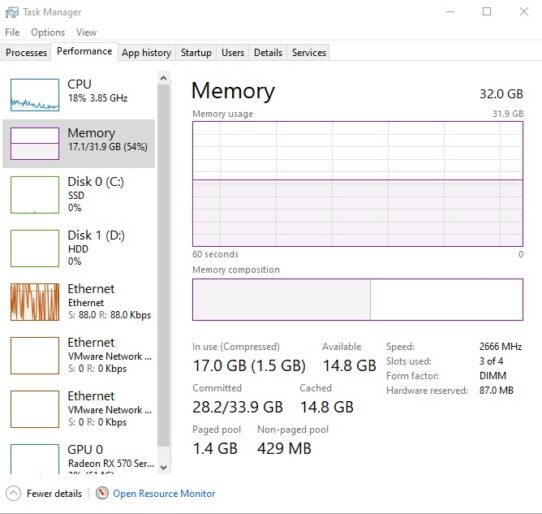
To check your current RAM and system compatibility, open Task Manager by pressing Ctrl + Alt + Delete, then click the Performance tab and select Memory. Here, you can see how many memory slots are available and the type of RAM installed, such as DDR4. Upgrading your RAM can significantly improve system responsiveness, reduce lag, and help your PC handle multiple applications at once more efficiently.

10. Upgrade Your Storage to an SSD

Upgrading your PC’s storage can have a major impact on speed and overall performance. Many PCs still use traditional spinning hard drives (HDDs), which are slower at reading and writing data. Replacing an HDD with a Solid-State Drive (SSD) can transform your system, significantly improving boot times, progr am loading, and overall responsiveness.

SSDs are more expensive than HDDs, but the performance boost is often worth the investment. They are available in different form factors, such as 2.5-inch and M.2, so be sure to choose one compatible with your desktop or laptop. Most SSD upgrades also allow you to transfer all your files and programs from your old drive, so you won’t lose any important data. Investing in an SSD is one of the fastest ways to make your Windows 10 PC feel like new.

Free Windows Tools - OPTKEYSCategoriesBlog

11 Must-Have Free Windows Tools for Every PC User

Windows continues to dominate the desktop operating system market, and for good reason. Its user-friendly interface, flexibility, and massive ecosystem of software make it the first choice for millions of users worldwide. From productivity tools to multimedia software, Windows supports an enormous range of applications designed to help users work faster and more efficiently.

However, even though Windows comes with many built-in features, most users rely on additional programs to improve productivity, manage files, edit images, or optimize system performance. The good news is that many powerful Windows applications are completely free.

Below is a list of 11 essential free Windows tools that can significantly enhance your daily workflow. These programs are lightweight, useful, and available at no cost.

1. WPS Office

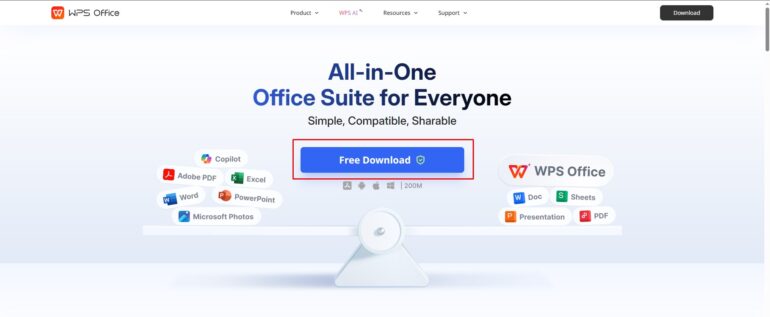
WPS Office is a powerful free office suite that offers excellent compatibility with Microsoft Office formats. It includes tools for creating documents, presentations, and spreadsheets, all within a clean and familiar interface.

The software is lightweight yet feature-rich, making it a great option for users who need a reliable alternative to expensive office software.

Key features:

  • Word processor, spreadsheet, and presentation tools
  • Full compatibility with Microsoft Office files
  • Modern and easy-to-navigate interface
  • Cloud integration and templates

2. WordExpander

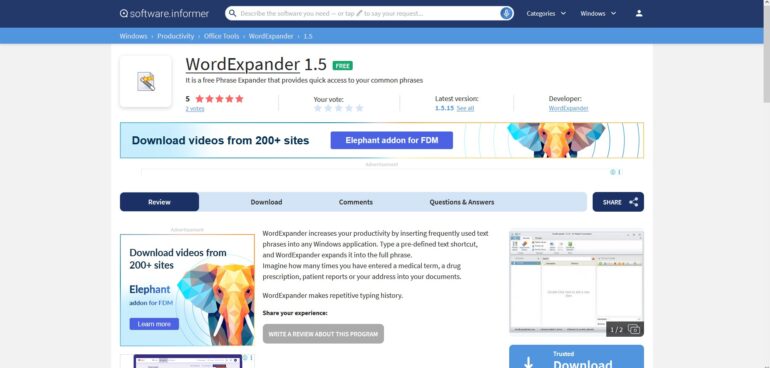
Typing the same phrases repeatedly can slow down productivity. WordExpander solves this problem by automatically completing frequently used words or phrases as you type.

As soon as you begin typing, the software suggests possible completions. You simply choose the correct suggestion to finish the word instantly. This works in most Windows applications including browsers, text editors, and email clients.

Key benefits:

  • Automatic word and phrase completion
  • Supports almost all Windows programs
  • Helps speed up writing and typing tasks

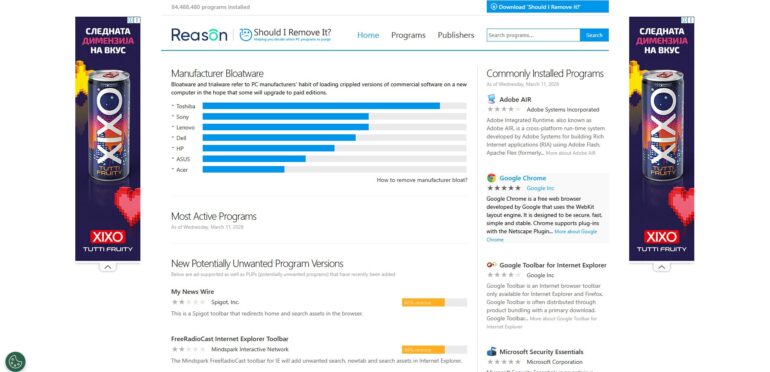
3. Should I Remove It?

Many computers gradually fill up with unnecessary software such as toolbars, adware, or bundled programs. Should I Remove It? helps identify unwanted applications and safely remove them.

The tool scans installed programs and highlights those that are commonly removed by other users, making it easier to decide what to uninstall.

Key benefits:

  • Detects bloatware and unwanted programs
  • Helps keep your system clean and organized
  • Easy-to-understand removal recommendations

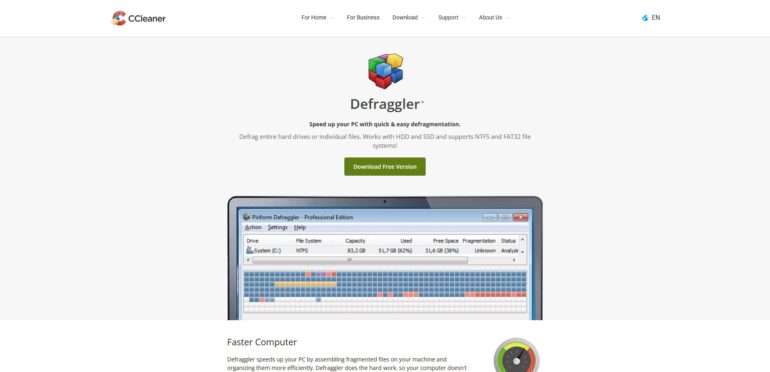
4. Defraggler

Hard drives can become fragmented over time, which may reduce performance. Defraggler is a lightweight disk defragmentation tool that allows you to optimize entire drives, specific partitions, or even individual files.

Its simple interface displays a visual map of your disk, making it easy to see how fragmented your drive is before running optimization.

Key features:

  • Defragment full drives or individual files
  • Visual drive map and health information
  • Fast and easy disk optimization

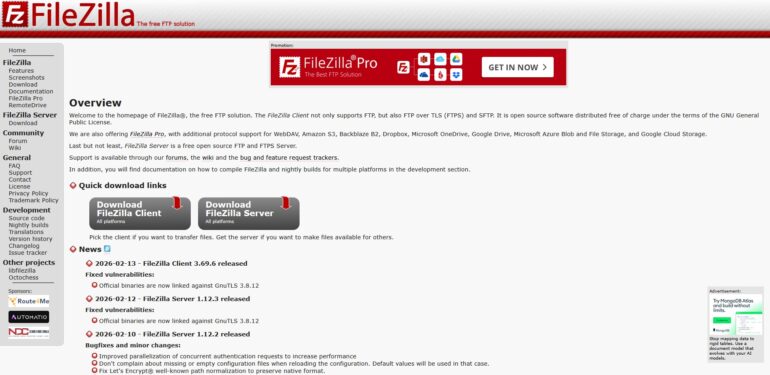
5. FileZilla

FileZilla is one of the most popular free FTP clients available for Windows. It provides a reliable way to transfer files between your computer and remote servers.

The program supports several protocols including FTP, FTPS, and SFTP, and offers features designed to make file management simple and efficient.

Key features:

  • Drag-and-drop file transfers
  • Pause and resume uploads or downloads
  • Site manager for storing server details
  • Remote file search and directory comparison

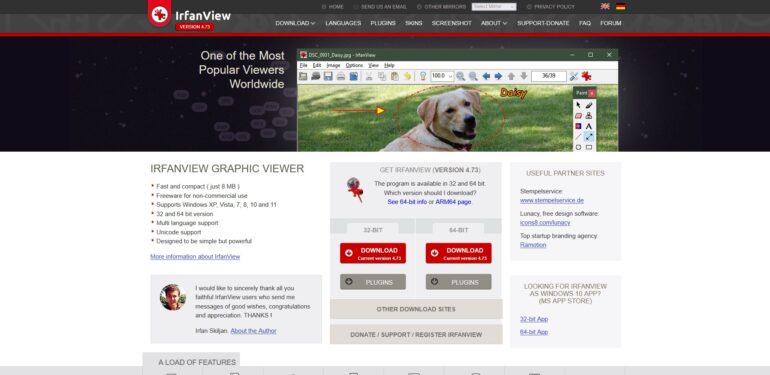
6. IrfanView

IrfanView is a fast and lightweight image viewer that supports a wide range of formats. Despite its small size, it offers powerful image viewing and conversion tools.

The software is ideal for users who need a quick and efficient way to browse image collections or perform simple edits.

Key features:

  • Supports numerous image formats
  • Slideshow creation
  • Watermark support
  • Batch conversion and command line options

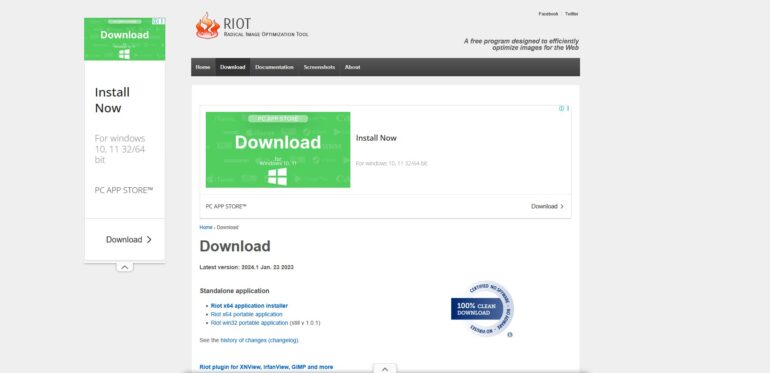
7. RIOT (Radical Image Optimization Tool)

RIOT is a free image optimization tool designed to reduce file sizes without sacrificing image quality. This makes it especially useful for bloggers, web designers, and anyone who uploads images online.

The program lets you compare the original and optimized image in real time, helping you find the best balance between quality and file size.

Key features:

  • Supports multiple image formats
  • Real-time preview comparison
  • Lightweight and fast performance

8. PhotoScape

If you need a free image editor with plenty of features, PhotoScape is a solid choice. It includes tools for editing, converting, and organizing images, making it ideal for casual users and bloggers.

The software combines multiple photo tools in one interface, allowing you to perform common editing tasks quickly.

Key features:

  • Batch image editor and converter
  • Built-in screen capture tool
  • RAW image support
  • Red-eye correction and file renaming

9. Screencast-O-Matic

Screencast-O-Matic is a simple yet effective screen recording tool. It allows you to capture your screen with just a few clicks, making it perfect for tutorials, demonstrations, and technical support videos.

You can also upload your recordings directly to video platforms for easy sharing.

Key features:

  • Quick screen recording
  • Ideal for tutorials and presentations
  • Direct publishing to video platforms

10. PicPick

PicPick is an all-in-one screen capture and design tool. In addition to taking screenshots, it includes several useful utilities such as a color picker, pixel ruler, and screen magnifier.

This makes it especially useful for designers, developers, and anyone who regularly works with screenshots.

Key features:

  • Multiple screenshot capture modes
  • Built-in image editor
  • Color picker and palette tools
  • Measurement utilities like ruler and protractor

Windows 10 Tips - OPTKEYSCategoriesBlog

Windows 10 Tricks Still Worth Knowing

Even if you’ve been using Windows 10 for years, there are still Windows 10 tricks still worth knowing that can save time, speed up your PC, and make your daily workflow much smoother. Many of these features are hidden or underused, and mastering them can help you get more done, troubleshoot faster, and take full control of your system.

This guide will walk you through the best Windows 10 tricks still worth knowing, from hidden folders and keyboard shortcuts to performance tweaks and productivity hacks.


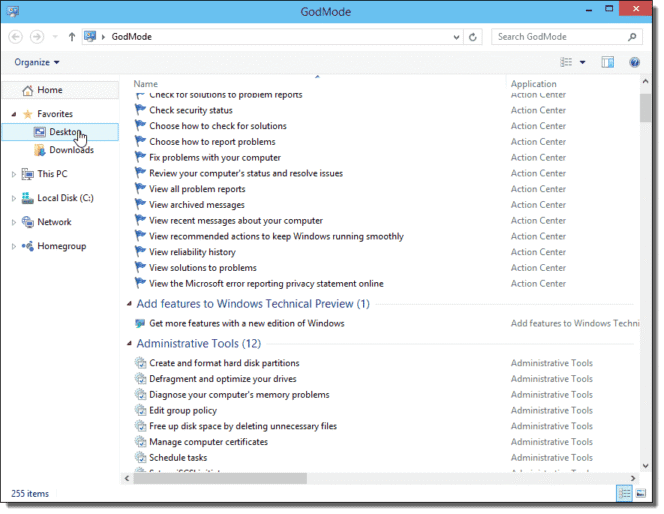
God Mode – One of the Most Powerful Windows 10 Tricks Still Worth Knowing

God Mode is a secret feature that gives you access to every single Windows 10 setting in one place. Instead of navigating through multiple menus, God Mode puts everything—from user accounts to backup options—right at your fingertips.

How to enable God Mode:

  1. Right-click on your desktop → New > Folder
  2. Rename it to:
GodMode.{ED7BA470-8E54-465E-825C-99712043E01C} 
  1. Press Enter. The folder icon will change, giving you full access to system settings.

This is one of the most powerful Windows 10 tricks still worth knowing, especially for power users who want quick access to all settings and tools.

💡 Pro Tip: Use God Mode to quickly manage user accounts, configure administrative tools, or check device management settings.

Windows 10 GodMode - OPTKEYS
Windows 10 GodMode – OPTKEYS

Keyboard Shortcuts That Save Hours – Essential Windows 10 Tricks

Keyboard shortcuts are some of the simplest and most effective Windows 10 tricks still worth knowing. They save you time and reduce the need for constant mouse navigation.

Here are the most useful shortcuts:

  • Win + Shift + S → Take a screenshot instantly
  • Alt + Tab → Switch between open apps quickly
  • Win + D → Minimize all windows to show desktop
  • Win + V → Access clipboard history to paste multiple items
  • Win + Ctrl + D → Create a new virtual desktop
  • Ctrl + Shift + Esc → Open Task Manager

💡 Pro Tip: Use virtual desktops to separate work, study, and personal browsing. This small trick alone can save you hours each week and is a classic Windows 10 trick still worth knowing.


Storage Sense – Keep Your PC Clean Automatically

Windows 10 accumulates temporary files, cache, and old downloads that can slow down your system. Storage Sense is a built-in tool that handles cleanup automatically.

How to enable Storage Sense:

  1. Open Settings > System > Storage
  2. Toggle Storage Sense ON
  3. Configure it to delete temporary files, recycle bin items, or unused downloads automatically

💡 Pro Tip: Combine Storage Sense with OneDrive or external storage for a PC that feels fast without constant manual cleanup. This is another essential Windows 10 trick still worth knowing.


Performance Tweaks That Actually Work

If your PC feels sluggish, these tweaks will make a noticeable difference:

  • Disable Startup Apps → Task Manager → Startup tab → disable unnecessary apps
  • Adjust Visual Effects → System > Advanced system settings > Performance Settings → Adjust for best performance
  • Enable Ultimate Performance Mode → Control Panel > Power Options > Ultimate Performance (Pro users only)

Even small adjustments like these are often overlooked, but they’re among the Windows 10 tricks still worth knowing that can breathe new life into older PCs.


Hidden Productivity Hacks

Here are additional Windows 10 tricks still worth knowing that make daily tasks easier:

  • Clipboard History → Press Win + V to manage multiple copied items
  • Snap Assist → Drag a window to the edge of the screen for quick split-screen multitasking
  • Night Light → Reduce blue light to ease eye strain (Settings > System > Display)
  • Focus Assist → Minimize notifications during work hours (Settings > System > Focus Assist)

💡 Pro Tip: These small tweaks help you stay focused, organized, and productive without installing any extra software.


Bonus Hidden Features

Some extra tricks that most users overlook:

  • Snip & Sketch → Faster screenshot tool than the classic Snipping Tool
  • Task View Timeline → Press Win + Tab to see past activities and apps
  • Quick Access in File Explorer → Pin frequently used folders for instant navigation
  • Shake to Minimize → Grab a window’s title bar, shake it, and all other windows minimize

These are small, yet practical Windows 10 tricks still worth knowing, especially if you want to work faster and smarter.

Win11 Start Menu FeaturedCategoriesBlog

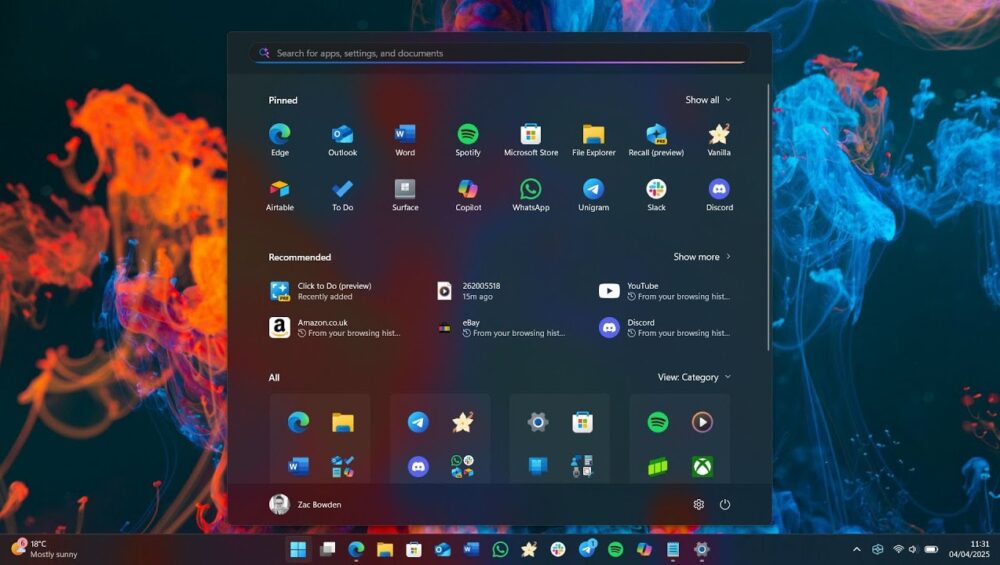
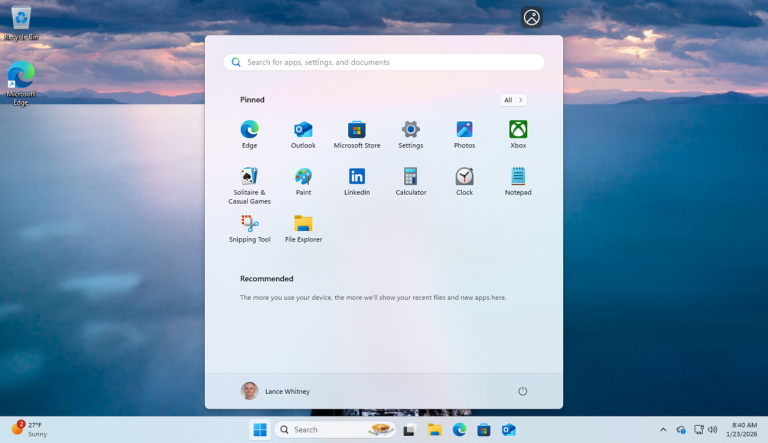
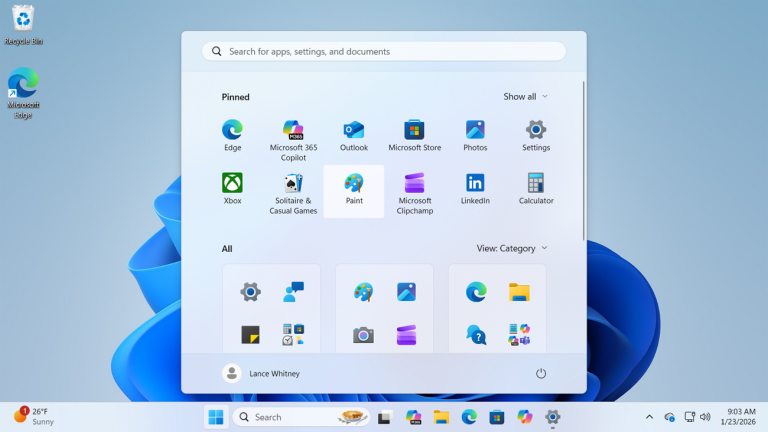
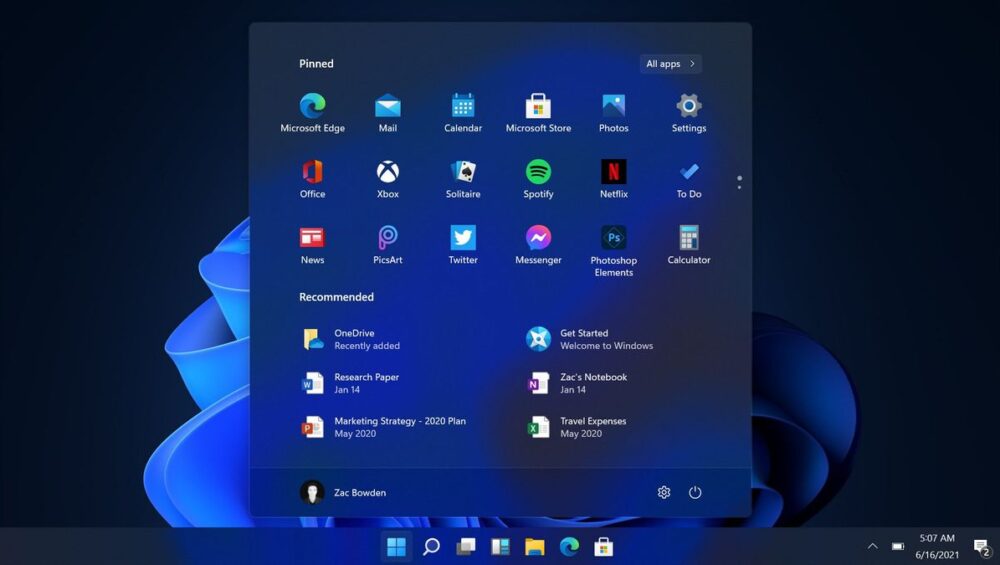
6 ways to change Windows 11 start menu

Change can be difficult, especially when it comes to your operating system. If the Windows 11 Start menu makes you miss the familiar look of Windows 10, you are not alone. Fortunately, you don’t have to settle for a layout you dislike. You can customize the Windows 11 Start menu or even replace it with a third-party alternative.

Since its release, the redesigned Windows 11 Start menu has divided users. While some appreciate its clean and modern design, many others prefer the classic Windows 10 interface. The centered layout, simplified customization options, and removal of Live Tiles have made it one of the most debated changes in Windows 11.

However, instead of simply criticizing the new design, you can take action.

Can You Customize the Windows 11 Start Menu?

Yes, you can.

Although the Windows 11 Start menu is less flexible than the Windows 10 version, Microsoft still allows several useful adjustments. For example, you can:

  • Move the Start menu to the left side of the taskbar
  • Pin or unpin apps
  • Remove recommended files
  • Organize pinned applications
  • Adjust layout settings

These small changes can significantly improve your daily workflow and make the interface feel more familiar.

How to Replace the Windows 11 Start Menu

If customization is not enough, installing a third-party Start menu replacement is another effective solution. Several trusted tools restore the classic Windows 10 look and functionality. These applications offer:

  • Traditional Start menu layout
  • Advanced customization options
  • Classic taskbar styling
  • Improved navigation

As a result, you can enjoy the performance benefits of Windows 11 without sacrificing the interface you prefer.

Why Do Users Dislike the Windows 11 Start Menu?

Before making changes, it’s important to understand why the Windows 11 Start menu receives criticism:

  • It removes Live Tiles
  • It limits deep customization
  • It prioritizes recommended content
  • It changes long-standing navigation habits

For longtime Windows users, these differences can feel disruptive. However, once you understand the available customization options, the experience becomes much more manageable.


How to Edit the Windows 11 Start Menu (Step-by-Step Guide)

The ability to edit the Windows 11 Start menu has improved significantly since its original release. When Windows 11 first launched, the Start menu felt limited and overly simplified. Many users criticized the Recommended section because it displayed recently opened files and apps that not everyone wanted to see.

Additionally, viewing all installed apps required opening a separate panel, which disrupted workflow. Fortunately, Microsoft addressed these concerns. With Windows 11 version 25H2, the Start menu received meaningful updates that improve usability and customization.

Now, all your apps are accessible from the same menu. You can also completely remove the Recommended section if you prefer a cleaner layout. Furthermore, Windows 11 can display a phone integration panel, allowing quick access to recent calls and text messages from your smartphone.

While these improvements help, you can still customize the Start menu even further.


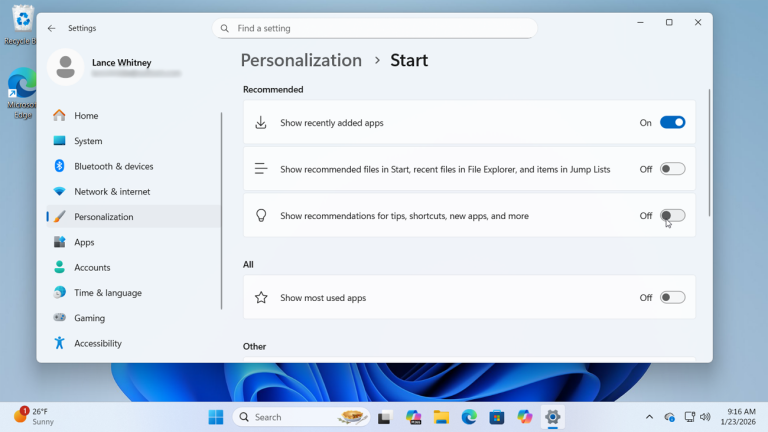
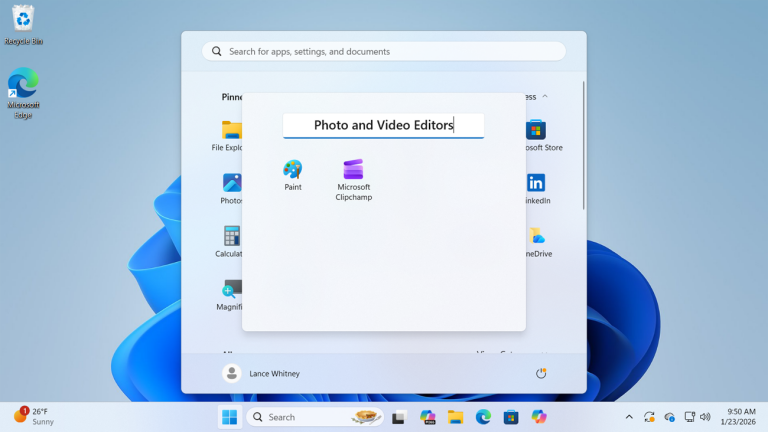
1. Remove Recommended Apps from the Windows 11 Start Menu

The Recommended section shows recently added apps, recently opened files, and suggested content. However, not everyone finds this feature useful. If you prefer a minimal and distraction-free Start menu, you can disable it entirely.

How to Remove Recommended Apps:

  1. Open Settings
  2. Go to Personalization
  3. Click Start
  4. Turn off the following options:
    • Show recommended files in Start
    • Show recent files in File Explorer and items in Jump Lists
    • Show recommendations for tips, shortcuts, new apps, and more

Once disabled, the Recommended section will disappear, giving you more space for pinned apps and a cleaner overall layout.


Editing the Windows 11 Start menu allows you to create a more productive workspace. Whether you want a minimal interface or better app organization, small adjustments can significantly improve your daily experience.


2. Pin and Unpin Apps on the Windows 11 Start Menu

Another simple way to edit the Windows 11 Start menu is by pinning and unpinning apps. This allows you to control which applications appear for quick access and remove the ones you don’t use regularly.

Customizing pinned apps helps you create a cleaner, more efficient layout that matches your workflow.

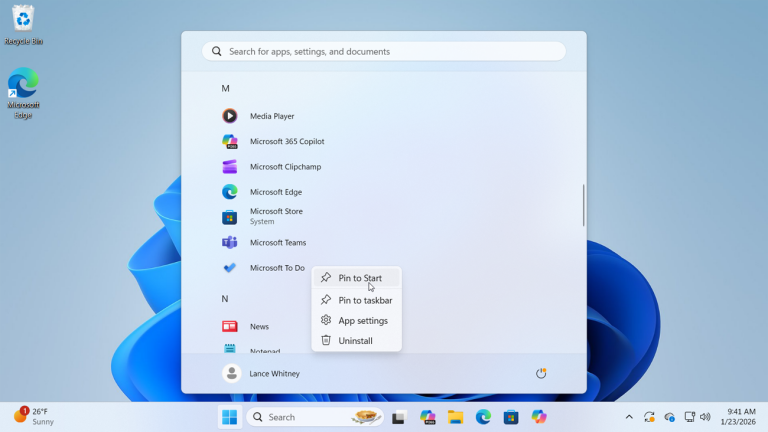
How to Pin an App to the Windows 11 Start Menu

  1. Click the Start button.
  2. Select All to view your complete list of installed apps.
  3. Find the app you want to add.
  4. Right-click the app.
  5. Choose Pin to Start.

The app will immediately appear in the pinned section of your Start menu for easy access.

How to Unpin an App from the Start Menu

If you want to remove an app from the pinned section:

  1. Open the Start menu.
  2. Right-click the app icon.
  3. Select Unpin from Start.

The app will disappear from the pinned area, but it will still remain available under the All apps list.


By managing pinned apps, you can make the Windows 11 Start menu more organized and personalized. Small adjustments like this can significantly improve navigation and productivity.


3. Move Icons Around the Windows 11 Start Menu

Another effective way to edit the Windows 11 Start menu is by rearranging app icons. Organizing your pinned apps based on usage makes navigation faster and improves productivity.

For example, you may want to place your most frequently used apps at the top of the Start menu and move less important ones toward the bottom. This simple adjustment helps you access essential programs more efficiently.

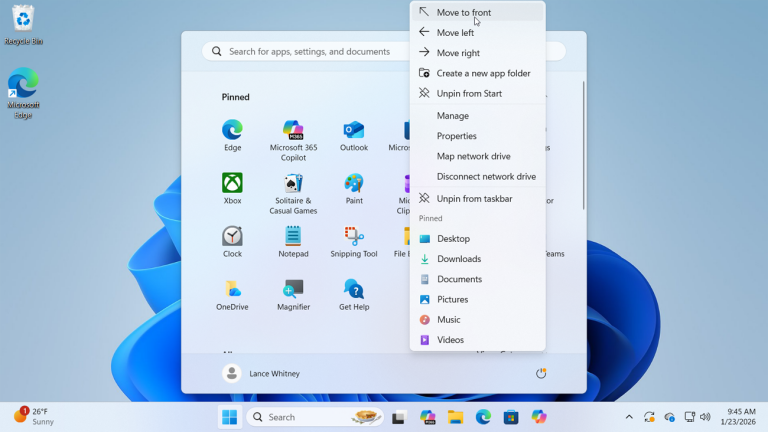
How to Move Apps in the Windows 11 Start Menu

There are several ways to reposition apps:

  • Move an app to the top:
    Right-click the app and select Move to front.
  • Reposition left or right:
    Right-click the app and choose the appropriate directional option.
  • Drag and drop:
    Click and hold the app icon, then drag it to your preferred location.

Using drag-and-drop is often the fastest and most flexible method for customizing layout placement.


Reorganizing your pinned apps allows you to personalize the Windows 11 Start menu and create a layout that fits your daily workflow. Small layout adjustments can make a noticeable difference in usability and efficiency.


4. Create Folders in the Windows 11 Start Menu

If you want to edit the Windows 11 Start menu for better organization, creating folders is one of the most useful features available. Start menu folders help reduce clutter and group similar apps together, making navigation faster and more efficient.

For example, you can create folders for work apps, gaming tools, productivity software, or social media applications.

How to Create a Folder in the Windows 11 Start Menu

Follow these simple steps:

  1. Open the Start menu.
  2. Click and hold one app icon.
  3. Drag it on top of another app icon.
  4. Release to automatically create a folder.

Windows 11 will instantly place both apps inside a new folder labeled “Folder.”

How to Rename a Start Menu Folder

To personalize your folder:

  1. Click the folder to open it.
  2. Select the default name field.
  3. Enter a custom name that matches your app group (for example, “Work,” “Games,” or “Utilities”).

You can continue adding more apps by dragging and dropping them into the folder at any time.


Using folders is one of the best ways to customize and organize the Windows 11 Start menu. With proper grouping, you can improve workflow, reduce clutter, and make your system easier to navigate.


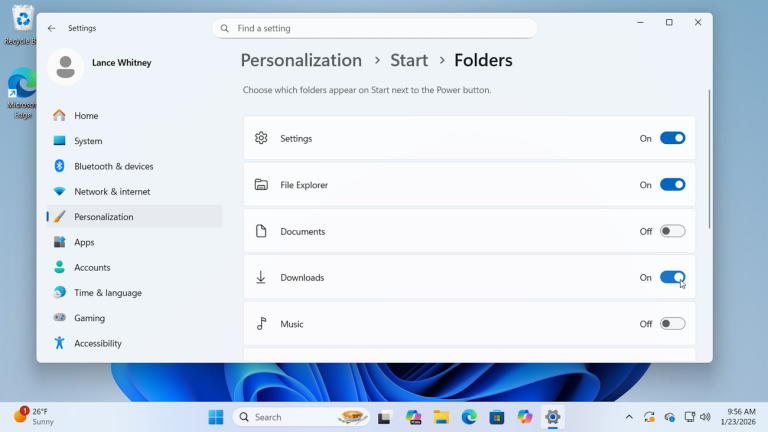
5. Add System Folders to the Bottom of the Windows 11 Start Menu

Another useful way to edit the Windows 11 Start menu is by adding system folders next to the Power button. This feature gives you instant access to important locations such as Settings, File Explorer, Documents, Downloads, Network, and more—without opening additional menus.

Placing these shortcuts at the bottom of the Start menu improves navigation speed and makes everyday tasks more convenient.

How to Add Folders Next to the Power Button

Follow these steps to customize the bottom section of your Start menu:

  1. Open Settings
  2. Go to Personalization
  3. Click Start
  4. Select Folders
  5. Turn on the toggle switch for any folder you want to appear next to the Power icon

Once enabled, the selected folders will immediately appear in the lower-right corner of the Start menu.


Adding system folders is a simple yet powerful way to customize the Windows 11 Start menu. With quick access to essential tools and locations, you can streamline your workflow and make your PC more efficient.


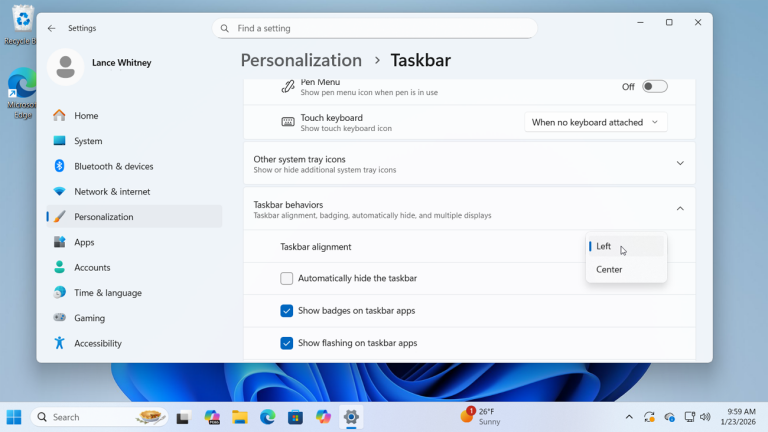
6. Realign the Start Button in Windows 11

When Microsoft introduced Windows 11, the Start button was moved to the center of the taskbar. While some users enjoy the modern layout, others prefer the traditional bottom-left alignment found in previous versions of Windows.

If you want to edit the Windows 11 Start menu and restore the classic layout, you can easily move the Start button back to the left side.

How to Move the Start Button to the Left

Follow these steps:

  1. Open Settings
  2. Go to Personalization
  3. Click Taskbar
  4. Select Taskbar behaviors
  5. Find the Taskbar alignment dropdown menu
  6. Change the alignment from Center to Left

Your Start button and taskbar icons will instantly shift to the left side of the screen.


Realigning the Start button is one of the quickest ways to make Windows 11 feel more familiar. If you want even more control, you can further customize taskbar settings to match your preferred layout and workflow.

Windows 11 on Old PC Without TPM - optkeysCategoriesBlog

Windows 11 on Old PC Without TPM

If you want to install Windows 11 on old PC hardware, you may see the error “This PC can’t run Windows 11.” This happens because of strict hardware checks like TPM 2.0 and CPU support. However, there is a simple method that allows you to install Windows 11 on old PC systems without upgrading hardware.Install Windows 11 on old PC without TPM. Use this simple trick to bypass hardware requirements and set up a bootable USB.


Windows 11 Hardware Requirements (Official)

According to Windows 11 requirements, your PC must have:

  • 1 GHz or faster processor with 2+ cores
  • 4 GB RAM
  • 64 GB storage
  • TPM 2.0
  • UEFI with Secure Boot

Older systems usually fail because of TPM or unsupported CPUs.

However, you can bypass these checks using the method below.


What You Need Before You Start

Before installing Windows 11 on an old PC, download the following tools:

  • 7-Zip (Free file extractor)
  • ImgBurn (Portable version recommended)
  • Windows 10 ISO file
  • Windows 11 ISO file

You can download official ISO files from Microsoft’s website.


How to Install Windows 11 on Unsupported Hardware

Follow these steps carefully.


Step 1: Extract Both ISO Files

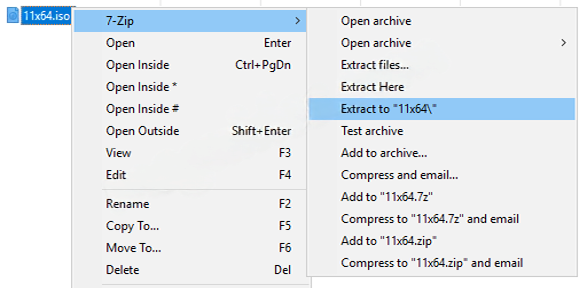
First, right-click each ISO file.

Then extract them using 7-Zip.

After extraction:

  • Rename the Windows 10 folder to W10
  • Rename the Windows 11 folder to W11

This makes the process easier.


Step 2: Replace the install.wim File

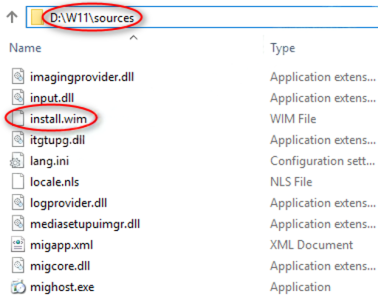
Next, open the folder:

W11 → sources

Copy the file named:

install.wim

Now go to:

W10 → sources

Paste the file there and replace the existing install.wim file.

This step allows the Windows 10 installer to load Windows 11 files without performing strict hardware checks.


Step 3: Create a New ISO Image

Now you must build a new ISO file.

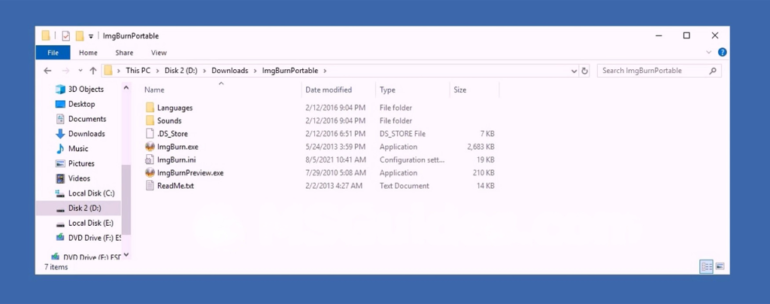
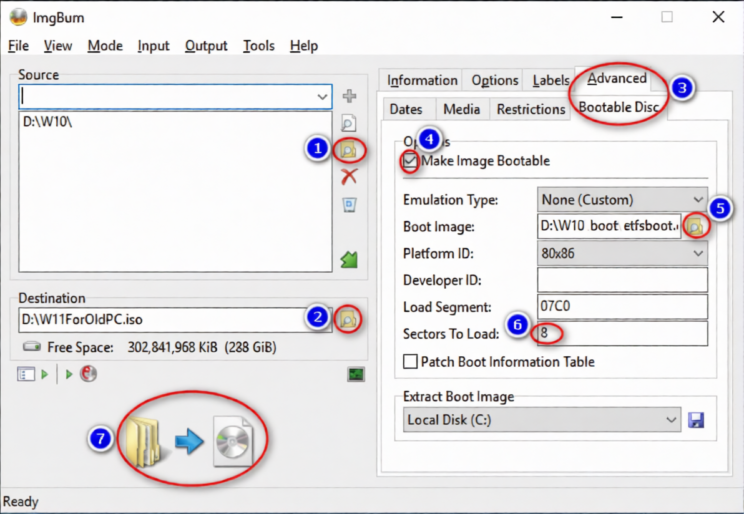
Open the portable version of ImgBurn.

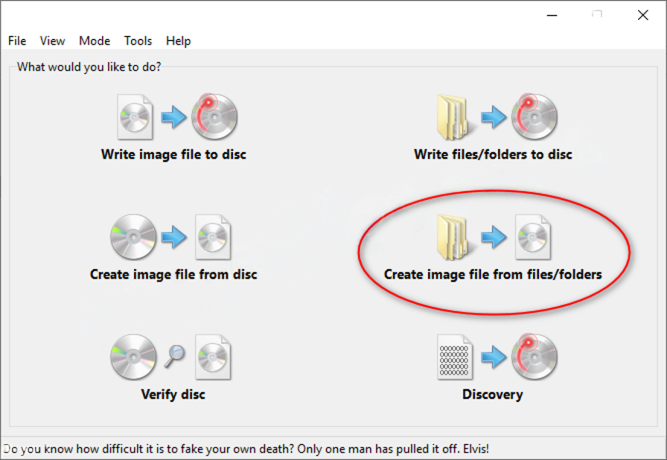
Select:

Create image file from files/folders

Then:

  1. Choose the W10 folder as the source
  2. Select a destination folder and name the new ISO file
  3. Click the Advanced tab
  4. Choose Bootable Disc
  5. Check Make Image Bootable
  6. Select the file etfsboot.com inside the W10\boot folder
  7. Set the value to 8
  8. Click Build

Wait until the ISO file is created.


Create a Windows 11 Bootable USB

After the ISO is ready, create a bootable USB drive.

You can use ImgBurn

Insert a USB drive (8 GB or larger).

Then flash the new ISO file to the USB drive.

Now you have a Windows 11 bootable USB that works on many unsupported PCs.


Important Notes

  • This method bypasses TPM and CPU checks.
  • Updates may not always be guaranteed.
  • Performance depends on your hardware.

However, many users report that Windows 11 runs smoothly even on older systems.

Update Fixer Featured-OPTKeysCategoriesBlog

Fix Windows Update Errors (Free Tool)


Windows Update Fixer is the fastest way to repair Windows Update errors and restore proper update functionality. If your computer is stuck downloading updates, showing error codes like 0x80070002, or failing to install updates, this Windows Update Fixer guide will help you resolve the problem safely and effectively. Keeping Windows updated is essential for security, stability, and performance.

What Is Windows Update Fixer?

Windows Update Fixer is a repair solution designed to reset Windows Update components, clear corrupted update cache files, and restart essential services. When Windows updates fail, the issue is usually caused by damaged system files, interrupted downloads, or corrupted update folders.

Using a Windows Update Fixer tool helps you:

  • Reset Windows Update services
  • Repair corrupted update components
  • Clear the SoftwareDistribution cache
  • Fix common Windows Update error codes

If you’re experiencing performance issues, you may also want to check our guide on fixing slow Windows performance (internal link example).


Common Errors Fixed by Windows Update Fixer

Windows Update Fixer resolves many common update problems, including:

  • Windows Update error 0x80070002
  • Windows Update error 0x80070057
  • Windows Update stuck at 0% or 100%
  • Windows Update installation failed
  • Windows Update service not running

These problems can prevent important security patches from installing, leaving your system vulnerable.

For more Windows troubleshooting tutorials, see our Windows repair guides section (internal link example).


How to Use Windows Update Fixer (Step-by-Step Guide)

Follow this Windows Update Fixer method carefully.

Step 1: Download Windows Update Fixer

  • Visit the official Windows Update Fixer website.
  • Download the latest version compatible with Windows 10 or Windows 11.
  • Save the file to your Desktop.

Click here to download portable Update Fixer


Step 2: Run Windows Update Fixer as Administrator

  • Right-click the downloaded file.
  • Select Run as Administrator.
  • Click Yes if prompted by User Account Control.

Running Windows Update Fixer with administrator privileges ensures all update services can be reset correctly.

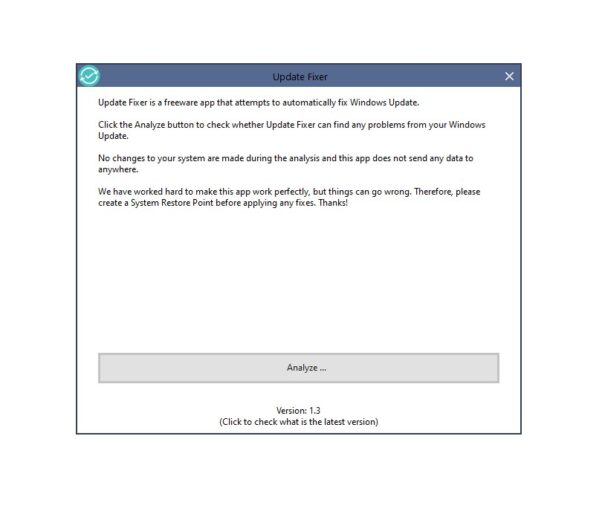
Update Fixer
Update Fixer

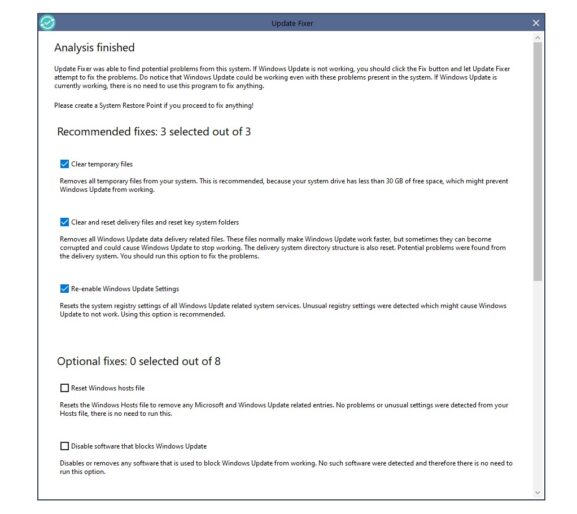
Step 3: Start the Windows Update Fixer Repair Process

  • Click Scan or Fix Now.

  • The Windows Update Fixer will:
    • Stop update services
    • Clear update cache
    • Reset Windows Update components
    • Restart services

Wait for the repair process to complete.


Step 4: Restart and Check for Updates

  • Restart your computer.
  • Open Settings → Windows Update.
  • Click Check for Updates.

Your Windows Update system should now function normally.


Manual Windows Update Fixer Method (Advanced)

If you prefer a manual Windows Update Fixer approach, follow these steps:

Open Command Prompt as Administrator and run:

net stop wuauserv
net stop cryptSvc
net stop bits
net stop msiserver

Rename update folders:

ren C:\Windows\SoftwareDistribution SoftwareDistribution.old
ren C:\Windows\System32\catroot2 catroot2.old

Restart services:

net start wuauserv
net start cryptSvc
net start bits
net start msiserver

Restart your PC and check for updates again.


Why Windows Update Fixer Is Important

Using Windows Update Fixer ensures:

  • Security patches install correctly
  • System stability improves
  • Performance issues caused by failed updates are resolved
  • Update errors no longer interrupt your workflow

Regular maintenance prevents recurring update failures.


Tips to Prevent Future Windows Update Errors

To avoid needing Windows Update Fixer frequently:

  • Keep at least 20GB free disk space
  • Avoid interrupting updates
  • Keep drivers updated
  • Use genuine Windows versions
  • Run regular malware scans

You can also read our complete Windows maintenance checklist (internal link example).


Frequently Asked Questions About Windows Update Fixer

Is Windows Update Fixer safe?

Yes. Windows Update Fixer resets update components without deleting personal files.

Does Windows Update Fixer work on Windows 10 and 11?

Yes. Most versions support both operating systems.

Will Windows Update Fixer delete my files?

No. It only repairs update-related components.