Download official Microsoft ISO files
February 3, 2026
Fix Windows 11 Activation Errors – 2026 Guide
February 7, 2026
Windows 11 introduced stricter hardware requirements than previous Windows versions. Many perfectly functional computers are unable to upgrade because they lack TPM 2.0, Secure Boot, or a supported processor. Fortunately, there are methods that allow users to bypass Windows 11 system requirements and install the operating system on unsupported hardware.
This guide explains the process, what requirements can be bypassed, and the precautions you should take before upgrading.
Why Windows 11 Blocks Some PCs
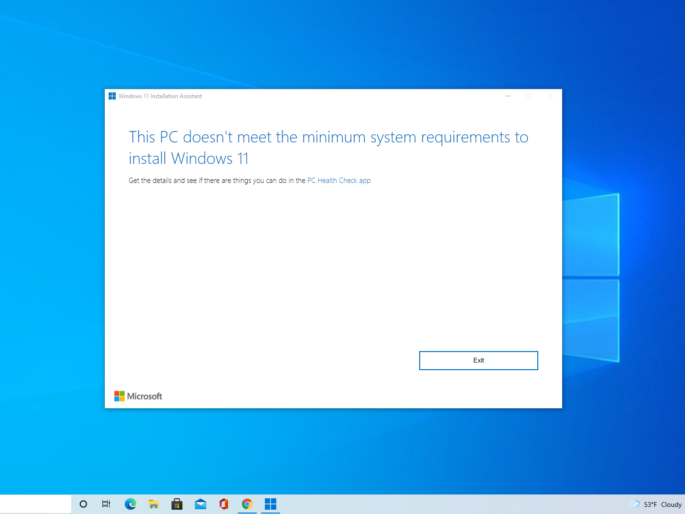
Microsoft requires several hardware features to improve security and performance. The most common reasons a PC fails the compatibility check include:
- Missing TPM 2.0
- Unsupported CPU
- Secure Boot disabled
- Legacy BIOS instead of UEFI
When any of these requirements are not met, Windows Setup may display a message stating that your PC cannot run Windows 11.
Before You Start
Before bypassing Windows 11 requirements, make sure you:
- Back up important files and documents
- Verify your current hardware specifications
- Download the official Windows 11 ISO
- Prepare an 8 GB or larger USB flash drive
- Ensure your PC supports 64-bit operating systems
Creating a backup is highly recommended in case something goes wrong during installation.
Download the Windows 11 ISO
The easiest way to install Windows 11 on unsupported hardware is by using the official ISO file instead of Windows Update.
Using an ISO allows you to create bootable installation media and perform a manual installation without relying on Microsoft’s automated compatibility checks.
After downloading the ISO, use a trusted USB creation tool to build a bootable installation drive.
Create a Bootable Windows 11 USB
To create installation media:
- Insert a USB drive.
- Open your preferred USB creation tool.
- Select the Windows 11 ISO.
- Choose GPT partition style.
- Select UEFI boot mode.
- Start the creation process.
Once complete, the USB drive will be ready for installation.
Bypass TPM and Secure Boot Checks
During the Windows 11 installation process, setup normally checks for TPM 2.0, Secure Boot, and CPU compatibility.
Various installation methods can bypass these checks, allowing setup to continue on unsupported systems. After applying the bypass, Windows Setup proceeds normally and installs Windows 11 just like it would on a supported PC.
This allows many older desktops and laptops to run Windows 11 successfully without requiring hardware upgrades.
Complete the Installation
After bypassing the hardware checks:
- Select the installation drive
- Choose your region and language
- Create a user account
- Finish the Windows setup process
The installation may take several minutes depending on your hardware.
Install Drivers and Updates
Once Windows 11 is installed:
- Install the latest motherboard drivers
- Update graphics drivers
- Run Windows Update
- Check Device Manager for missing drivers
Although unsupported PCs are not officially guaranteed updates, many users continue to receive security patches and feature updates without major issues.
Is It Safe to Bypass Windows 11 Requirements?
For many users, the answer is yes. If your hardware performs well with Windows 10, it will often run Windows 11 smoothly. However, unsupported systems may encounter compatibility issues, and Microsoft does not officially guarantee future updates.
For the best experience, ensure your PC has sufficient RAM, SSD storage, and updated drivers before upgrading.