How to fix Windows update error 0x80070057
June 11, 2026
How to fix Windows update error 0x80070005
June 12, 2026
How to Fix Windows Update Error 0x80070002 in Windows 11 and Windows 10
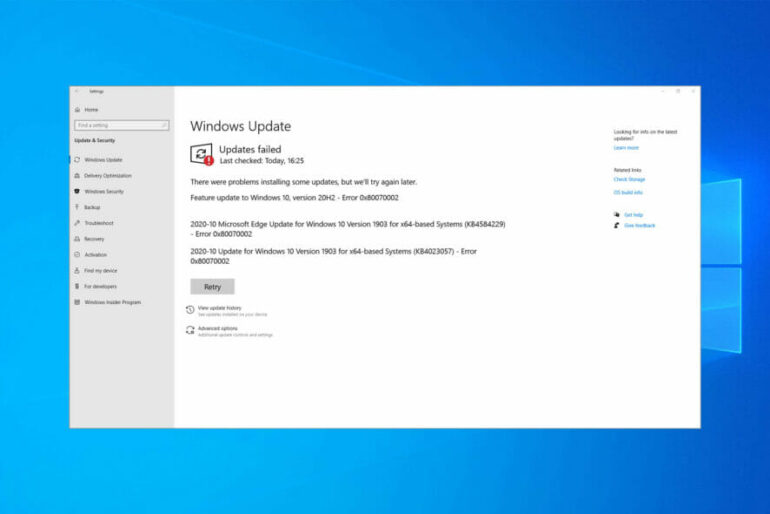
Windows Update Error 0x80070002 is one of the most common update problems affecting Windows 11 and Windows 10 users. This error typically appears when Windows cannot locate files required for an update, causing installations to fail.
You may encounter messages such as:
- Windows Update Failed
- Error Code 0x80070002
- We couldn’t complete the updates
- The system cannot find the file specified
The good news is that Error 0x80070002 can usually be fixed without reinstalling Windows. In this guide, we’ll walk through several proven methods to restore Windows Update functionality.
What Causes Windows Update Error 0x80070002?
Several factors can trigger this error.
| Cause | Description |
|---|---|
| Corrupted Update Files | Damaged update cache files |
| Missing System Files | Essential Windows files are missing |
| Incorrect Date & Time | Synchronization issues |
| Failed Previous Updates | Incomplete installations |
| Windows Update Service Issues | Update services stopped or corrupted |
| Damaged Windows Image | Component Store corruption |
Quick Overview of Fixes
| Solution | Difficulty | Success Rate |
|---|---|---|
| Windows Update Troubleshooter | Easy | High |
| SFC Scan | Easy | High |
| DISM Repair | Medium | Very High |
| Reset Update Components | Medium | Very High |
| Manual Update Installation | Medium | High |
Method 1: Run the Windows Update Troubleshooter
Windows includes a built-in repair utility.
Steps
- Open Settings
- Go to System → Troubleshoot
- Select Other Troubleshooters
- Click Run next to Windows Update
The troubleshooter can automatically repair common update problems.
Method 2: Repair Corrupted System Files
Damaged Windows files frequently trigger Error 0x80070002.
Open Command Prompt as Administrator and run:
HTML Command Box
What It Does
- Scans Windows system files
- Detects corruption
- Automatically repairs damaged files
After completion, restart your computer.
Method 3: Repair Windows Using DISM
If SFC cannot fix everything, use Microsoft’s DISM utility.
Run each command separately:
Check Health
Scan Health
Restore Health
Benefits
| DISM Function | Purpose |
|---|---|
| CheckHealth | Detect corruption |
| ScanHealth | Deep scan |
| RestoreHealth | Repair Windows image |
Method 4: Reset Windows Update Components
Corrupted update components often cause Error 0x80070002.
Stop update services:
Rename the update cache folder:
Restart services:
Restart the PC afterward.
Method 5: Check Date and Time Settings
Incorrect system time can prevent Windows Update from communicating with Microsoft servers.
Verify:
- Correct date
- Correct time
- Correct time zone
- Automatic synchronization enabled
Many users fix Error 0x80070002 simply by correcting the clock settings.
Method 6: Manually Install the Update
If Windows Update continues to fail:
- Open Update History
- Locate the KB number
- Visit Microsoft Update Catalog
- Search the KB number
- Download the correct update
- Install manually
This bypasses many update-related issues.
Method 7: Check Your Hard Drive
File system corruption can interfere with updates.
Run:
What CHKDSK Repairs
| Problem | Fixed |
|---|---|
| Bad Sectors | Yes |
| File System Errors | Yes |
| Disk Corruption | Yes |
| Update File Damage | Sometimes |
How to Prevent Error 0x80070002
Following good maintenance practices can reduce update failures.
Best Practices
| Recommendation | Benefit |
|---|---|
| Keep Windows Updated | Fewer update issues |
| Run SFC Monthly | Detect corruption early |
| Maintain Free Storage | Prevent update failures |
| Avoid Forced Shutdowns | Prevent file corruption |
| Use SSD Storage | Faster update processing |