How to fix Windows activation error 0xc004f050
June 10, 2026
How to fix Windows update error 0x800f081f
June 11, 2026
If you’ve recently installed Windows, upgraded your PC, changed hardware, or purchased a new product key, it’s important to verify that your copy of Windows is properly activated. An activated Windows installation ensures you receive security updates, personalization features, bug fixes, and full access to Microsoft services.
Many users are unsure whether their Windows license is activated correctly, especially after reinstalling the operating system or entering a new product key. Fortunately, Windows includes several built-in tools that allow you to check your activation status in just a few seconds.
In this guide, you’ll learn multiple methods to check if Windows is activated, including using Settings, Command Prompt (CMD), PowerShell, and Microsoft’s built-in licensing tools.
Why Windows Activation Matters
Windows activation verifies that your copy of Windows is genuine and licensed by Microsoft. Without activation, some features may be restricted, and you may see persistent activation reminders on your desktop.
Benefits of an Activated Windows Installation
| Feature | Activated Windows | Non-Activated Windows |
|---|---|---|
| Security Updates | ✅ Yes | ✅ Limited |
| Personalization Settings | ✅ Yes | ❌ Restricted |
| Microsoft Support | ✅ Available | ❌ Limited |
| Watermark Removal | ✅ Yes | ❌ No |
| Full Feature Access | ✅ Yes | ❌ Limited |
| Genuine License Verification | ✅ Yes | ❌ No |
If Windows isn’t activated, you may notice messages such as:
- Activate Windows
- Windows isn’t activated
- Your Windows license will expire soon
- Activation required
Checking your activation status can help identify licensing issues before they become a problem.
Method 1: Check Windows Activation Using Settings
This is the easiest and most beginner-friendly method.
Windows 11
- Press Windows + I to open Settings.
- Click System.
- Select Activation.
- Review the activation status.
You should see one of the following messages:
| Status Message | Meaning |
| Windows is activated | Genuine and activated |
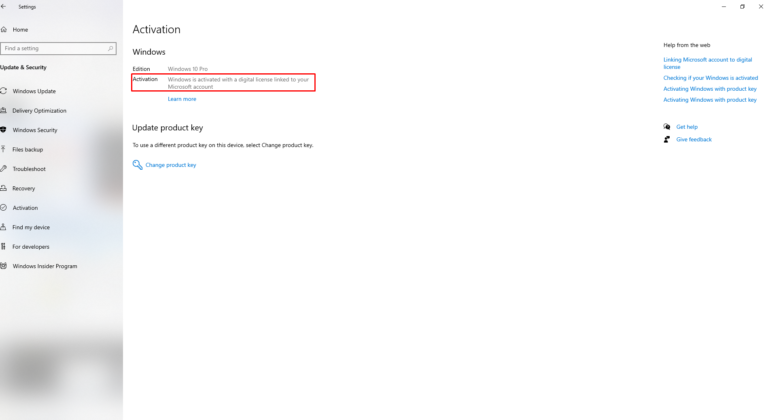
| Windows is activated with a digital license | Linked to Microsoft account |
| Windows is not activated | Activation required |
| Activation error | Problem detected |
Windows 10
- Open Settings.
- Navigate to Update & Security.
- Click Activation.
- Review the activation status displayed on the screen.
This method provides the quickest way to verify whether your Windows license is active.