Upgrade Windows 10 to Windows 11 for Free
June 9, 2026
How to fix Windows activation error 0xc004f050
June 10, 2026
Few Windows errors are as frustrating as seeing your PC suddenly refuse to boot with the message:
File: \Windows\System32\drivers\volsnap.sys
Error Code: 0xc000007b
For many users, this error appears without warning after a Windows update, unexpected shutdown, SSD issue, or system corruption. The good news is that this error does not automatically mean your SSD has failed or that your files are lost.
In many cases, Windows can be repaired without formatting the drive or losing personal data.
This guide explains everything you need to know about the volsnap.sys error, its causes, and every proven method to fix it.
What Is volsnap.sys?
The file volsnap.sys is a core Windows driver responsible for Volume Shadow Copy Services (VSS).
Windows uses this driver for:
- System Restore
- Backup operations
- Recovery points
- Disk snapshots
- File recovery operations
Because this driver loads very early during startup, any corruption involving volsnap.sys can prevent Windows from booting entirely.
Common Error Messages
Users commonly encounter:
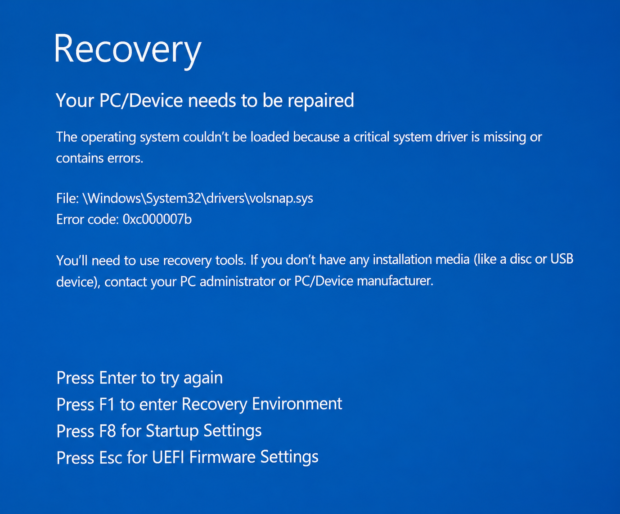
Recovery

Your PC/Device needs to be repaired

File: \Windows\System32\drivers\volsnap.sys

Error code: 0xc000007b
Other variations include:
- volsnap.sys BSOD
- volsnap.sys failed to load
- Startup Repair couldn’t repair your PC
- Windows stuck on Recovery screen
- Error 0xc0000098 followed by volsnap.sys errors
What Causes volsnap.sys Errors?
Several issues can trigger this problem.
1. Corrupted Windows System Files
Windows system files may become damaged due to:
- Interrupted updates
- Power outages
- Malware infections
- Failed driver installations
This is one of the most common causes.
2. File System Corruption
Improper shutdowns often damage:
- File indexes
- Directory structures
- Windows registry data
This corruption prevents Windows from locating required startup files.
3. Failed Windows Updates
Windows updates sometimes fail during installation.
When critical startup files are left incomplete, Windows may become unbootable.
4. Corrupted Boot Configuration Data (BCD)
The Boot Configuration Database controls how Windows starts.
If the BCD becomes damaged, Windows may display:
Error code: 0xc0000098before later progressing to volsnap.sys errors.
5. SSD or HDD Errors
Although less common, storage devices can develop:
- Bad sectors
- Read errors
- Corrupted file tables
Fortunately, many of these issues can be repaired.
Before You Start
Before attempting any repairs:
- Disconnect unnecessary USB devices.
- Remove printers and external drives.
- Verify your SSD is detected in BIOS.
- Create a Windows installation USB.
A Windows USB recovery drive will provide access to advanced repair tools.
Method 1: Run CHKDSK
CHKDSK is often the most effective first repair step.
Boot from a Windows installation USB and open:
Repair your computer → Troubleshoot → Command Prompt
Run:
chkdsk C: /f /rWhat CHKDSK Does
The utility:
- Repairs file system corruption
- Recovers orphaned files
- Repairs damaged indexes
- Checks for bad sectors
During severe corruption, CHKDSK may take several hours to complete.
Do not interrupt the process.
Method 2: Run System File Checker
After CHKDSK finishes:
sfc /scannow /offbootdir=C:\ /offwindir=C:\WindowsSystem File Checker compares Windows files against protected copies.
Possible results include:
No Integrity Violations
Windows files are healthy.
Corrupt Files Repaired
SFC successfully fixed damaged files.
Unable To Repair Some Files
Additional repairs using DISM may be required.
Method 3: Repair Boot Files
If startup files are damaged, rebuild them.
Run:
bootrec /fixmbrThen:
bootrec /scanosFinally:
bootrec /rebuildbcdIf Windows installations are detected, add them to the boot list.
Method 4: Rebuild EFI Boot Files
UEFI systems may require boot file reconstruction.
First identify the EFI partition:
diskpart
list volume
Locate the FAT32 partition.
Assign a drive letter:
select volume X
assign letter=S
exit
Then recreate boot files:
bcdboot C:\Windows /s S: /f UEFIA successful result should display:
Boot files successfully created.Method 5: Use Startup Repair
Windows includes automatic repair tools.
Navigate to:
Troubleshoot
→ Advanced Options
→ Startup Repair
Startup Repair scans:
- Startup files
- Boot configuration
- Critical Windows components
Although useful, Startup Repair cannot fix every case of severe corruption.
Method 6: Repair Windows with DISM
Deployment Image Servicing and Management (DISM) repairs the Windows component store.
Run:
dism /image:C:\ /cleanup-image /restorehealthIf DISM reports:
0x800f081f
The source files could not be found
you may need to specify the Windows installation media as the repair source.
Method 7: Verify volsnap.sys Exists
Sometimes the file itself is missing.
Check:
dir C:\Windows\System32\drivers\volsnap.sysIf the file exists, the issue is likely corruption elsewhere in Windows.
Method 8: Check BIOS Settings
Verify:
- SSD is detected
- Windows Boot Manager exists
- UEFI mode is enabled
- Boot order is correct
Incorrect BIOS settings can prevent Windows from loading.
How to Back Up Files Before Reinstalling
Before performing a clean installation, always back up important data.
Connect an external drive and use:
robocopy "C:\Users\YourUsername\Desktop" "D:\Desktop Backup" /EYou can also back up:
Documents
Downloads
Pictures
Videos
Projects
Robocopy is one of the safest methods because it preserves folder structures.
Signs Your SSD Is Healthy
Many users fear their SSD has failed.
A healthy SSD typically shows:
- Detected in BIOS
- No bad sectors found by CHKDSK
- Windows files accessible through Command Prompt
- User folders still visible
If these conditions are met, the issue is usually Windows corruption rather than hardware failure.
When You Should Reinstall Windows
A reinstall may be necessary if:
- Startup Repair fails
- SFC cannot repair files
- DISM fails repeatedly
- Windows still crashes after rebuilding boot files
Always back up personal files before reinstalling.
How to Recover Files After Reinstalling
Even after reinstalling Windows, files may remain available inside:
C:\Windows.oldThis folder often contains:
- Desktop files
- Documents
- Downloads
- Pictures
- Previous user profiles
However, a backup is still strongly recommended.
Preventing Future volsnap.sys Errors
To reduce the risk of future corruption:
- Keep Windows updated
- Use a quality SSD
- Avoid forced shutdowns
- Maintain regular backups
- Create restore points
- Use a UPS during power outages