Windows activation errors and fixes are among the most common troubleshooting searches for users of Windows 10 and Windows 11. If you see messages like “Windows is not activated” or receive an activation error code, this guide explains the most common problems and how to fix them step by step.
Activation issues usually appear after reinstalling Windows, changing hardware, or entering an incorrect product key. Fortunately, most activation problems can be resolved quickly.
Windows Activation Errors and Fixes Explained
Before fixing anything, it’s important to understand why Windows activation errors happen.
Common causes include:
- Invalid or incorrect product key
- Installing the wrong Windows edition (Home vs Pro)
- Major hardware changes (especially motherboard replacement)
- Internet connection issues
- Corrupted system files
Understanding the cause makes applying the correct fix much easier.
Most Common Windows Activation Errors and Fixes in Windows 10 and Windows 11
Below are the most frequent activation issues and their solutions.
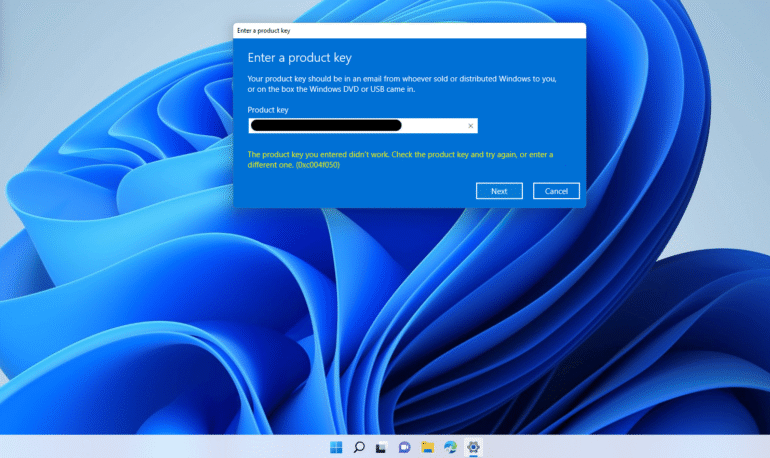
Windows Activation Errors and Fixes for Error Code 0xC004F050
This error usually means the product key is invalid or does not match your installed Windows edition.
How to fix it:
- Open Settings
- Go to Update & Security → Activation
- Click Change product key
- Enter a valid key that matches your Windows version
- Run the Activation Troubleshooter
Make sure:
- Windows 10 Home uses a Home key
- Windows 11 Pro uses a Pro key
Using the wrong edition key is one of the main causes of Windows activation errors.
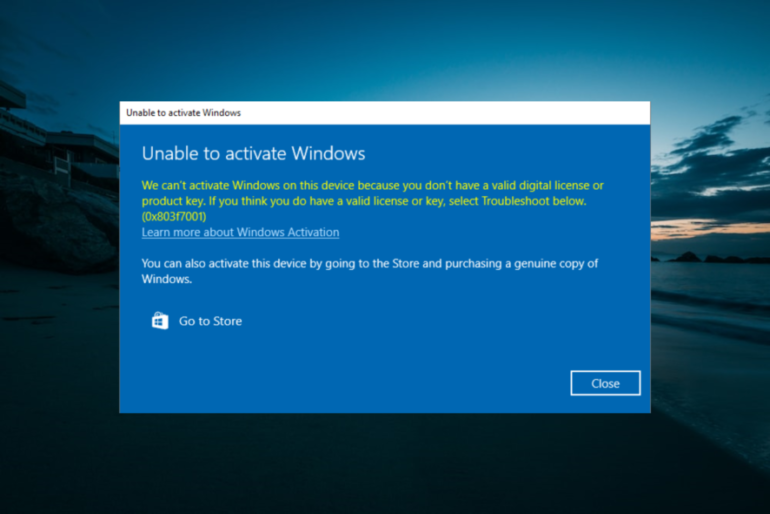
Windows Activation Errors and Fixes for Error Code 0x803F7001
This error appears when Windows cannot find a valid license for your device.
It often happens after reinstalling Windows without linking your license to your Microsoft account.
Fix:
- Connect to the internet
- Go to Settings → Activation
- Click Troubleshoot
- Select “I changed hardware on this device recently” (if applicable)
- Sign in with your Microsoft account
If no license is found, you may need a valid activation key.
Windows Activation Errors and Fixes for the “Windows Not Activated” Message
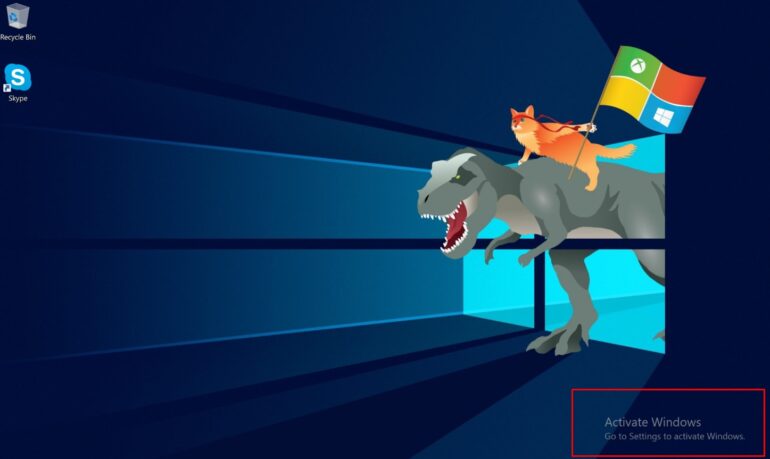
If you see the “Activate Windows” watermark in the corner of your screen, your system is not properly activated.
Common reasons include:
- The product key was already used on another device
- Hardware changes invalidated the digital license
- The key entered does not match the installed edition
Running the Activation Troubleshooter solves this in many cases. If not, entering a genuine product key is the permanent solution.
Advanced Windows Activation Errors and Fixes Troubleshooting Methods
Some Windows activation errors and fixes require deeper system checks.
Using the Troubleshooter for Windows Activation Errors and Fixes
The built-in troubleshooter automatically detects licensing issues.
To run it:
- Open Settings
- Go to Activation
- Click Troubleshoot
- Follow on-screen instructions
This tool resolves most digital license problems automatically.
Fixing System Corruption Behind Windows Activation Errors and Fixes
Corrupted system files can block activation.
To repair them:
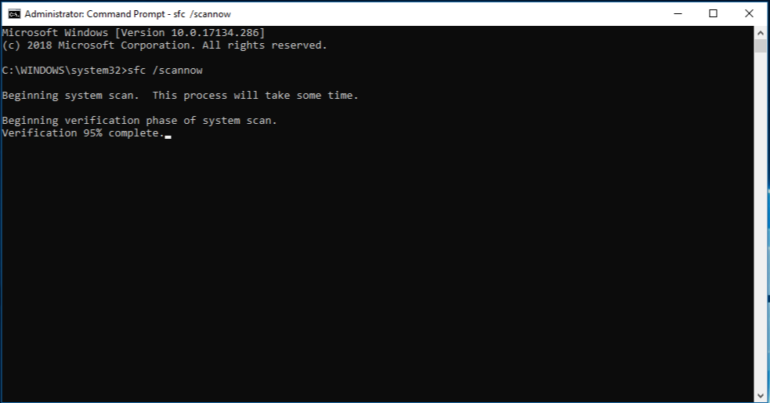
- Open Command Prompt as Administrator
- Type:
sfc /scannow
- Wait for the scan to complete
- Restart your PC
After restarting, try activating Windows again.
How to Prevent Windows Activation Errors and Fixes in the Future
Preventing activation issues is easier than fixing them.
Follow these best practices:
- Always use a genuine product key
- Match your key to the correct Windows edition
- Link your license to your Microsoft account
- Avoid unofficial activation tools
- Keep your system updated
A properly activated Windows installation improves security, stability, and access to updates.
Windows Activation Differences Between Windows 10 and Windows 11
Both Windows 10 and Windows 11 use similar activation systems, but Windows 11 also requires:
- TPM 2.0
- Secure Boot enabled
- Compatible hardware
If activation fails on Windows 11, check your BIOS settings to ensure TPM and Secure Boot are enabled.