
If your computer feels slow or unresponsive, there are several ways to speed up your Windows 10 PC and improve overall performance. Windows 10 is a powerful operating system, but its many built-in features and apps can consume system resources, causing lag and delays. From removing unused programs and disabling unnecessary effects to upgrading RAM or switching to an SSD, these proven tips can help your PC run faster and more efficiently.
Common causes of slower performance include limited storage space, outdated hardware, and unnecessary background programs. By removing unused apps, managing startup programs, and considering hardware upgrades, you can significantly speed up your Windows 10 PC and restore it to peak performance.
1. Check for the Latest Windows 10 Updates
Keeping your Windows 10 PC up to date is one of the easiest ways to boost performance. Microsoft regularly releases updates to fix bugs, patch security issues, and improve system efficiency. Some updates are minor, while others include major changes, such as updated device drivers, which can significantly enhance your PC’s speed and stability.
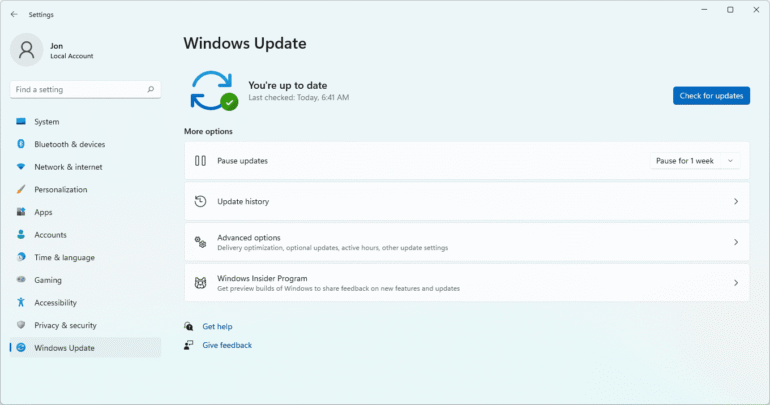
To check for updates, open the Windows menu and go to Settings > Update & Security > Windows Update > Check for Updates. If any updates are available, click Install now, then restart your PC. After the restart, you should notice smoother performance and improved responsiveness.
2. Restart Your PC Regularly
Although it may seem obvious, regularly restarting your PC can significantly improve performance. Many users leave their computers running for days or weeks, often using Sleep mode instead of fully shutting down. Over time, this causes background programs and processes to accumulate in your PC’s memory, slowing down everyday tasks like opening apps or accessing files.
Shutting down or restarting your PC allows the system to clear memory and refresh processes, helping it run more efficiently. If you notice slow performance during routine tasks, try restarting your PC daily. Always remember to save your work before shutting down or restarting to avoid losing any progress.
3. Disable Startup Programs to Improve Performance
Having too many programs launch automatically when your PC starts can slow down Windows 10 significantly. Many applications set themselves to run at startup during installation, consuming memory and system resources before you even begin using your PC.
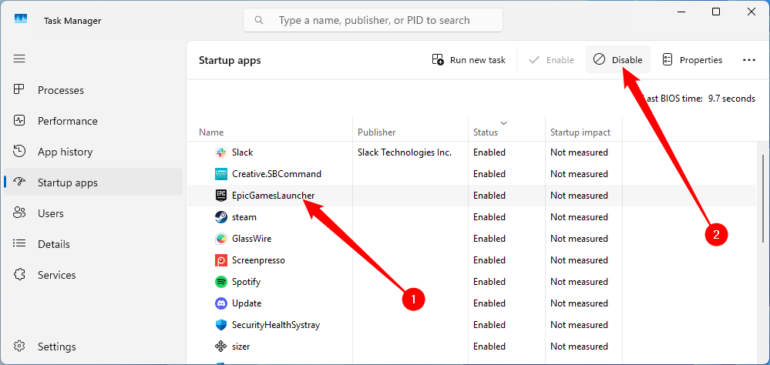
To manage startup programs, open Task Manager and navigate to the Startup tab. Here, the Startup impact column shows which programs affect boot time the most. Programs with a high impact are usually the main culprits behind slow startup and lag.
To prevent a program from launching at startup, right-click it and select Disable. Reducing the number of startup programs can help your PC boot faster and run smoother overall.
4. Use Disk Cleanup to Free Up Space
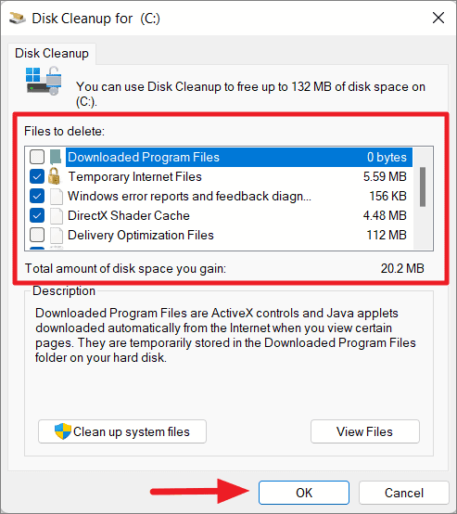
Windows 10 includes a built-in Disk Cleanup tool that helps remove unnecessary temporary files and free up valuable storage. Over time, files such as image thumbnails, downloaded program files, and temporary internet files can accumulate, slowing down your PC.
To run Disk Cleanup, open the Windows menu and search for Disk Cleanup. The tool will display a list of file types you can safely remove. Select the files you want to delete, then click Clean up system files. Disk Cleanup will calculate how much space will be freed.
While performing cleanup, take the chance to remove other unnecessary files or apps that are using extra disk space. Your Downloads folder is a good place to start looking for old or unused files that can be deleted to improve overall performance.
5. Remove Unnecessary Software
Many PCs come with pre-installed third-party programs, often referred to as bloatware, which take up storage and consume system resources without providing real value. Additionally, you may have installed apps that you rarely or never use, which can also slow down your PC.
To remove unwanted software, open the Control Panel and go to Programs and Features > Uninstall a Program. Browse through the list of installed applications, right-click any programs you no longer need, and select Uninstall. Regularly cleaning out old software can free up disk space and help your Windows 10 PC run faster and more efficiently.
6. Disable Special Effects to Boost Performance
Windows 10 includes various visual effects that make the interface look smoother and more appealing, such as animations, fade-ins, and translucent windows. While these features enhance appearance, they can consume system resources and slow down your PC, especially on older or less powerful hardware.
To adjust visual effects, open the Windows menu and search for System. Click Advanced System Settings, then go to the Advanced tab and select Performance Settings. Under the Visual Effects tab, choose Custom, then uncheck the effects you don’t need. Click Apply to save your changes. Disabling unnecessary visual effects can make your Windows 10 PC feel faster and more responsive.
7. Disable Transparency Effects
Windows 10 uses transparency effects for elements like the taskbar and menus to create a visually appealing interface. While these effects look smooth, they can consume more system resources than you might expect, slowing down your PC.
To turn off transparency effects, open the Windows menu and search for Colour settings. Scroll down to find Transparency effects and toggle the switch to Off. Disabling transparency can help free up resources and improve overall performance.
8. Run System Maintenance
Windows 10 includes a built-in system maintenance feature that helps keep your PC running efficiently. This tool performs routine tasks such as defragmenting the hard drive, checking for updates, and scanning for potential malware or viruses.
Although system maintenance usually runs automatically when your PC is idle, you can also run it manually. Open the Control Panel and select Security and Maintenance. Click the arrow to expand the Maintenance section, then select Start Maintenance to perform a full check. Running regular maintenance ensures your PC remains optimized and reduces the risk of slowdowns.
9. Upgrade Your RAM for Faster Performance
Upgrading your PC’s RAM (Random Access Memory) is one of the most effective ways to boost speed and overall performance. Windows 10 requires a minimum of 4GB of RAM to run smoothly, but if you use your computer for demanding tasks such as gaming, video editing, or multitasking, adding more memory can make a noticeable difference.
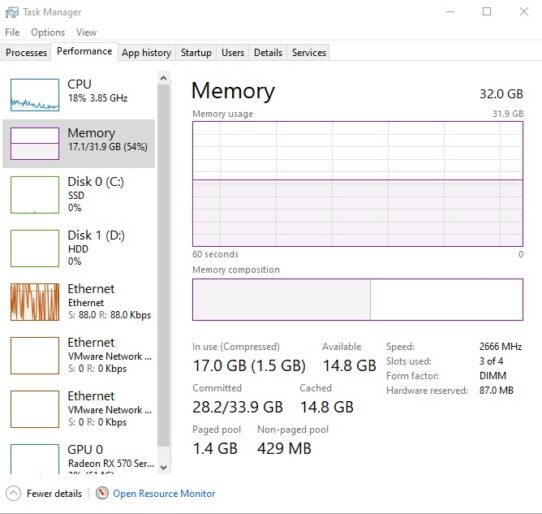
To check your current RAM and system compatibility, open Task Manager by pressing Ctrl + Alt + Delete, then click the Performance tab and select Memory. Here, you can see how many memory slots are available and the type of RAM installed, such as DDR4. Upgrading your RAM can significantly improve system responsiveness, reduce lag, and help your PC handle multiple applications at once more efficiently.
10. Upgrade Your Storage to an SSD
Upgrading your PC’s storage can have a major impact on speed and overall performance. Many PCs still use traditional spinning hard drives (HDDs), which are slower at reading and writing data. Replacing an HDD with a Solid-State Drive (SSD) can transform your system, significantly improving boot times, progr am loading, and overall responsiveness.
SSDs are more expensive than HDDs, but the performance boost is often worth the investment. They are available in different form factors, such as 2.5-inch and M.2, so be sure to choose one compatible with your desktop or laptop. Most SSD upgrades also allow you to transfer all your files and programs from your old drive, so you won’t lose any important data. Investing in an SSD is one of the fastest ways to make your Windows 10 PC feel like new.