
Introduction
Windows 10 and Windows 11 power millions of PCs worldwide, offering speed, stability, and a modern user experience. But even the most reliable systems run into problems over time. From slow performance and update failures to Wi-Fi issues and system crashes, these errors can disrupt productivity and frustrate users.
This comprehensive guide breaks down the most common Windows 10 and 11 issues and provides clear, proven solutions to fix them quickly. Whether you’re dealing with performance drops, system errors, or hardware conflicts, these fixes will help restore your PC to optimal condition.
1. Slow Performance
One of the most frequent complaints among Windows users is a sluggish system. This usually develops over time and is often caused by overloaded startup programs, outdated drivers, or limited system resources.
Key Fixes:
- Disable unnecessary startup apps via Task Manager
- Install the latest drivers for all hardware components
- Scan your system for malware or unwanted programs
- Free up disk space using built-in cleanup tools
- Upgrade RAM if your system struggles with multitasking
2. Blue Screen of Death (BSOD)
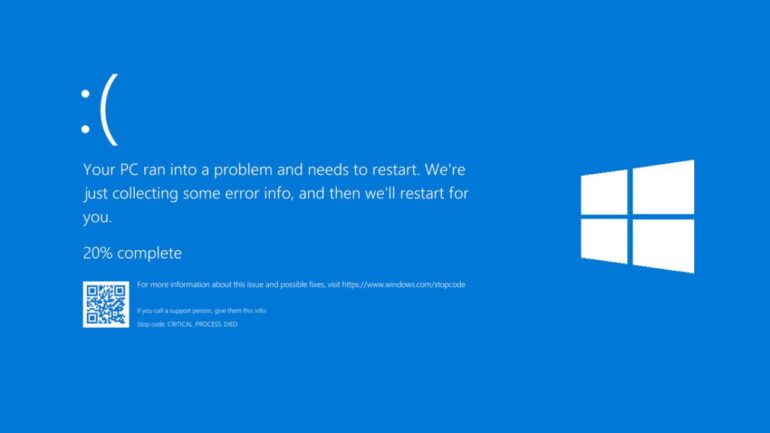
The BSOD is a critical system error that forces Windows to shut down. It’s typically linked to hardware faults, driver conflicts, or corrupted system files.
Key Fixes:
- Update or reinstall problematic drivers
- Run SFC /scannow to repair system files
- Check RAM and hardware connections
- Monitor system temperature to prevent overheating
3. Wi-Fi Connectivity Issues
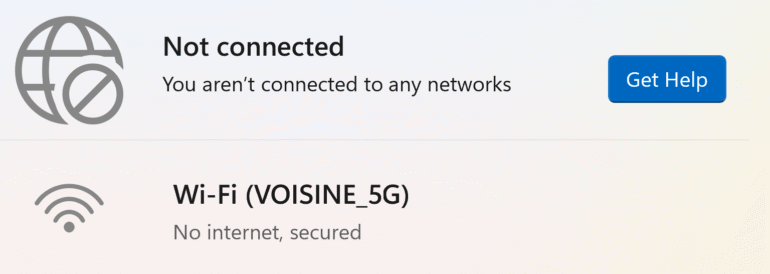
Unstable or missing internet connections are often caused by outdated drivers or incorrect network settings.
Key Fixes:
- Restart your router and modem
- Update network drivers
- Reset network settings in Windows
- Ensure correct network configuration
4. Windows Update Errors
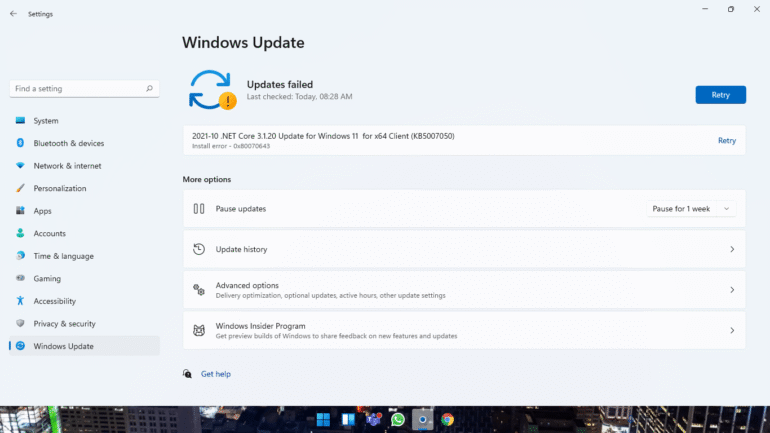
Failed updates can leave your system vulnerable and outdated. These issues often stem from corrupted files or low storage space.
Key Fixes:
- Run the Windows Update Troubleshooter
- Clear the SoftwareDistribution cache
- Ensure sufficient disk space is available
- Restart update services
5. Start Menu Not Working
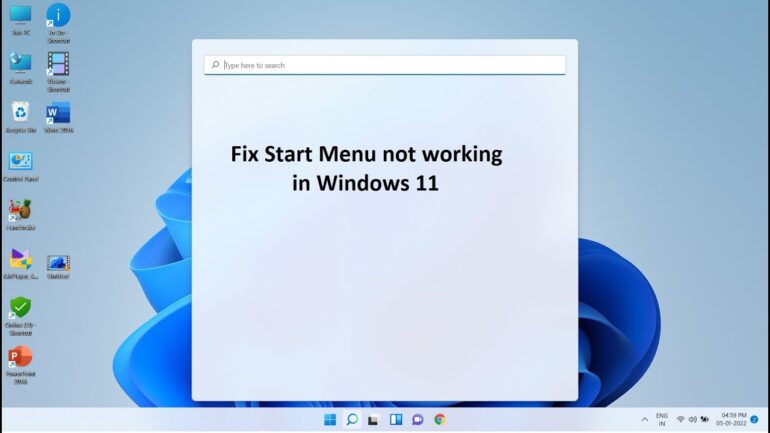
A broken Start Menu can make navigation difficult and reduce productivity.
Key Fixes:
- Restart Windows Explorer from Task Manager
- Run SFC and DISM commands
- Create a new user profile if needed
6. Printer Connectivity Problems
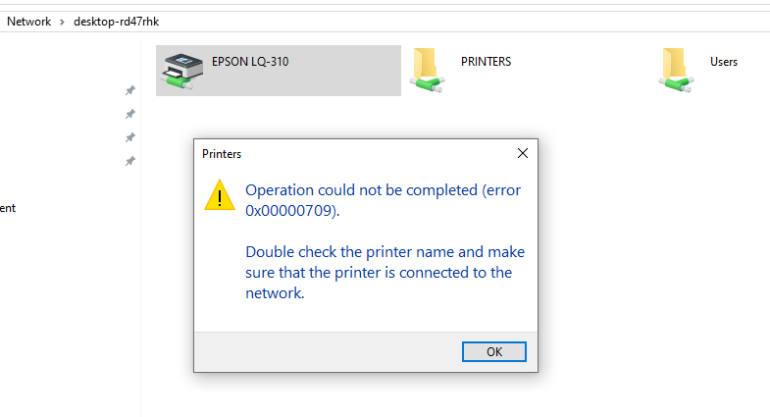
Printers failing to connect or going offline is a common issue in both home and office environments.
Key Fixes:
- Update printer drivers
- Check network connection and settings
- Set the printer as default and ensure it’s online
7. File Explorer Crashes
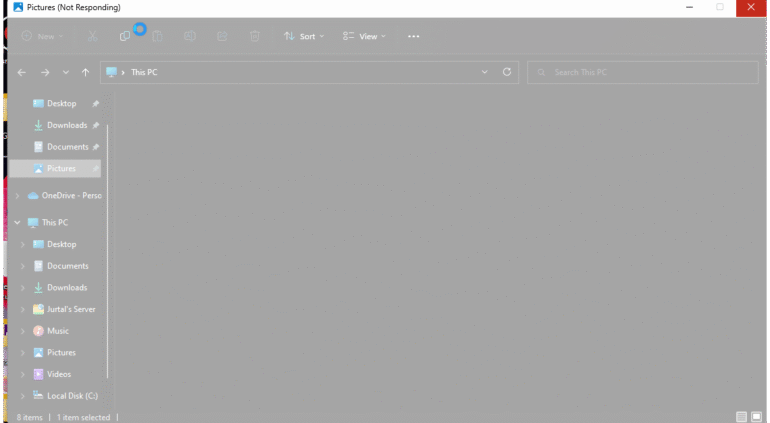
Frequent crashes in File Explorer can interrupt workflow and signal deeper system issues.
Key Fixes:
- Clear File Explorer history
- Update Windows بالكامل
- Run SFC and DISM scans
8. Audio Problems
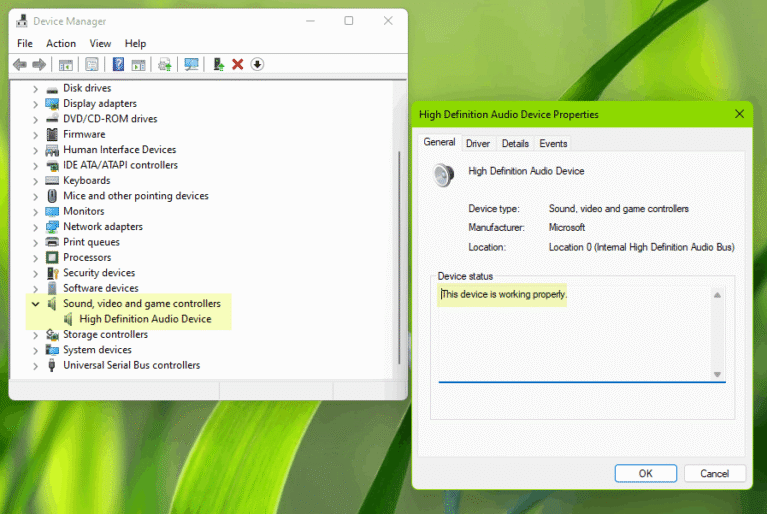
Missing or distorted sound can result from incorrect settings or outdated drivers.
Key Fixes:
- Update audio drivers
- Select the correct output device
- Check hardware connections
9. Application Crashes
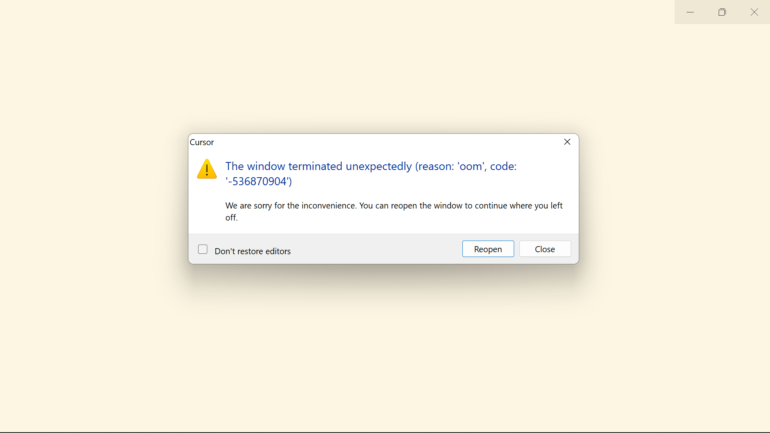
Apps that freeze or crash unexpectedly are often caused by compatibility issues or corrupted files.
Key Fixes:
- Update applications regularly
- Use compatibility mode for older software
- Reinstall problematic programs
10. High Disk Usage
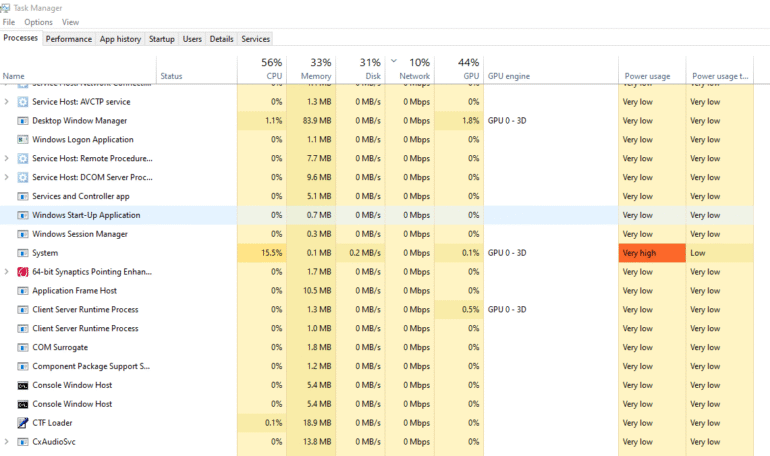
When disk usage hits 100%, your system becomes slow and unresponsive.
Key Fixes:
- Disable unnecessary background services
- Scan for malware
- Identify resource-heavy apps in Task Manager
- Optimize indexing and system services