Change can be difficult, especially when it comes to your operating system. If the Windows 11 Start menu makes you miss the familiar look of Windows 10, you are not alone. Fortunately, you don’t have to settle for a layout you dislike. You can customize the Windows 11 Start menu or even replace it with a third-party alternative.
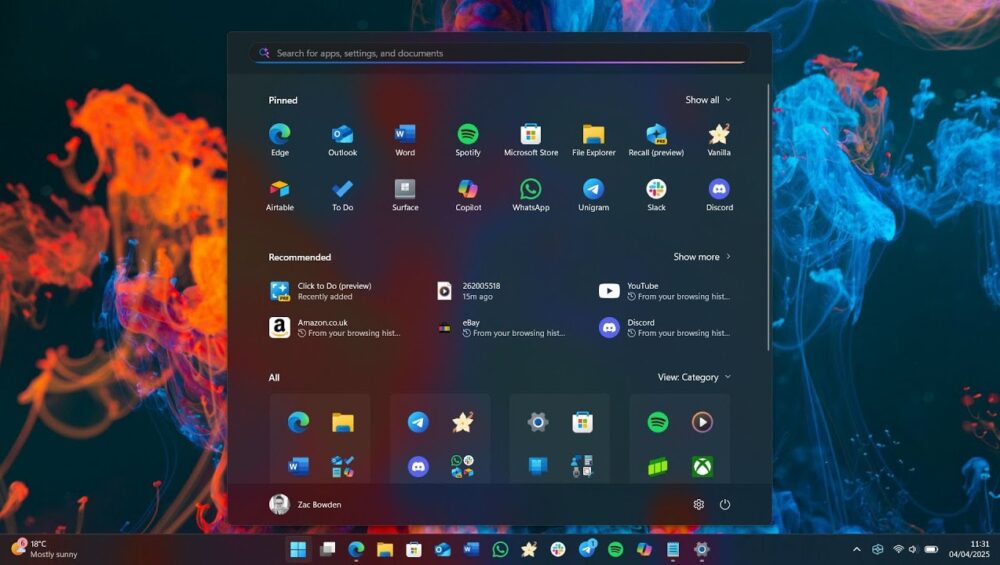
Since its release, the redesigned Windows 11 Start menu has divided users. While some appreciate its clean and modern design, many others prefer the classic Windows 10 interface. The centered layout, simplified customization options, and removal of Live Tiles have made it one of the most debated changes in Windows 11.
However, instead of simply criticizing the new design, you can take action.
Can You Customize the Windows 11 Start Menu?
Yes, you can.
Although the Windows 11 Start menu is less flexible than the Windows 10 version, Microsoft still allows several useful adjustments. For example, you can:
- Move the Start menu to the left side of the taskbar
- Pin or unpin apps
- Remove recommended files
- Organize pinned applications
- Adjust layout settings
These small changes can significantly improve your daily workflow and make the interface feel more familiar.
How to Replace the Windows 11 Start Menu
If customization is not enough, installing a third-party Start menu replacement is another effective solution. Several trusted tools restore the classic Windows 10 look and functionality. These applications offer:
- Traditional Start menu layout
- Advanced customization options
- Classic taskbar styling
- Improved navigation
As a result, you can enjoy the performance benefits of Windows 11 without sacrificing the interface you prefer.
Why Do Users Dislike the Windows 11 Start Menu?
Before making changes, it’s important to understand why the Windows 11 Start menu receives criticism:
- It removes Live Tiles
- It limits deep customization
- It prioritizes recommended content
- It changes long-standing navigation habits
For longtime Windows users, these differences can feel disruptive. However, once you understand the available customization options, the experience becomes much more manageable.
How to Edit the Windows 11 Start Menu (Step-by-Step Guide)
The ability to edit the Windows 11 Start menu has improved significantly since its original release. When Windows 11 first launched, the Start menu felt limited and overly simplified. Many users criticized the Recommended section because it displayed recently opened files and apps that not everyone wanted to see.
Additionally, viewing all installed apps required opening a separate panel, which disrupted workflow. Fortunately, Microsoft addressed these concerns. With Windows 11 version 25H2, the Start menu received meaningful updates that improve usability and customization.
Now, all your apps are accessible from the same menu. You can also completely remove the Recommended section if you prefer a cleaner layout. Furthermore, Windows 11 can display a phone integration panel, allowing quick access to recent calls and text messages from your smartphone.
While these improvements help, you can still customize the Start menu even further.
1. Remove Recommended Apps from the Windows 11 Start Menu
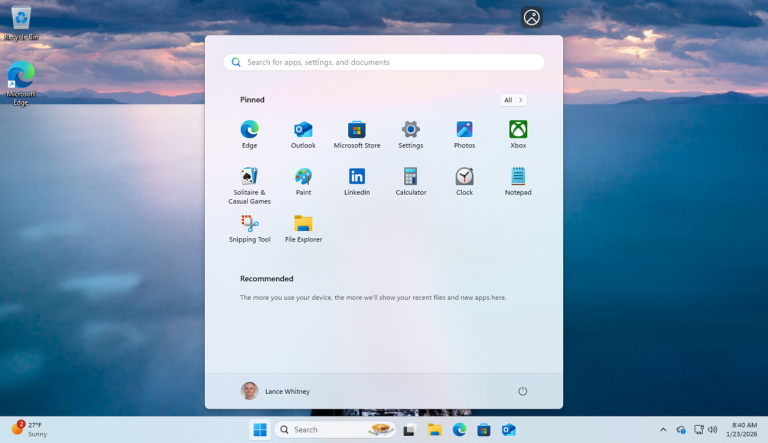
The Recommended section shows recently added apps, recently opened files, and suggested content. However, not everyone finds this feature useful. If you prefer a minimal and distraction-free Start menu, you can disable it entirely.
How to Remove Recommended Apps:
- Open Settings
- Go to Personalization
- Click Start
- Turn off the following options:
- Show recommended files in Start
- Show recent files in File Explorer and items in Jump Lists
- Show recommendations for tips, shortcuts, new apps, and more
Once disabled, the Recommended section will disappear, giving you more space for pinned apps and a cleaner overall layout.
Editing the Windows 11 Start menu allows you to create a more productive workspace. Whether you want a minimal interface or better app organization, small adjustments can significantly improve your daily experience.
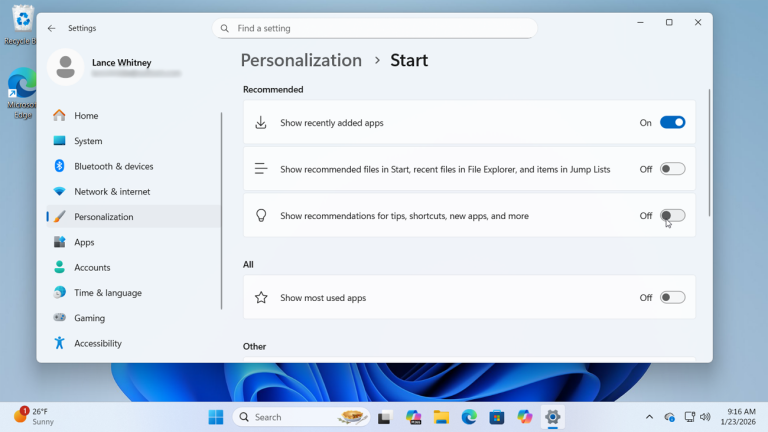
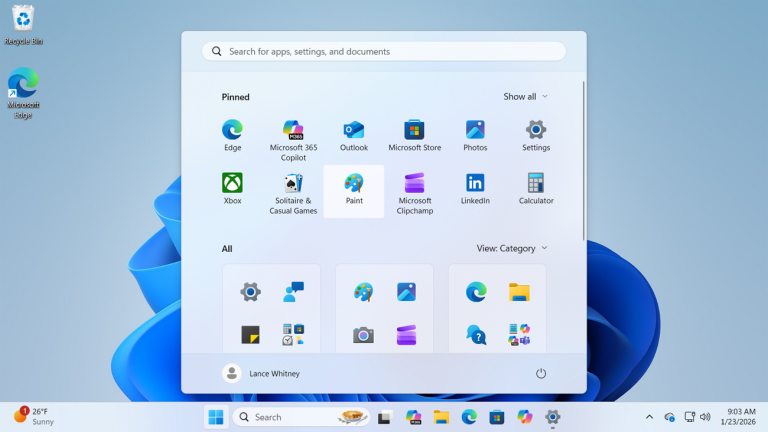
2. Pin and Unpin Apps on the Windows 11 Start Menu
Another simple way to edit the Windows 11 Start menu is by pinning and unpinning apps. This allows you to control which applications appear for quick access and remove the ones you don’t use regularly.
Customizing pinned apps helps you create a cleaner, more efficient layout that matches your workflow.
How to Pin an App to the Windows 11 Start Menu
- Click the Start button.
- Select All to view your complete list of installed apps.
- Find the app you want to add.
- Right-click the app.
- Choose Pin to Start.
The app will immediately appear in the pinned section of your Start menu for easy access.
How to Unpin an App from the Start Menu
If you want to remove an app from the pinned section:
- Open the Start menu.
- Right-click the app icon.
- Select Unpin from Start.
The app will disappear from the pinned area, but it will still remain available under the All apps list.
By managing pinned apps, you can make the Windows 11 Start menu more organized and personalized. Small adjustments like this can significantly improve navigation and productivity.
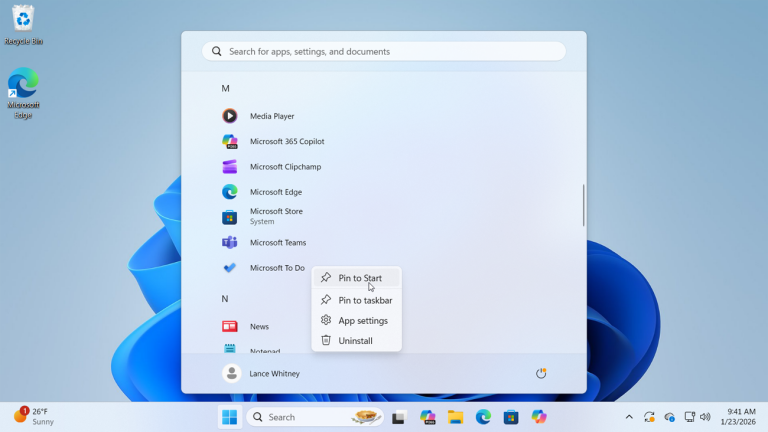
3. Move Icons Around the Windows 11 Start Menu
Another effective way to edit the Windows 11 Start menu is by rearranging app icons. Organizing your pinned apps based on usage makes navigation faster and improves productivity.
For example, you may want to place your most frequently used apps at the top of the Start menu and move less important ones toward the bottom. This simple adjustment helps you access essential programs more efficiently.
How to Move Apps in the Windows 11 Start Menu
There are several ways to reposition apps:
- Move an app to the top:
Right-click the app and select Move to front. - Reposition left or right:
Right-click the app and choose the appropriate directional option. - Drag and drop:
Click and hold the app icon, then drag it to your preferred location.
Using drag-and-drop is often the fastest and most flexible method for customizing layout placement.
Reorganizing your pinned apps allows you to personalize the Windows 11 Start menu and create a layout that fits your daily workflow. Small layout adjustments can make a noticeable difference in usability and efficiency.
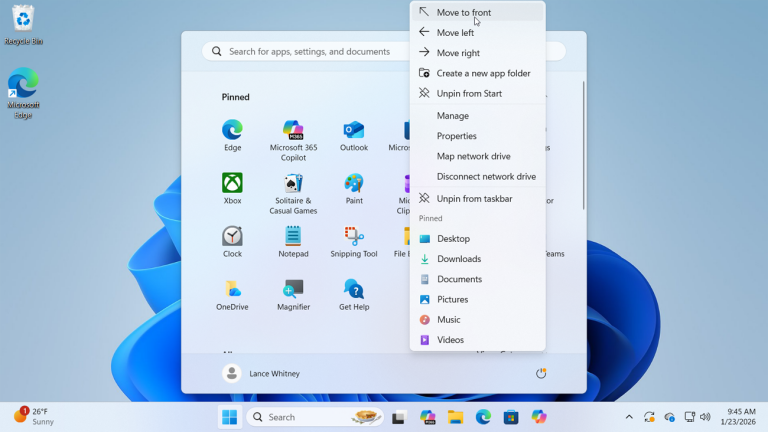
4. Create Folders in the Windows 11 Start Menu
If you want to edit the Windows 11 Start menu for better organization, creating folders is one of the most useful features available. Start menu folders help reduce clutter and group similar apps together, making navigation faster and more efficient.
For example, you can create folders for work apps, gaming tools, productivity software, or social media applications.
How to Create a Folder in the Windows 11 Start Menu
Follow these simple steps:
- Open the Start menu.
- Click and hold one app icon.
- Drag it on top of another app icon.
- Release to automatically create a folder.
Windows 11 will instantly place both apps inside a new folder labeled “Folder.”
How to Rename a Start Menu Folder
To personalize your folder:
- Click the folder to open it.
- Select the default name field.
- Enter a custom name that matches your app group (for example, “Work,” “Games,” or “Utilities”).
You can continue adding more apps by dragging and dropping them into the folder at any time.
Using folders is one of the best ways to customize and organize the Windows 11 Start menu. With proper grouping, you can improve workflow, reduce clutter, and make your system easier to navigate.
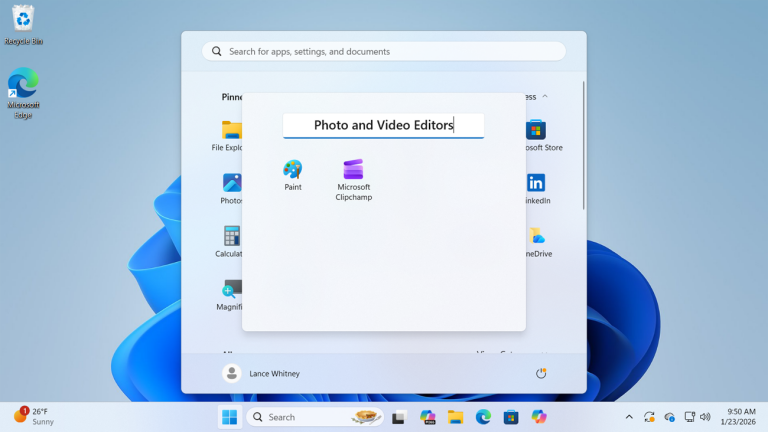
5. Add System Folders to the Bottom of the Windows 11 Start Menu
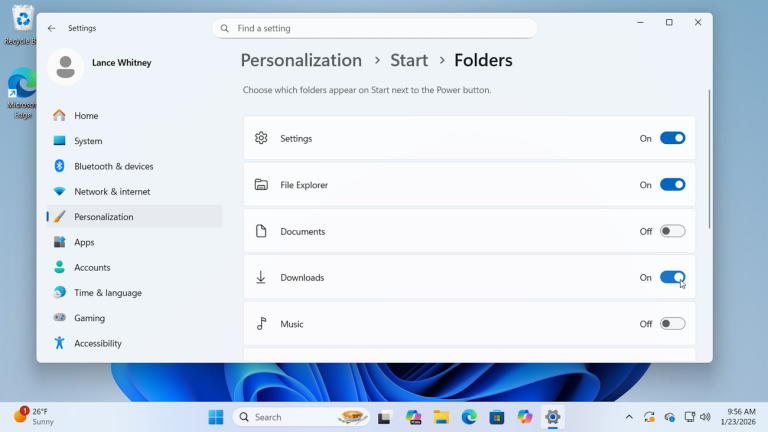
Another useful way to edit the Windows 11 Start menu is by adding system folders next to the Power button. This feature gives you instant access to important locations such as Settings, File Explorer, Documents, Downloads, Network, and more—without opening additional menus.
Placing these shortcuts at the bottom of the Start menu improves navigation speed and makes everyday tasks more convenient.
How to Add Folders Next to the Power Button
Follow these steps to customize the bottom section of your Start menu:
- Open Settings
- Go to Personalization
- Click Start
- Select Folders
- Turn on the toggle switch for any folder you want to appear next to the Power icon
Once enabled, the selected folders will immediately appear in the lower-right corner of the Start menu.
Adding system folders is a simple yet powerful way to customize the Windows 11 Start menu. With quick access to essential tools and locations, you can streamline your workflow and make your PC more efficient.
6. Realign the Start Button in Windows 11
When Microsoft introduced Windows 11, the Start button was moved to the center of the taskbar. While some users enjoy the modern layout, others prefer the traditional bottom-left alignment found in previous versions of Windows.
If you want to edit the Windows 11 Start menu and restore the classic layout, you can easily move the Start button back to the left side.
How to Move the Start Button to the Left
Follow these steps:
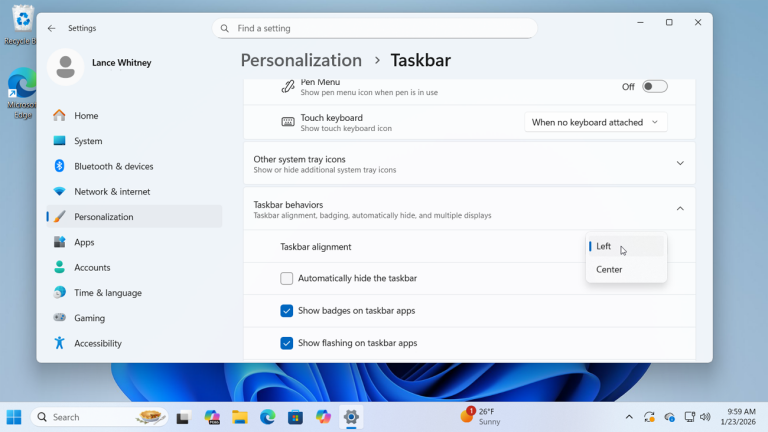
- Open Settings
- Go to Personalization
- Click Taskbar
- Select Taskbar behaviors
- Find the Taskbar alignment dropdown menu
- Change the alignment from Center to Left
Your Start button and taskbar icons will instantly shift to the left side of the screen.
Realigning the Start button is one of the quickest ways to make Windows 11 feel more familiar. If you want even more control, you can further customize taskbar settings to match your preferred layout and workflow.