
Microsoft Office 2019 Professional Plus does not use the cloud-based subscription model of Microsoft 365. Instead, it’s a one-time purchase, and activation must be done with a valid product key.
What You Need Before You Start
| Requirement | What It Means |
|---|---|
| Office 2019 Professional Plus installed | Office apps must be installed on your device. |
| Internet connection | Online activation contacts Microsoft servers. |
| Valid 25-character product key | Bought from Microsoft or an authorized seller. |
| Microsoft Account (optional) | Helpful if you want to tie the license to your account. |
Step-by-Step Online Activation
1. Open Any Office App
Start any Office application, for example:
- Word
- Excel
- PowerPoint
You’ll see an activation prompt if the product isn’t already activated.
2. Sign In (Optional but Recommended)
If you have a Microsoft Account associated with your Office purchase:
- Click Sign In.
- Use the email and password tied to your license.
This links the activation to your Microsoft Account.
3. Enter Your Product Key
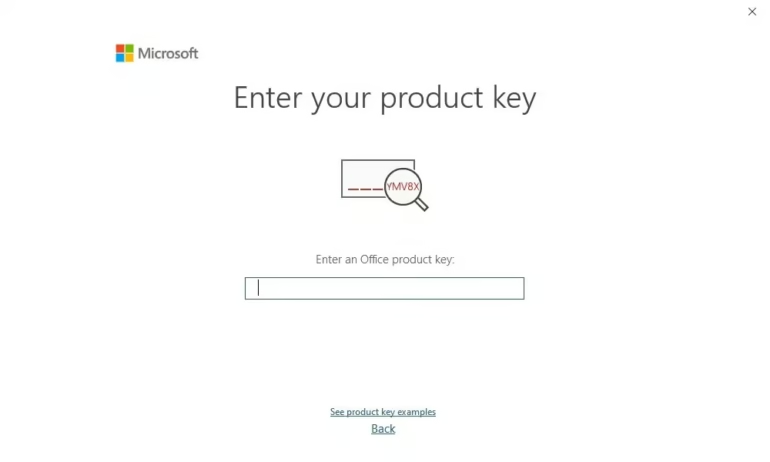
If you’re not prompted to sign in:
- Go to File → Account (or Office Account).
- Look for Activate Product or Change Product Key.
- Enter your valid 25-character product key.
The key looks like:
XXXXX-XXXXX-XXXXX-XXXXX-XXXXX
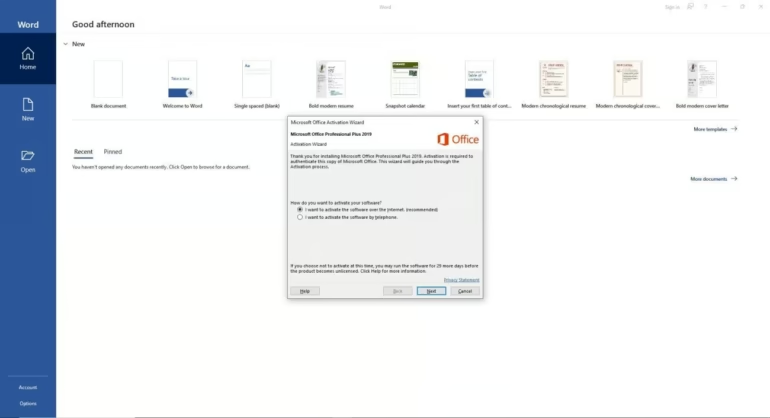
- Click Activate.
4. Let Office Contact the Server
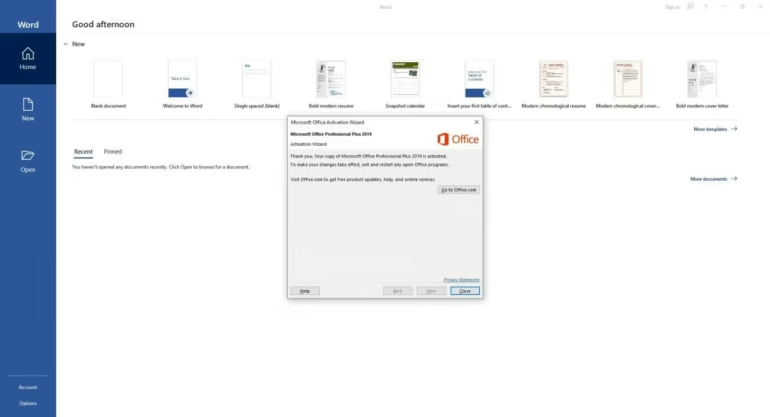
Office will connect to Microsoft’s activation server.
As long as the key is valid and not used on more devices than allowed, it will activate.
Activation Status and Troubleshooting
Check Activation
In any Office app:
- Go to File → Account.
- Under Product Information, you should see:
- Product Activated
- Or Activated with a Microsoft account
If it still says Activation Required or Unlicensed Product, proceed to the troubleshooting steps below.
Common Activation Issues & Fixes
| Issue | Cause | How to Fix |
|---|---|---|
| Invalid product key | Key typed incorrectly or wrong edition | Re-enter carefully; ensure you purchased the correct Office 2019 edition |
| Activation limit reached | Key used on too many devices | Deactivate on old device first or contact Microsoft support |
| No internet connection | Cannot reach activation servers | Connect to the internet and retry |
| Error codes (e.g., 0xC004F074) | Microsoft server issues or firewall block | Turn off firewall temporarily and retry; contact Microsoft support if persistent |
Activate via Command Prompt (Advanced)
If normal activation fails, you can use the Office Software Protection Platform to force online activation (legitimate method):
- Open Command Prompt as Administrator
- Navigate to Office installation folder, e.g.:
cd "C:\Program Files\Microsoft Office\Office16" - Convert the key (replace with your key):
cscript ospp.vbs /inpkey:YOUR-KEY-HERE - Activate Office online:
cscript ospp.vbs /act
You should see a success message if activation worked.
Associate Your License with a Microsoft Account (Optional)
Linking your Office license to a Microsoft account helps with future reinstallations.
- Sign in at https://account.microsoft.com
- Go to Services & subscriptions
- You should see Office 2019 Professional Plus listed if the key was redeemed
- This lets you manage installations and reinstall if needed.