How to Install or Upgrade Windows with a Product Key-OPTKEYSCategoriesBlog

How to Install or Upgrade Windows with a Product Key

Installing or upgrading Windows with a product key is one of the most reliable and official methods to activate your operating system. First of all, whether you are setting up a new PC or reinstalling Windows, using a valid product key guarantees full access to all features. In addition, it ensures long-term security updates and system stability.

In this guide, you will learn how to install or upgrade Windows with a product key step by step, clearly explained for both beginners and advanced users.


Why Use a Product Key to Install or Upgrade Windows?

To begin with, activating Windows with a genuine product key provides several important benefits. Most importantly, it unlocks all system features without restrictions. Moreover, it keeps your device protected with regular updates.

As a result, a properly activated Windows system performs better and remains secure over time.


What Is a Windows Product Key?

In simple terms, a Windows product key is a 25-character code used to activate your copy of Windows. For example, it follows this format:

XXXXX-XXXXX-XXXXX-XXXXX-XXXXX

Essentially, this key verifies that your Windows license is genuine and valid.

Types of Windows Product Keys

Generally speaking, Windows product keys fall into several categories:

Product Key TypeDescription
RetailPurchased separately and transferable
OEMPreinstalled and linked to original hardware
Digital LicenseLinked to a Microsoft account
VolumeUsed by organizations and businesses

How to Install Windows Using a Product Key (Clean Install)

First, a clean installation is recommended when you want maximum performance. For instance, it is ideal for new computers or systems with serious issues.

Step-by-Step Installation Guide

  1. First, download the official Windows installation media
  2. Next, create a bootable USB drive (8GB or larger)
  3. Then, boot your PC from the USB drive
  4. After that, choose language and keyboard settings
  5. At this stage, enter your Windows product key
  6. Once selected, choose the correct Windows edition
  7. Finally, complete the installation process

Alternatively, you can skip the product key and activate Windows later.


How to Upgrade Windows Using a Product Key

On the other hand, upgrading Windows allows you to keep your files. In most cases, this method is faster and more convenient.

Upgrade Steps

  1. First, open Settings → System → Activation
  2. Then, click Change product key
  3. Afterward, enter your product key
  4. Lastly, restart your PC to apply changes

As a result, Windows will upgrade automatically if the key supports it.


Clean Install vs Upgrade Comparison

FeatureClean InstallUpgrade
Keeps files❌ No✅ Yes
Best performance✅ Yes⚠ Depends
Fixes system errors✅ Yes❌ Limited
Setup speed❌ Slower✅ Faster

How to Activate Windows After Installation

If necessary, you can activate Windows after installation. To do this, follow these steps:

  1. First, go to Settings → System → Activation
  2. Next, click Change product key
  3. Then, enter the 25-character key
  4. Finally, click Activate

Once completed, Windows will confirm successful activation.


Common Windows Activation Errors (And Fixes)

Unfortunately, activation issues can still occur. However, most problems are easy to resolve.

Common Windows Activation Errors Table

ErrorCauseSolution
Product key doesn’t workWrong edition installedReinstall correct Windows edition
Key already in useActive on another PCRemove from old device or contact support
Activation fails after hardware changeHardware resetSign in with Microsoft account
Server unavailableMicrosoft server issueTry again later
Invalid product keyTypo or incorrect formatRe-enter key carefully
Edition upgrade blockedIncompatible keyUse correct upgrade key
Activation watermark visibleSync issueRestart and troubleshoot
Error 0xC004F050Invalid or blocked keyReplace with genuine key
windows-11-tips-tricks-optkeysCategoriesBlog

Windows 11 Tips, Tricks & Hacks to Speed Up Performance

Productivity Windows 11 Tips and Tricks You Should Know

Windows 11 tips, tricks, and hacks can dramatically improve performance, productivity, and customization if you know where to look. While Windows 11 looks polished out of the box, many powerful features and optimizations remain hidden. In this guide, you’ll discover practical tweaks that help you get more speed, better privacy, and a smoother everyday experience.

Using the right Windows 11 tricks, you can:

  • Reduce boot time
  • Improve system responsiveness
  • Enhance multitasking
  • Protect your privacy
  • Customize Windows 11 to fit your workflow

1. Speed Up Windows 11 Performance

Disable Unnecessary Startup Apps

Too many startup programs slow down Windows 11.

Steps:

  1. Press Ctrl + Shift + Esc
  2. Open Startup Apps
  3. Disable apps you don’t need immediately

✔ Faster startup
✔ Less background load


Enable Storage Sense

Windows 11 can automatically remove junk files.

  • Go to Settings → System → Storage
  • Enable Storage Sense

This keeps your system clean without manual effort.


2. Productivity Tricks You Should Be Using

Snap Layouts for Multitasking

Hover over the maximize button to instantly organize windows.

Ideal for:

  • Office work
  • Content creation
  • Multi-monitor setups

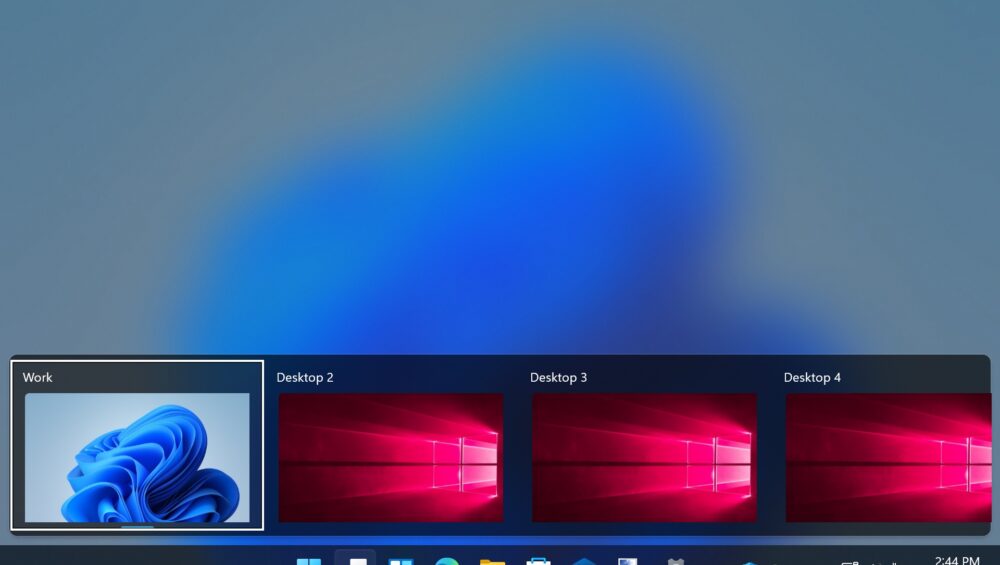
Use Virtual Desktops

Separate work, gaming, and personal apps.

Shortcut:
👉 Win + Tab → New Desktop

Each desktop stays organized independently.


Essential Keyboard Shortcuts

ShortcutFunction
Win + DShow desktop
Win + LLock PC
Win + Shift + SScreenshot
Win + XPower user menu

3. Windows 11 Customization Hacks

Move Taskbar Icons to the Left

Prefer the classic layout?

  • Settings → Personalization → Taskbar
  • Set Taskbar alignment to Left

Enable Dark Mode

Dark mode reduces eye strain and looks cleaner.

  • Settings → Personalization → Colors
  • Choose Dark

4. Improve Privacy & Security in Windows 11

Limit App Permissions

Many apps request unnecessary access.

Review permissions for:

  • Camera
  • Microphone
  • Location
  • Background activity

Path: Settings → Privacy & Security


Reduce Diagnostic Data

For better privacy:

  • Set diagnostics to Required only
  • Disable feedback tracking where possible

5. Hidden Windows 11 Hacks Most Users Miss

Clipboard History

Copy multiple items at once.

👉 Press Win + V and enable Clipboard History.


Enable God Mode

Access all system tools from one folder.

How:

  1. Create a new folder
  2. Rename it to:
GodMode.{ED7BA470-8E54-465E-825C-99712043E01C}

Instant access to advanced controls.


6. Best Free Tools for Windows 11 Power Users

Enhance Windows 11 using trusted utilities for:

  • System optimization
  • Disk cleanup
  • Performance monitoring

Avoid unknown software to keep your system secure.


Frequently Asked Questions (Featured Snippet Optimized)

What are the best Windows 11 tips and tricks?

The best Windows 11 tips include disabling startup apps, using Snap Layouts, enabling Clipboard History, managing permissions, and keeping Storage Sense enabled.


How can I make Windows 11 faster?

You can speed up Windows 11 by disabling unnecessary startup programs, limiting background apps, cleaning storage automatically, and keeping your system updated.


Are Windows 11 hacks safe?

Yes, built-in Windows 11 hacks are safe when done through official system settings. Avoid third-party tools from unknown sources.


Is Windows 11 better than Windows 10?

Windows 11 offers improved security, better multitasking, modern UI, and long-term update support, especially on newer hardware.


Does Windows 11 have hidden features?

Yes. Hidden features include God Mode, advanced Snap Layouts, Clipboard History, and powerful virtual desktop controls.


Final Thoughts

Windows 11 becomes significantly more powerful when properly optimized. By applying these Windows 11 tips, tricks, and hacks, you’ll enjoy a faster, cleaner, and more secure experience — without compromising stability.

📌 Pro tip: Update this post regularly with new Windows 11 updates to keep rankings fresh.

Windows 10 and 11 - OPTKEYSCategoriesBlog

Free Windows 10 & 11 Keys – 2026 Updated List

Microsoft provides the ability to install Windows 10 and Windows 11 without purchasing a license for purposes such as testing, evaluation, and educational use. By using Microsoft’s generic product keys, you can temporarily activate Windows and access all its features without performing full activation. These keys are intended for short-term, non-commercial use only and are not valid for permanent activation or business deployment, making them ideal for IT professionals, developers, and students who need a safe environment to explore Windows functionality.

In this guide, we provide the latest free Windows 10 and 11 generic product keys (2026 update), explain how activation works, and clarify usage restrictions. This ensures you can safely test Windows systems before purchasing an official license for long-term or business use.

⚠️ Disclaimer: Read Before Using

First of all, generic product keys are intended strictly for testing, evaluation, and non-commercial use. In other words, these keys do not grant a full Windows license.

Therefore, for permanent or commercial use, you must purchase a legitimate Windows license directly from Microsoft or an authorized reseller.


Why Microsoft Provides Generic Product Keys

To begin with, Microsoft offers general-purpose product keys primarily for IT professionals, developers, and system administrators. More specifically, these keys allow users to:

  • Install and test Windows builds before enterprise deployment
  • Verify hardware and software compatibility
  • Configure virtual machines (VMs) for evaluation
  • Evaluate system performance prior to purchasing a full license

In most cases, generic keys allow Windows to run temporarily for 30–90 days. After that, activation reminders begin to appear.


How Windows Activation Works

Essentially, Windows activation verifies that each installation is genuine and properly licensed. As a result, activated systems gain access to:

  • Security updates
  • Feature updates
  • Personalization options

However, even without activation, Windows continues to function. That said, it operates with limited features and periodic reminders.


Why Activation Matters

Most importantly, activation confirms that your copy of Windows is:

  • Legitimate and properly licensed
  • Not used beyond the allowed number of devices
  • Eligible for official updates and security patches

Because of this, activation is strongly recommended for long-term use.


Types of Windows Activation Methods

Depending on the installation type, Microsoft provides different activation methods:

Key TypePurposeValiditySource
Retail KeyPersonal or commercial usePermanentMicrosoft Store / Authorized Seller
OEM KeyPre-installed on branded PCsPermanent (hardware-locked)PC Manufacturer
Generic KeyInstallation and testingTemporaryMicrosoft documentation

Generally speaking, generic keys are used for short-term testing, whereas retail or OEM keys are intended for permanent activation.


Free Windows 10 Generic Product Keys (2026)

For testing purposes, Microsoft provides generic product keys that allow temporary Windows 10 installation. As such, these keys are ideal for:

  • Test environments
  • Educational purposes
  • Virtual machines or IT labs
EditionGeneric Product Key (Evaluation)
Windows 10 HomeTX9XD-98N7V-6WMQ6-BXCMB-YHFQP
Windows 10 Home N3KHY7-WNT83-DQ7X9-G6RDP-6VCV3
Windows 10 ProVK7JG-NPHTM-C97JM-9MPGT-3V66T
Windows 10 Pro N2B87N-8KFHP-DKV6R-Y2C8J-PDYBT
Windows 10 EducationYNMGQ-8RYV3-4PGQ3-C8XTP-7CFBY
Windows 10 Education N84NGF-M78RP-Q6M8B-RCG66-V3V9T
Windows 10 EnterpriseNPPR9-FWDCX-D2C8J-H872K-2YT43
Windows 10 Enterprise NDPH2V-TTNVB-4X9Q3-TJR4H-KHJW4

Notably, these keys are publicly listed by Microsoft and are not retail activation keys.


Free Windows 10 KMS Client Keys (2026)

Additionally, KMS (Key Management Service) keys are designed for IT labs, virtual machines, and temporary enterprise setups.

Windows VersionProduct Key
Windows 10 HomeTX9XD-98N7V-6WMQ6-BX7FG-H8Q99
Windows 10 ProW269N-WFGWX-YVC9B-4J6C9-T83GX
Windows 10 EnterpriseNPPR9-FWDCX-D2C8J-H872K-2YT43

Free Windows 11 Generic Product Keys (2026)

Similarly, Microsoft provides generic Windows 11 keys for developers, testers, and IT professionals. These keys, therefore, allow temporary installation and evaluation.

EditionGeneric Product Key (Evaluation)
Windows 11 HomeTX9XD-98N7V-6WMQ6-BXCMB-YHFQP
Windows 11 Home N3KHY7-WNT83-DQ7X9-G6RDP-6VCV3
Windows 11 ProW269N-WFGWX-YVC9B-4J6C9-T83GX
Windows 11 Pro NMH37W-N47XK-V7XM9-C7227-GCQG9
Windows 11 EducationNW6C2-QMPVW-D7KKK-3GKT6-VCFB2
Windows 11 EnterpriseNPPR9-FWDCX-D2C8J-H872K-2YT43

Windows 11 KMS Client Keys

Likewise, KMS keys are suitable for bulk testing in corporate or lab environments.

Windows VersionProduct Key
Windows 11 HomeTX9XD-98N7V-6WMQ6-BX7FG-H8Q99
Windows 11 ProW269N-WFGWX-YVC9B-4J6C9-T83GX
Windows 11 EducationNW6C2-QMPVW-D7KKK-3GKT6-VCFB2

How Long Do Generic Keys Work?

Typically, generic keys work for 30–90 days, which is usually enough to test applications, hardware compatibility, and updates.


After Expiration

Once the evaluation period ends, Windows continues running. However, functionality becomes limited. For example:

  • Activation reminders appear
  • Desktop personalization is restricted
  • Themes and customization options are disabled

Extending Evaluation

In some cases, IT professionals reinstall Windows using the same generic key to continue testing. That said, this is intended only for temporary evaluation and not permanent use.


Common Issues During Windows Activation

Occasionally, users may encounter activation issues:

IssueCauseSolution
Invalid keyWrong edition or typing errorVerify edition and re-enter key
Activation server errorNetwork instabilityEnsure stable connection; disable VPN/proxy
Version mismatchWindows 10 key on Windows 11Use correct ISO and key

Difference Between Generic Keys and Volume Licensing

To clarify, generic keys and volume licenses serve different purposes:

FeatureGeneric KeyVolume License Key
CostFreePaid
PurposeEvaluationEnterprise activation
ActivationTemporaryCentralized / permanent
LegalityAllowed for testingOrganization use only

Yes, generic keys are legal when used for testing, evaluation, or educational purposes. Importantly, Microsoft publishes these keys in official documentation.

However, using pirated keys or activation tools is strongly discouraged, as they may:

  • Violate license agreements
  • Introduce malware
  • Block official updates

✅ TL;DR

In summary, free Windows 10 and 11 generic product keys (2026) allow temporary installation and evaluation. Therefore, they are ideal for IT labs, virtual machines, and testing environments. Nevertheless, they are not valid for permanent or commercial use.

For long-term activation, always purchase a legitimate license and download Windows only from official Microsoft sources.