How to fix volsnap.sys error 0xc000007b
June 10, 2026
How to check your Windows activation status
June 11, 2026
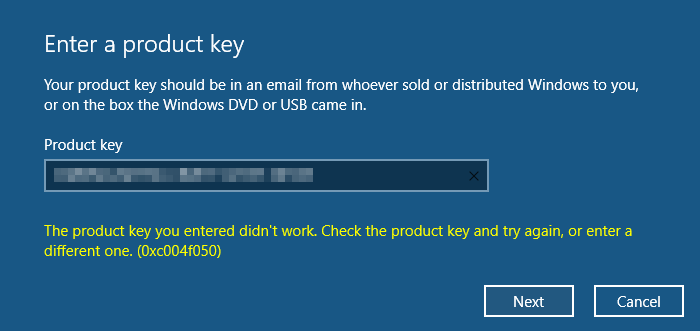
Windows Activation Error 0xc004f050 is one of the most common activation problems encountered by Windows 11 and Windows 10 users. The error usually appears when Windows cannot validate the product key entered during activation. As a result, users may see messages stating that the product key is invalid, cannot be used, or that Windows failed to activate.
The good news is that Error 0xc004f050 is often fixable without reinstalling Windows. In this guide, we’ll explain what causes the error and walk through the most effective solutions.
What Is Windows Activation Error 0xc004f050?
Error 0xc004f050 occurs when Windows cannot verify the product key being used for activation.
You may see messages such as:
- The product key you entered didn’t work.
- Windows can’t activate right now.
- Activation failed with error code 0xc004f050.
- The Software Licensing Service reported that the product key is invalid.
This error typically occurs after installing Windows, upgrading hardware, changing Windows editions, or entering an incorrect product key.
Common Causes of Error 0xc004f050
Check Your Windows Edition First
Before troubleshooting, verify that your product key matches the installed Windows edition.
To check your Windows edition:
- Press Windows + I
- Open System
- Click About
- Look for Windows Specifications
Common examples:
| Installed Edition | Required Key |
|---|---|
| Windows 11 Home | Windows 11 Home Key |
| Windows 11 Pro | Windows 11 Pro Key |
| Windows 10 Home | Windows 10 Home Key |
| Windows 10 Pro | Windows 10 Pro Key |
A Windows Home key cannot activate Windows Pro.
Solution 1: Re-enter the Product Key
Typing mistakes are surprisingly common.
Open Command Prompt as Administrator and run:
slmgr /ipk XXXXX-XXXXX-XXXXX-XXXXX-XXXXXReplace the X characters with your product key.
After installation, activate Windows:
slmgr /atoWait for the activation confirmation message.
Solution 2: Run the Windows Activation Troubleshooter
Microsoft includes a built-in activation troubleshooter.
Steps:
- Open Settings
- Go to System
- Select Activation
- Click Troubleshoot
- Follow the on-screen instructions
The troubleshooter can automatically detect common licensing issues.
Solution 3: Check Activation Status
Use Command Prompt as Administrator and run:
slmgr /dlvThis command displays detailed activation information including:
- License status
- Activation channel
- Partial product key
- Activation ID
Review the information for clues about the activation issue.
Solution 4: Repair Windows System Files
Corrupted Windows files can prevent successful activation.
Run:
sfc /scannowAllow the scan to complete.
Afterward run:
DISM /Online /Cleanup-Image /RestoreHealthThese commands repair damaged system files and Windows components.
Solution 5: Verify Internet Connectivity
Windows must communicate with Microsoft activation servers.
Check that:
- Internet connection is active
- VPN is disabled
- Firewall isn’t blocking activation
- Date and time are correct
Incorrect system time can occasionally interfere with activation.
Solution 6: Restart the Software Protection Service
The Software Protection Service manages Windows licensing.
- Press Windows + R
- Type:
services.msc- Find Software Protection
- Set Startup Type to Automatic
- Restart the service
Try activation again afterward.
Solution 7: Check If Your License Is Genuine
Not all product keys are equal.
Using the wrong license type can result in activation problems.
Useful Commands for Activation Troubleshooting
Display Activation Information
slmgr /dlvCheck Activation Status
slmgr /xprInstall Product Key
slmgr /ipk XXXXX-XXXXX-XXXXX-XXXXX-XXXXXActivate Windows
slmgr /atoRemove Existing Product Key
slmgr /upkFrequently Asked Questions
Can Error 0xc004f050 Be Fixed?
Yes. In most cases the issue is caused by an incorrect product key, wrong Windows edition, licensing issues, or corrupted activation files.
Does Reinstalling Windows Fix Error 0xc004f050?
Not usually. Most activation problems can be resolved without reinstalling Windows.
Can Hardware Changes Cause This Error?
Yes. Replacing major hardware such as the motherboard may cause Windows to require reactivation.
Can Microsoft Servers Cause Activation Errors?
Yes. Temporary outages or activation server maintenance can occasionally trigger activation failures.