How to activate Office 2019 Pro Plus
January 30, 2026
Download official Microsoft ISO files
February 3, 2026
Windows Evaluation editions are intended for temporary testing purposes. However, once the evaluation period ends, limitations begin to appear. As a result, users often look for a way to convert Windows Evaluation to a full version and continue using the system without interruptions.
Fortunately, in some cases, conversion is possible without reinstalling Windows. In this guide, you’ll learn when conversion is supported, how to do it correctly, and what to do when conversion is not available.
What Is Windows Evaluation?
In simple terms, Windows Evaluation is a time-limited edition provided by Microsoft for testing and deployment. Typically, these editions are used by IT professionals, businesses, and developers. However, once the trial expires, Windows will display warnings and restrict functionality.
Therefore, converting to a full version becomes necessary for continued use.
Can Windows Evaluation Be Converted to a Full Version?
The short answer is: sometimes.
More specifically, conversion depends on the Windows edition you are using. While some Evaluation editions support in-place conversion, others require a clean installation.
Because of this, it’s important to identify your current edition before proceeding.
Supported Conversion Paths
Below is a clear overview of what can and cannot be converted:
| Evaluation Edition | Convertible | Notes |
|---|---|---|
| Windows Server Evaluation | Yes | Supported via edition change |
| Windows 10 Enterprise Evaluation | No | Clean install required |
| Windows 11 Enterprise Evaluation | No | Clean install required |
| Windows Enterprise LTSC Eval | No | Conversion not supported |
As shown above, client Enterprise Evaluation editions cannot be converted directly.
How to Check Your Current Windows Edition
Before moving forward, you should confirm which Windows edition is installed.
- Press Win + R
- Type
winver - Press Enter
At this point, Windows will display the exact edition and whether it is an Evaluation version.
Convert Windows Server Evaluation to Full Version
If you are using Windows Server Evaluation, conversion is officially supported. Therefore, this is the recommended approach.
Step-by-Step Conversion Process
- Open Command Prompt as Administrator
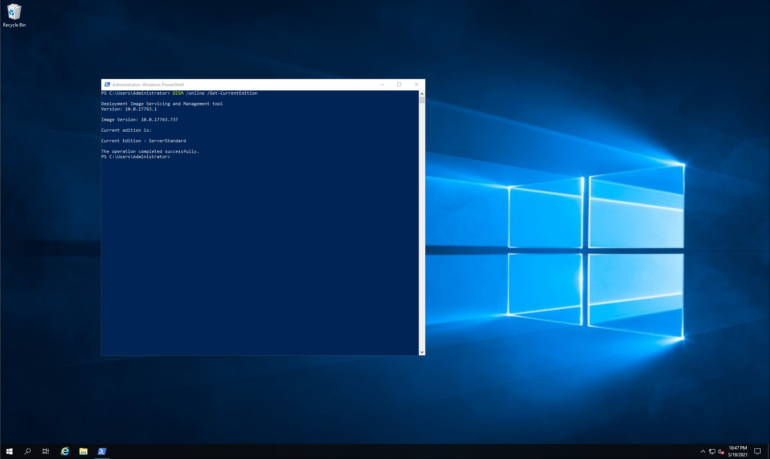
- First, check available target editions:
DISM /online /Get-TargetEditions
- Next, run the conversion command (example shown below):
DISM /online /Set-Edition:ServerDatacenter /ProductKey:XXXXX-XXXXX-XXXXX-XXXXX-XXXXX /AcceptEula
- Finally, restart the system when prompted
After rebooting, Windows Server will be converted to a full version.
Activate Windows After Conversion
Once the conversion is complete, activation is required.
- Open Settings → System → Activation
- Enter your valid product key
- Confirm activation status
As a result, the system should display Windows is activated.
When Conversion Is Not Supported
Unfortunately, Windows 10 and Windows 11 Enterprise Evaluation editions cannot be converted directly.
In this case, the only supported solution is a clean installation.
Available Options
| Option | Supported |
|---|---|
| Clean install Windows Pro | Yes |
| Clean install full Enterprise | Yes |
| Direct activation of Evaluation | No |
| Bypass methods | Not recommended |
Therefore, backing up your data before reinstalling is strongly advised.
Common Errors and Solutions
Even so, users may encounter issues during conversion or activation.
| Issue | Cause | Solution |
|---|---|---|
| Product key rejected | Evaluation edition | Convert edition first |
| DISM error | Unsupported edition | Verify target edition |
| Activation failed | Invalid key | Confirm key type |
| Evaluation expired | Time limit reached | Convert or reinstall |
In most cases, these issues are caused by using an unsupported upgrade path.
Best Practices Before Converting
To avoid problems, follow these recommendations:
- Back up important data
- Use a genuine product key
- Confirm supported conversion path
- Maintain a stable internet connection
- Restart after conversion
By doing so, you reduce the risk of errors significantly.