Free Windows 10 & 11 Product Keys (2026 Updated List)
January 22, 2026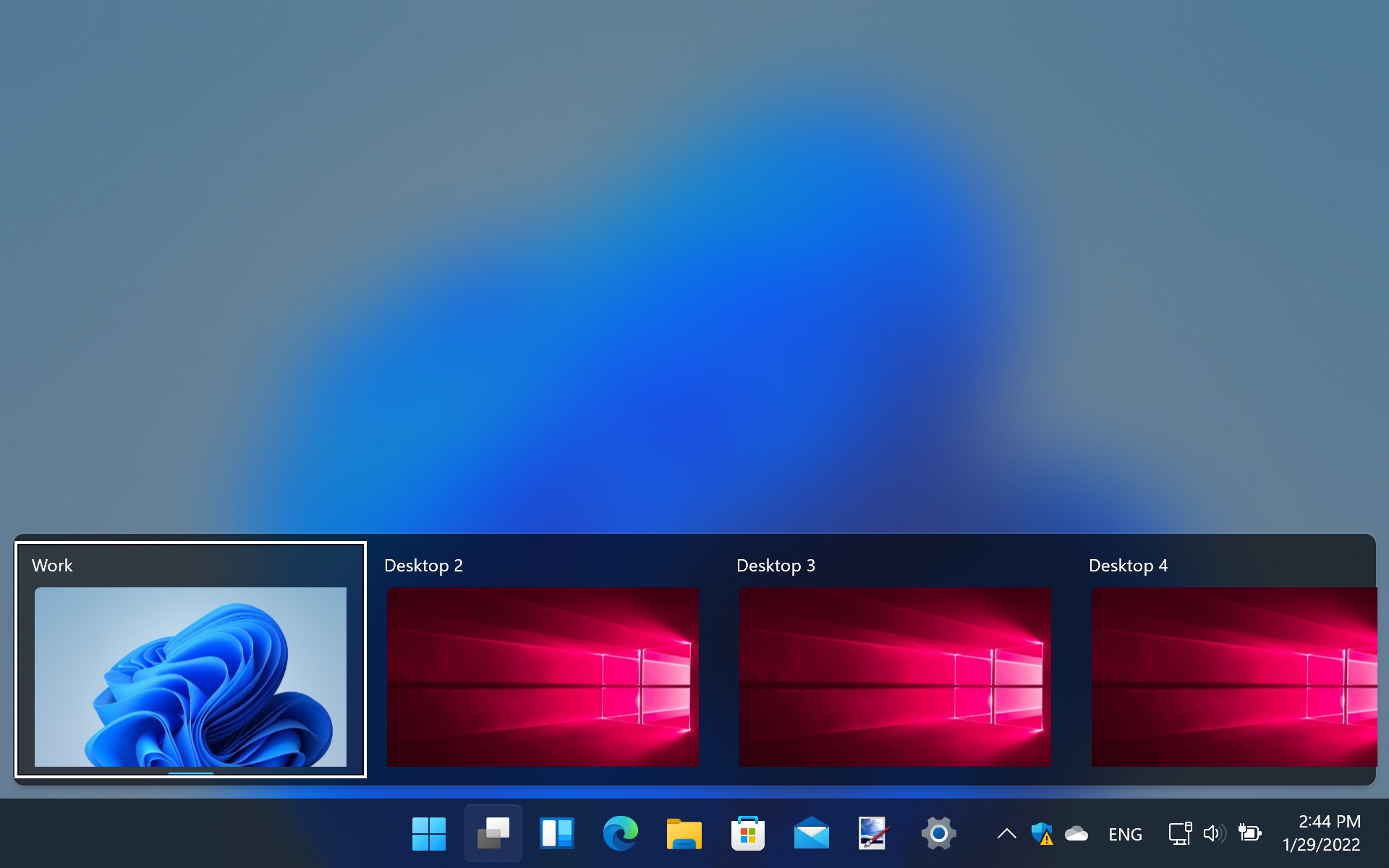
How to Upgrade and Activate Windows
January 29, 2026
Productivity Windows 11 Tips and Tricks You Should Know
Windows 11 tips, tricks, and hacks can dramatically improve performance, productivity, and customization if you know where to look. While Windows 11 looks polished out of the box, many powerful features and optimizations remain hidden. In this guide, you’ll discover practical tweaks that help you get more speed, better privacy, and a smoother everyday experience.
Using the right Windows 11 tricks, you can:
- Reduce boot time
- Improve system responsiveness
- Enhance multitasking
- Protect your privacy
- Customize Windows 11 to fit your workflow
1. Speed Up Windows 11 Performance
Disable Unnecessary Startup Apps
Too many startup programs slow down Windows 11.
Steps:
- Press Ctrl + Shift + Esc
- Open Startup Apps
- Disable apps you don’t need immediately
✔ Faster startup
✔ Less background load
Enable Storage Sense
Windows 11 can automatically remove junk files.
- Go to Settings → System → Storage
- Enable Storage Sense
This keeps your system clean without manual effort.
2. Productivity Tricks You Should Be Using
Snap Layouts for Multitasking
Hover over the maximize button to instantly organize windows.
Ideal for:
- Office work
- Content creation
- Multi-monitor setups
Use Virtual Desktops
Separate work, gaming, and personal apps.
Shortcut:
👉 Win + Tab → New Desktop
Each desktop stays organized independently.
Essential Keyboard Shortcuts
| Shortcut | Function |
|---|---|
| Win + D | Show desktop |
| Win + L | Lock PC |
| Win + Shift + S | Screenshot |
| Win + X | Power user menu |
3. Windows 11 Customization Hacks
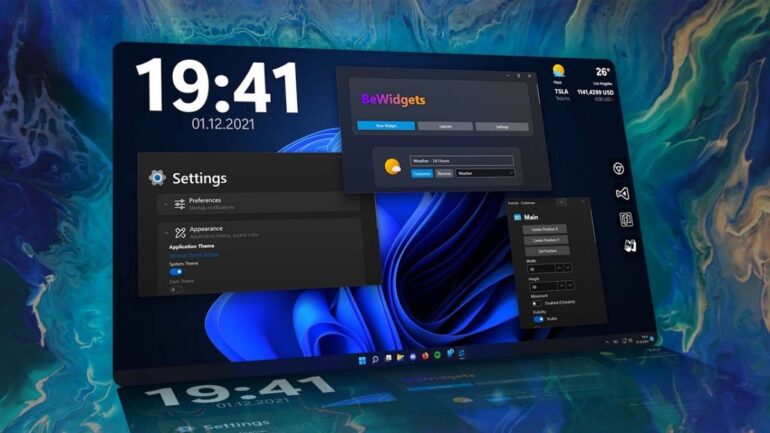
Move Taskbar Icons to the Left
Prefer the classic layout?
- Settings → Personalization → Taskbar
- Set Taskbar alignment to Left
Enable Dark Mode
Dark mode reduces eye strain and looks cleaner.
- Settings → Personalization → Colors
- Choose Dark
4. Improve Privacy & Security in Windows 11
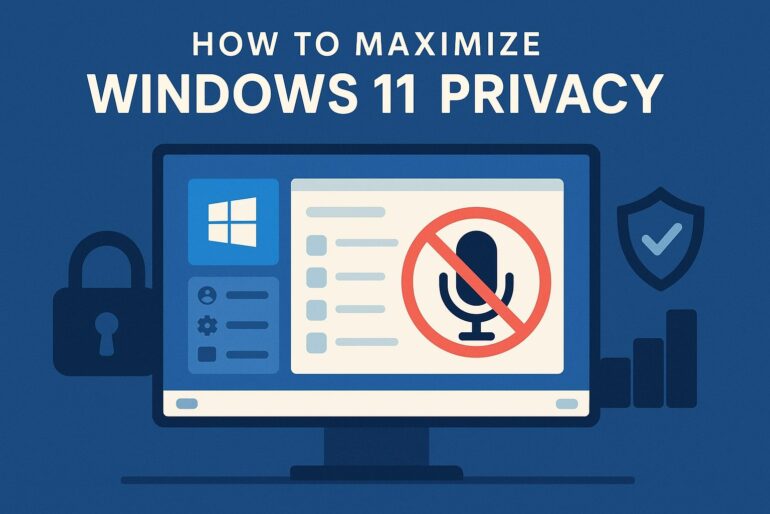
Limit App Permissions
Many apps request unnecessary access.
Review permissions for:
- Camera
- Microphone
- Location
- Background activity
Path: Settings → Privacy & Security
Reduce Diagnostic Data
For better privacy:
- Set diagnostics to Required only
- Disable feedback tracking where possible
5. Hidden Windows 11 Hacks Most Users Miss
Clipboard History
Copy multiple items at once.
👉 Press Win + V and enable Clipboard History.
Enable God Mode
Access all system tools from one folder.
How:
- Create a new folder
- Rename it to:
GodMode.{ED7BA470-8E54-465E-825C-99712043E01C}
Instant access to advanced controls.
6. Best Free Tools for Windows 11 Power Users
Enhance Windows 11 using trusted utilities for:
- System optimization
- Disk cleanup
- Performance monitoring
Avoid unknown software to keep your system secure.
Frequently Asked Questions (Featured Snippet Optimized)
What are the best Windows 11 tips and tricks?
The best Windows 11 tips include disabling startup apps, using Snap Layouts, enabling Clipboard History, managing permissions, and keeping Storage Sense enabled.
How can I make Windows 11 faster?
You can speed up Windows 11 by disabling unnecessary startup programs, limiting background apps, cleaning storage automatically, and keeping your system updated.
Are Windows 11 hacks safe?
Yes, built-in Windows 11 hacks are safe when done through official system settings. Avoid third-party tools from unknown sources.
Is Windows 11 better than Windows 10?
Windows 11 offers improved security, better multitasking, modern UI, and long-term update support, especially on newer hardware.
Does Windows 11 have hidden features?
Yes. Hidden features include God Mode, advanced Snap Layouts, Clipboard History, and powerful virtual desktop controls.
Final Thoughts
Windows 11 becomes significantly more powerful when properly optimized. By applying these Windows 11 tips, tricks, and hacks, you’ll enjoy a faster, cleaner, and more secure experience — without compromising stability.
📌 Pro tip: Update this post regularly with new Windows 11 updates to keep rankings fresh.